Disk Drill 6.3.2326 (macOS)
One download for Apple Silicon and Intel. Opens the install steps and mirrors.
- Version
- 6.3.2326
- Size
- 46 MB
- Earliest macOS
- 10.15.7 or later
- CPU type
- Universal
- Updated
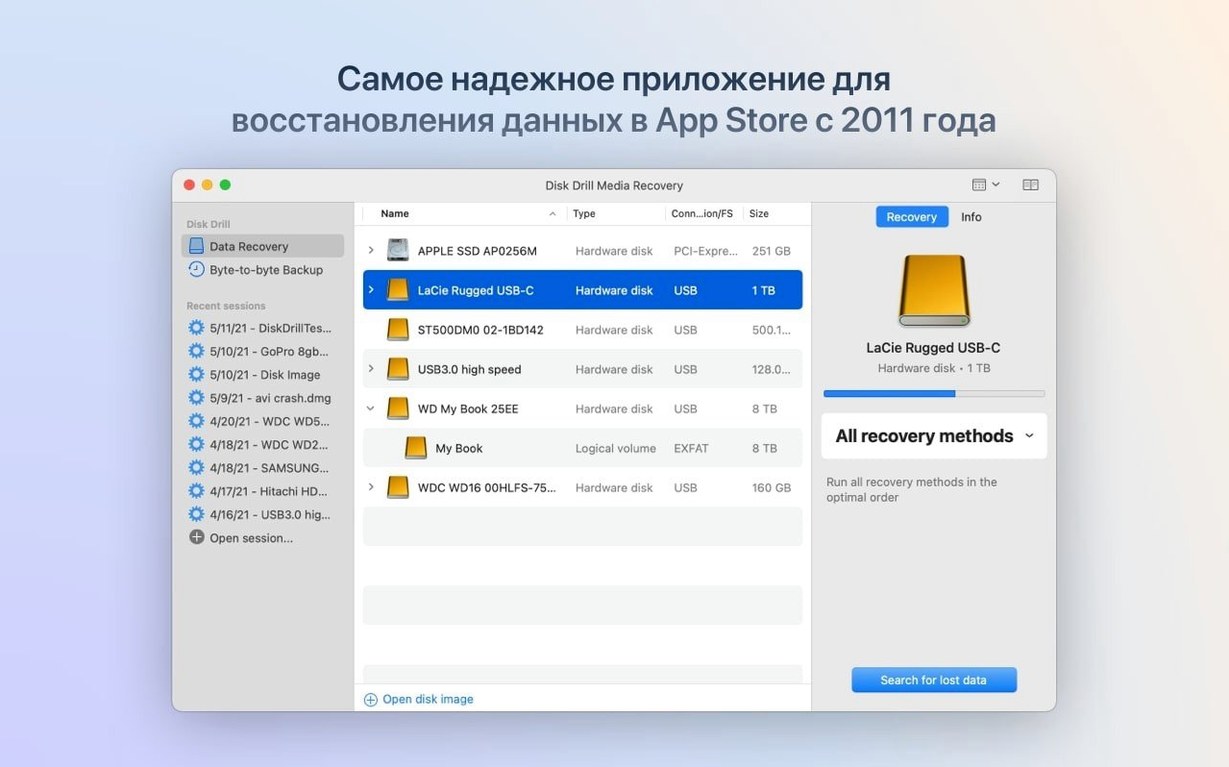
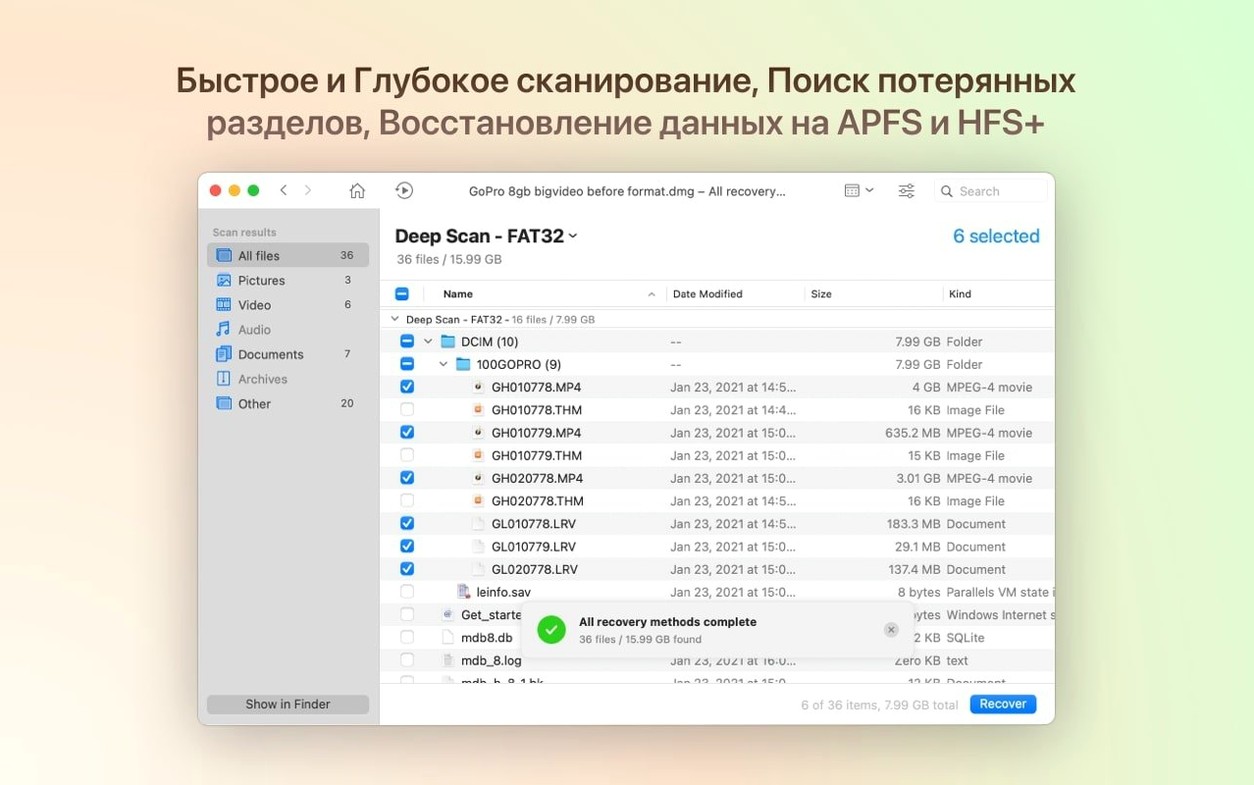
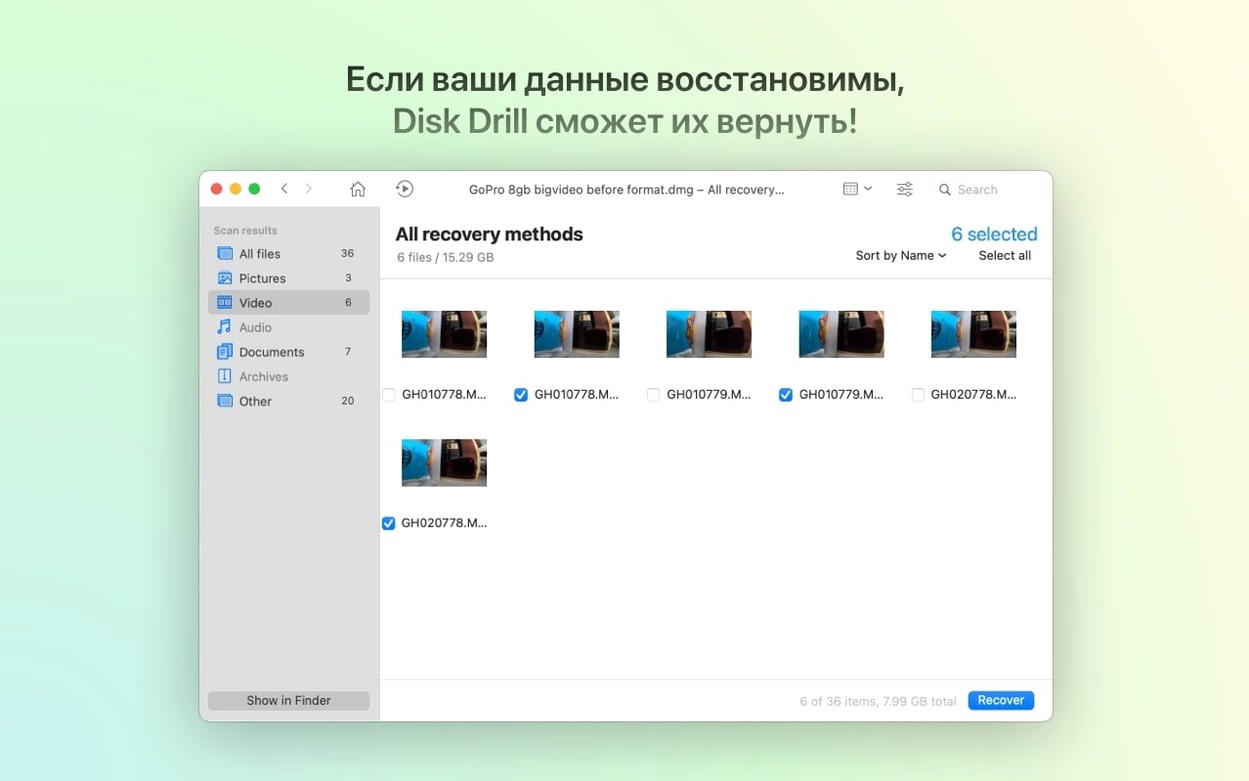
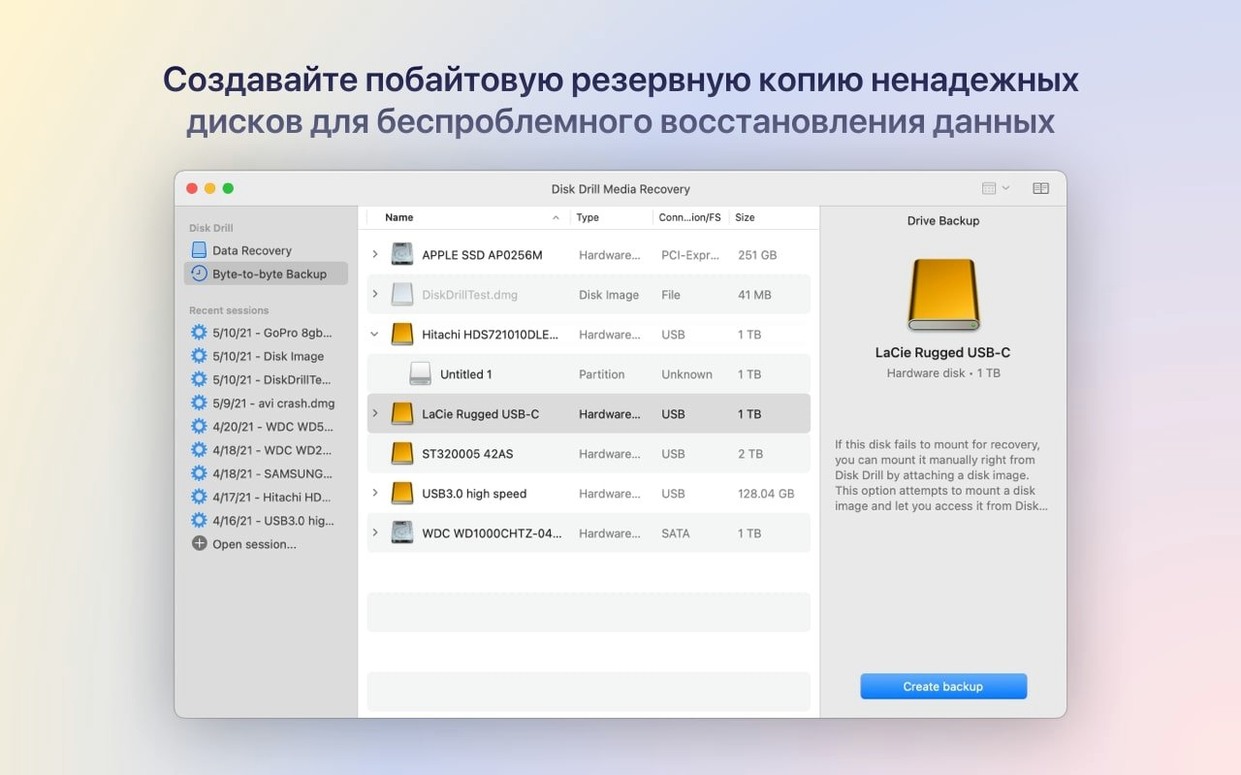
Disk Drill 6.3.2326 is a macOS data recovery app that scans internal and external drives for deleted or lost files. Newcomers should start with two things: a quick scan on the volume you care about, and a byte-to-byte DMG backup if the drive is failing. The DMG path got a fix in this build, so it is worth using early. Version 6.3.2326 also improves encrypted APFS handling and detects lost BitLocker partitions, which helps when a Windows disk shows up with missing data.
Run a quick scan first
Pick the drive, select Quick Scan, and let it run. Deleted files with intact directory entries usually surface here within minutes. If nothing useful appears, run a deep scan. Do not save recovered files back to the same volume. Use another disk.
Protect a failing drive before scanning
If the drive clicks, drops out, or reports SMART errors, create a byte-to-byte DMG image first. Then scan the image instead of the hardware. The fix for DMG scanning in this build makes that workflow more reliable. Disk Drill 6 also recovers call history, contacts and messages from iPhone and iPad backups, and supports Android devices over USB.
Recovery works even if installed after deletion
Does Disk Drill need to be on the Mac before a file is deleted? No. It scans the file system for traces left behind. If the storage blocks have not been overwritten by new data, recovery is possible. That also means you should stop using a drive the moment you realise something is missing. Every write operation reduces the chance of recovery.
Will it recover from a reformatted drive? Yes. A quick format wipes the directory, not the data. The deep scan rebuilds what it can from the raw blocks. A full format that writes zeros is a different story — those blocks are gone.
Does it work with APFS encrypted volumes? Version 6.3.2326 improved encrypted APFS handling. You will need the password to unlock the volume before scanning. Without it, the blocks are unreadable.
Can it pull data from a dead Mac? If the internal drive is still physically readable, remove it, connect it to a working Mac with a caddy or adapter, and run Disk Drill on that Mac. If the drive is soldered, boot into Target Disk Mode and scan from another machine.
Metadata vault versus signature scanning
The three names that come up most often alongside Disk Drill are EaseUS Data Recovery Wizard, R-Studio for Mac, and PhotoRec. They all scan drives for lost files, but they approach the job differently.
Disk Drill vs EaseUS Data Recovery Wizard
EaseUS offers a similar dual-scan setup — quick and deep — and previews files before recovery. The interface is more guided, which some people prefer. Disk Drill adds disk health monitoring, duplicate finding, and backup creation as extras. The byte-to-byte DMG workflow in Disk Drill is also more direct, letting you image a drive and scan the image without leaving the app.
Disk Drill vs PhotoRec
PhotoRec is free and command-line driven. It recovers a huge range of file signatures and runs on almost any platform. It has no preview, no filtered search, and no GUI. Disk Drill wraps that kind of deep carving in a browsable interface with file previews and sortable results. For a single JPEG or DOCX, PhotoRec works. For a cluttered drive where you need to pick out specific files, Disk Drill saves hours.
Disk Drill vs R-Studio for Mac
R-Studio targets technicians who need RAID reconstruction, hexadecimal editing, and forensic-level recovery. It is powerful and complex. Disk Drill does not match that depth, but it covers what most school IT staff and home users need: deleted files, formatted cards, and failing external drives. The learning curve is a fraction of R-Studio's.
Turn on Recovery Vault before you lose anything
Three things to do early, before you need a recovery:
- Enable Recovery Vault on the volumes you use most. It stores extra metadata for deleted files, making quick scans faster and more complete. It works in the background with negligible overhead.
- Learn the preview filter. After a deep scan, results can list hundreds of thousands of items. Filter by file type, size, or date immediately. The preview pane shows you the content without committing to a full recovery.
- Keep a large external drive handy for recovered data. Never recover files to the same volume they were lost from. It is the single most common mistake, and it destroys data that might have been salvageable.
A photographer's Saturday morning
A digital media teacher arrives on Monday with an SD card that reads as unformatted. She shot a student exhibition on Saturday, formatted the card in the camera by habit, then remembered she had not imported the first half of the morning's work. The card has been used for another thirty shots since the format.
She connects the card to her Mac, opens Disk Drill, and runs a deep scan with the file-type filter set to CR2 and JPEG. The scan takes twelve minutes for a 64 GB card. Results show several hundred images. She sorts by capture date, previews the Saturday morning batch, and recovers the ones she needs to a folder on the desktop. The thirty newer shots overwrote a handful of frames, but the bulk of the formatted work is intact. She exports the recovered files to an external drive, then takes the card back to the camera for a low-level format so it starts clean.
- Detects and recovers lost BitLocker partitions
- Adds support for .p8 and .pfx files
- Adds .m4a support in the ACR module
- Improves encrypted APFS partition handling
- Fixes byte-to-byte DMG scanning
- macOS 10.15.7 or later
- Apple Silicon or 64-bit Intel Mac
Staffroom comments 0
Sign in or create an account here to leave a comment.
Nobody has commented on this one yet.