macOS Mojave 10.14.6 (macOS)
Intel build. On Apple Silicon it runs through Rosetta 2. Opens the install steps and mirrors.
- Version
- 10.14.6
- Size
- 5.6 GB
- CPU type
- Intel
- Updated
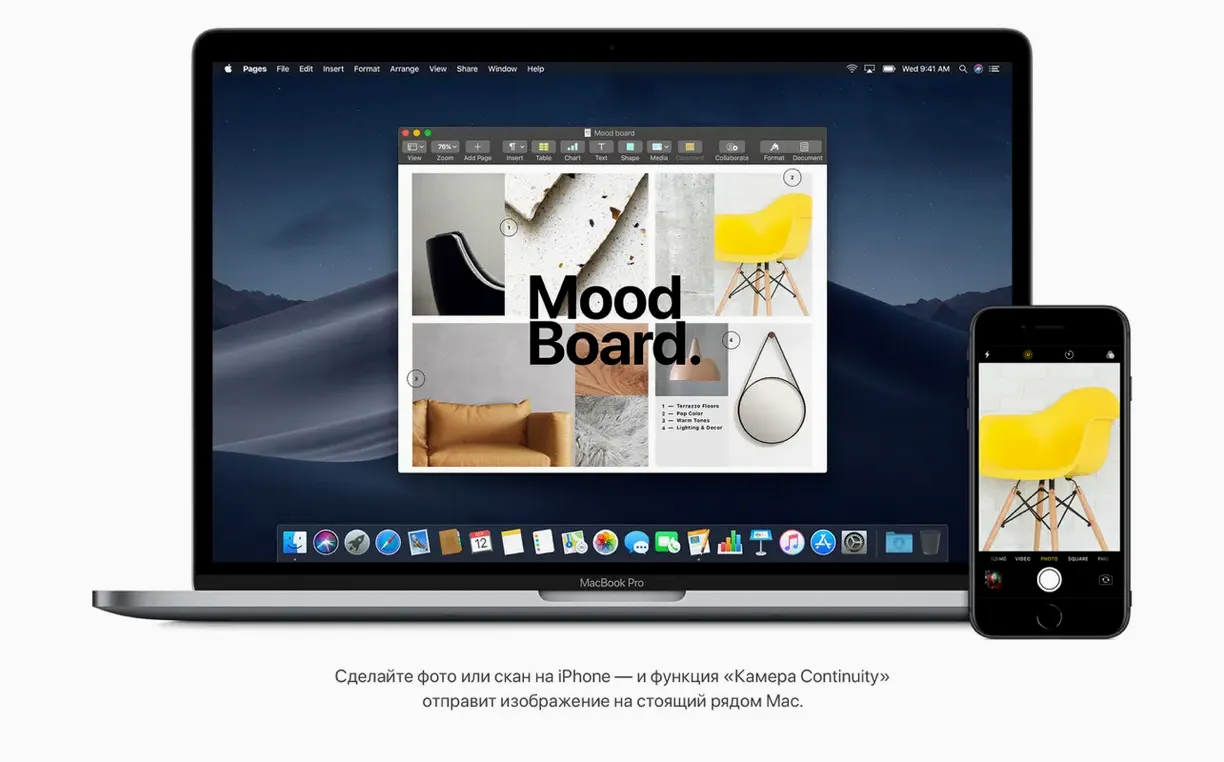
When a teacher asks for an older OS to keep a legacy app running, or when you are rebuilding a lab of 2015 iMacs, you reach for the Mojave installer. It is the last version that runs on a lot of pre-2013 hardware without the Metal-capable GPU dance, and it still feels modern enough for day-to-day classroom work.
Keep the desktop tidy
Stacks groups files on the desktop by type — PDFs, images, documents — so a cluttered screen becomes a set of neat piles. Click a stack to see what is inside.
Quick edits without extra software
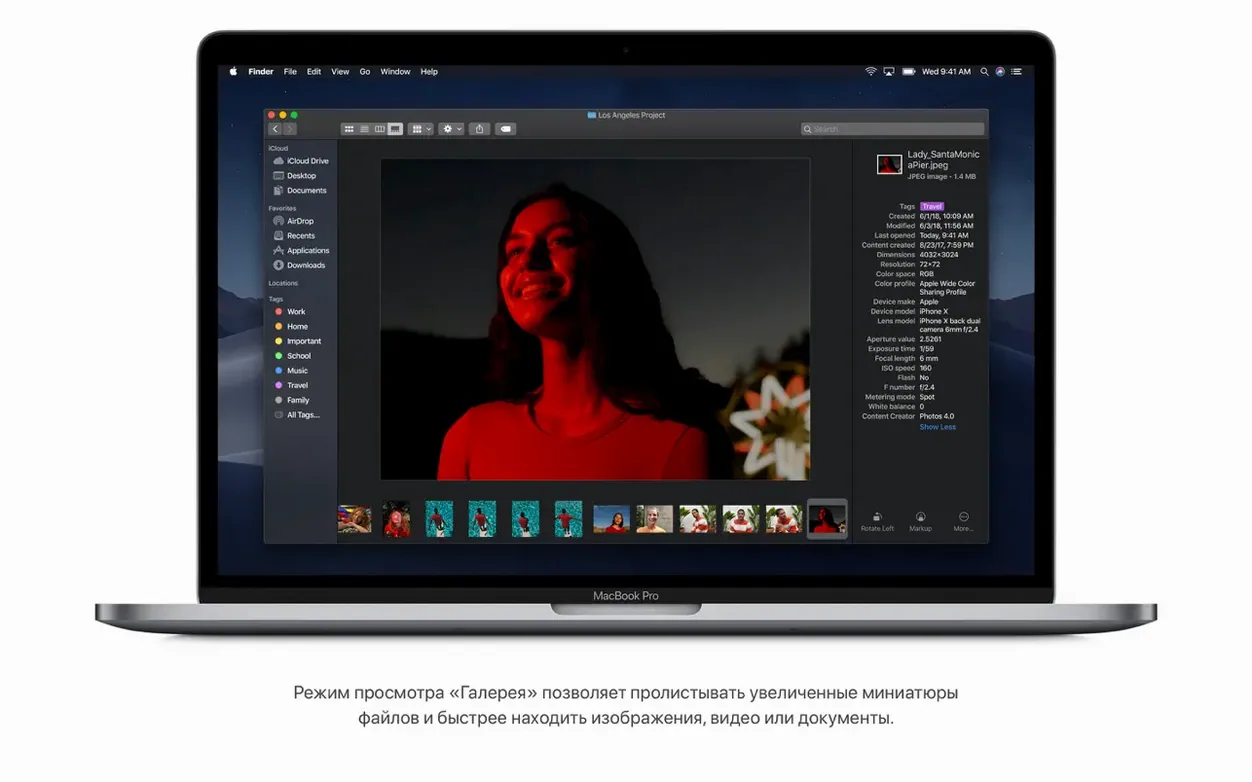
Finder lets you rotate an image or trim a video clip without opening another app. Right-click, use the toolbar, done. Saves time when you just need to crop a screen recording quick.
Privacy and utilities built in
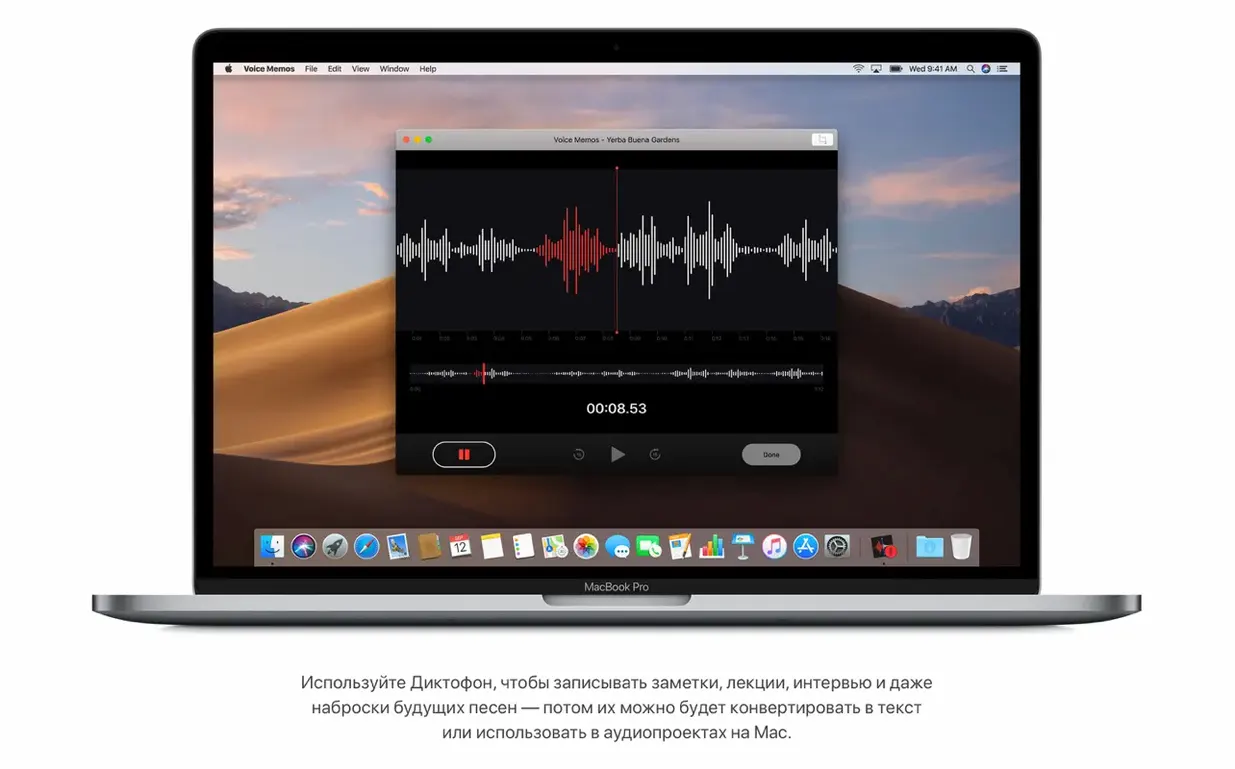
Safari has Intelligent Tracking Prevention turned on by default. The News and Voice Memos apps are there if you want them, but they do not get in the way if you do not.
Checking the wrong hardware list for the download
A few things catch people out when they install Mojave for the first time, especially if they are coming from a newer release.
- Checking the wrong hardware list for the download. Mojave needs a 64-bit Intel Mac. People grab the installer and then wonder why it will not boot on an old Core 2 Duo machine or a PowerPC-era Mac. Check the model year list before you start.
- Skipping the disk format check. Mojave installs to a GUID Partition Table (GPT) disk. If you are repurposing an old drive with an MBR layout, the installer halts. Wipe the drive and reformat it first.
- Expecting every app to work. Some 32-bit-only or PPC-era software will not run. Test your legacy apps on a spare partition before you roll out a lab refresh.
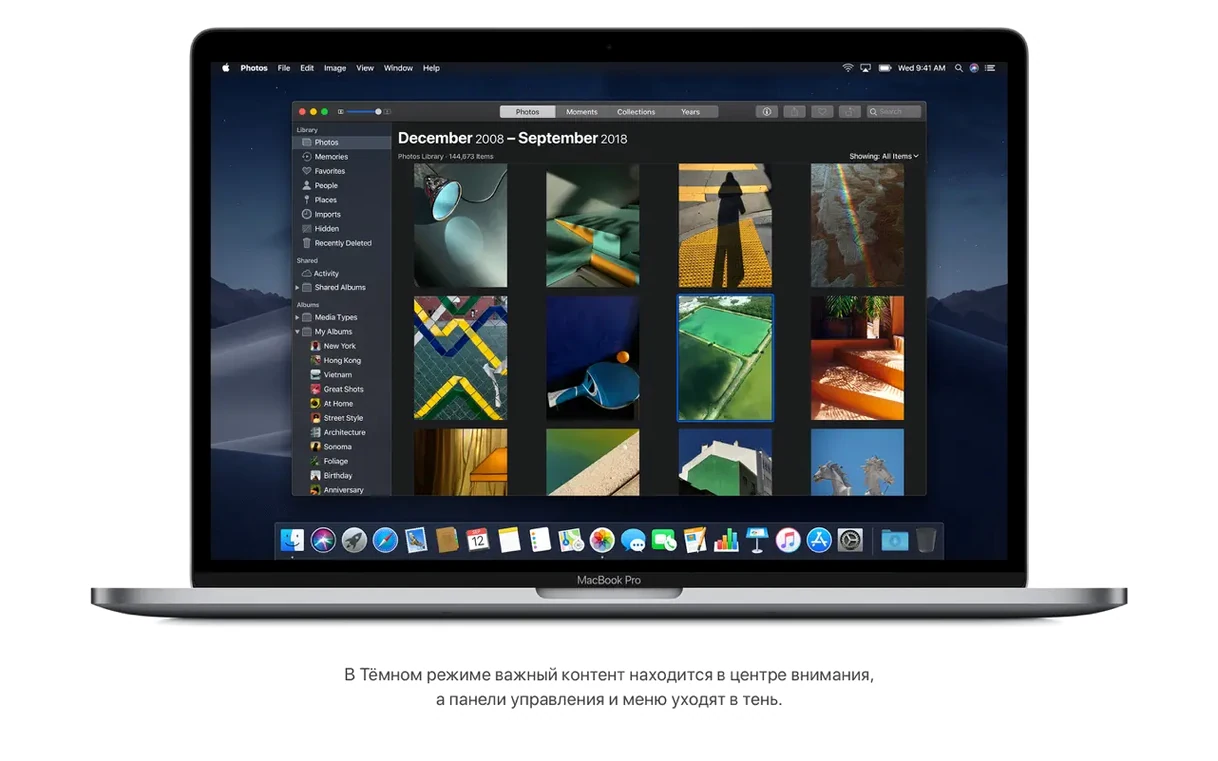
- Treating Dark Mode as a system-wide theme. Dark Mode in Mojave works with supported built-in apps, but third-party software may ignore it entirely. It is not the same as a full dark mode in later releases.
- Ignoring the 12.5 GB minimum. A full install with swap and user data chews through space quickly. Keep at least 20 GB free if you can.
A clean install workflow for a classroom Mac
This is the routine I run when a 2015 iMac comes in for a Mojave rebuild. It takes about an hour start to finish.
- Download the Mojave disk image (
macOS Mojave 10.14.6 (18G103)). Keep it on a USB 3 drive — the install is noticeably faster than from USB 2. - Boot the Mac from the installer. Hold the Option key, select the USB drive from the boot menu.
- Open Disk Utility from the installer menu. Select the internal drive, then Erase. Choose APFS as the format, GUID Partition Map. Let it finish.
- Quit Disk Utility, then choose Install macOS. Walk through the setup — language, keyboard, Apple ID (skip it if this is a shared machine), account creation.
- When the desktop appears, run Software Update to pull in any remaining patches. The final build is already 10.14.6, but it checks for updates to bundled apps like Safari and FaceTime.
- Turn on Stacks in Desktop preferences. Educators love being able to say "your desktop files are auto-sorted by type".
How Mojave compares with similar macOS builds
Mojave vs High Sierra (10.13)
High Sierra is the last release that runs on 2011-and-earlier Macs with a standard GPU. Mojave drops that support, so if you maintain a fleet of older iMacs, High Sierra stays the better choice. On compatible hardware, Mojave adds Dark Mode, Stacks, and the Gallery View in Finder — none of which are in High Sierra. High Sierra still gets a few security patches, but Mojave is more pleasant to use day to day.
Mojave vs Catalina (10.15)
Catalina is the first macOS that drops 32-bit app support entirely. If you depend on a legacy application that is still 32-bit, Mojave keeps working where Catalina will not. Catalina also moves to a read-only system partition, which can break backup workflows and some third-party utilities. Mojave is more forgiving for school environments where old apps and custom tools are part of the setup.
- Improves system stability and reliability.
- macOS 10.8 or later
- Intel processor
- 2 GB of memory
- 12.5 GB of available storage
- Compatible Mac (see FAQ for models)
Questions people ask
Which Macs does macOS Mojave support?
It supports iMac Late 2012 or newer, MacBook Early 2015 or newer, MacBook Air Mid 2012 or newer, MacBook Pro Mid 2012 or newer, Mac mini Late 2012 or newer, iMac Pro 2017, and Mac Pro Late 2013 or mid 2010/mid 2012 with recommended Metal-capable graphics cards.
Can I run Mojave on a Mac with 4 GB of RAM?
The minimum requirement is 2 GB of memory, so 4 GB works fine for basic tasks. 12.5 GB of available storage is also needed.
What languages does the interface support?
It includes English, German, French, Spanish, Italian, Russian, Arabic, Chinese (Simplified and Traditional), Japanese, Korean, and many others.
Staffroom comments 0
Sign in or create an account here to leave a comment.
Nobody has commented on this one yet.