Ghost Buster Pro 7.0.0 (macOS)
One download for Apple Silicon and Intel. Opens the install steps and mirrors.
- Version
- 7.0.0
- Size
- 11 MB
- Earliest macOS
- 15.6 or later
- CPU type
- Universal
- Updated
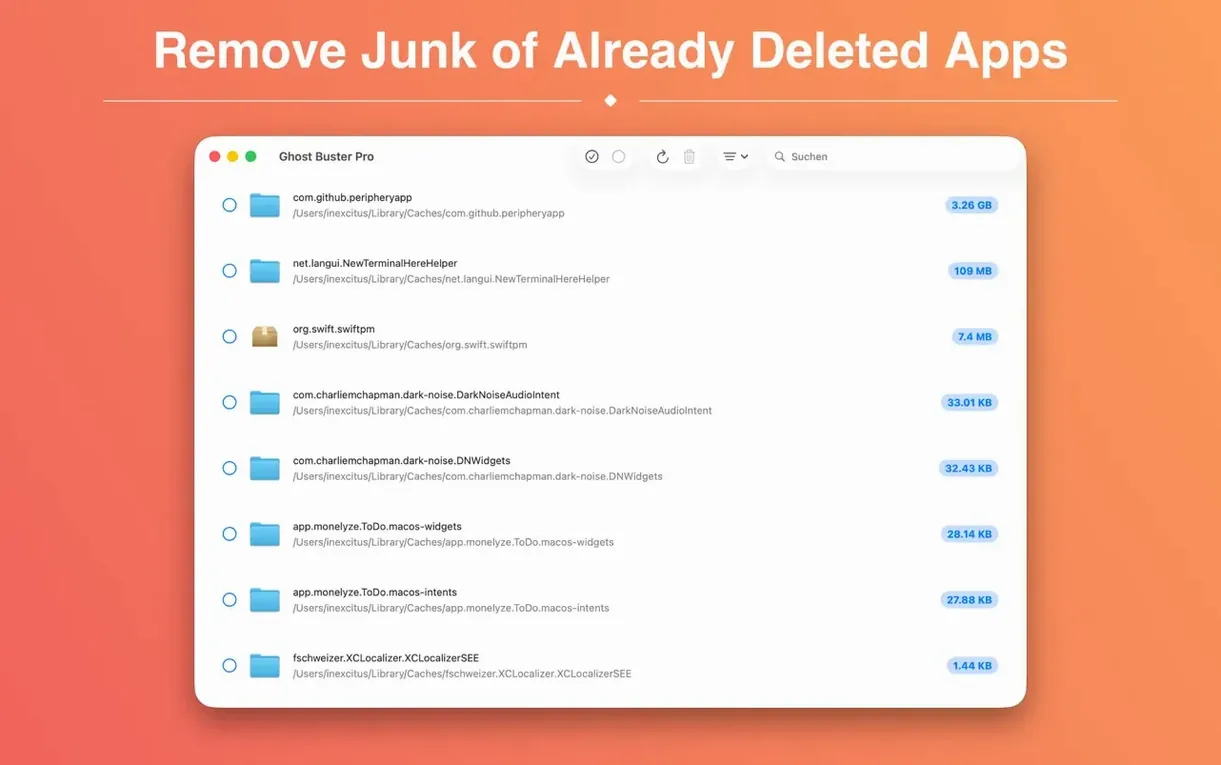
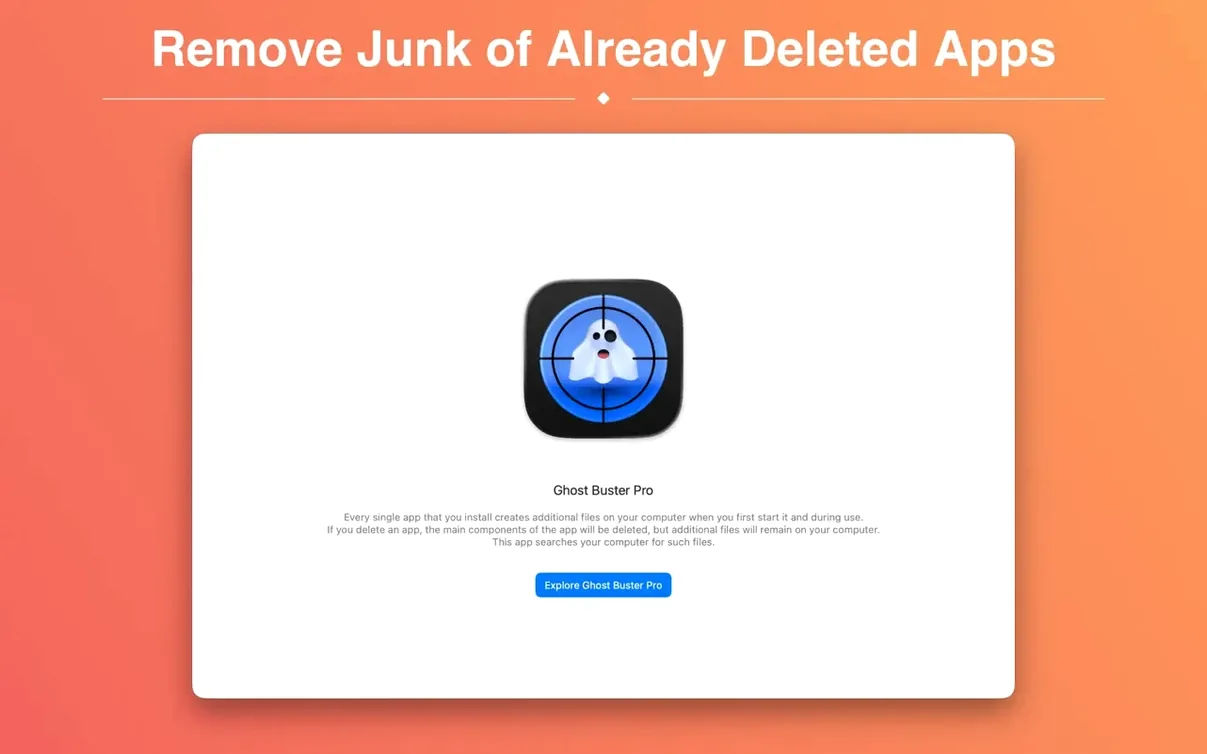
Ghost Buster Pro 6.2.0 runs on macOS 15.6 or later, supporting both Intel (x86-64) and Apple Silicon (ARM) Macs. It is a Mac utility that finds and removes leftover files from uninstalled applications — the support files, preferences and caches that standard uninstallers miss.
- Mount the downloaded disk image. Open Open Gatekeeper friendly.
- Press Enter in Terminal to bypass Gatekeeper.
- Drag Ghost Buster Pro to your Applications folder.
- Open the app to start cleaning.
The app can delete found files with one click, but never does so without your consent. Languages include English, German, Spanish, Italian, Russian, French, Polish, Simplified Chinese and Korean. Family Sharing is supported.
When you first open Ghost Buster Pro 6.2.0, the search starts straight away. You can let it run and see what turns up, but a few things are worth setting before you hit delete.
Exclude browser caches and Steam files first
Open the preferences and check the list of exclusions. The app will flag files from apps you might still want to keep — browser caches or Steam support files, for instance. Add those folders to the ignore list early to avoid having to re-download them later.
Turn on the setting that shows file sizes in the results list. Without it, you are working blind when deciding what is worth deleting.
The app supports several languages. Pick yours from the language menu at the start, not halfway through a scan. Switching mid-scan resets the results.
Ghost Buster Pro only sees uninstalled app leftovers
Does Ghost Buster Pro delete files I still need? No. It only flags leftover files from apps that are no longer installed. It cannot see your current applications. If an app is still on the Mac, its files stay off the scan list. You still get to review everything before deletion.
Will it speed up my Mac? Possibly, if there are gigabytes of orphaned caches or logs sitting on the drive. On a machine that has had many installs and uninstalls over a year or two, clearing those out can free noticeable space. On a clean system the gain is small.
Can I run it alongside other cleaners? Yes, but there is no need. Ghost Buster Pro searches specifically for orphan files. A general cleaner will do the same job less thoroughly.
Does it touch system files? No. The scan is limited to user-installed applications. System files are not in the database and are not checked.
Don't delete all files without scanning the list
The most common is deleting everything the scan finds without checking the list first. Support files and preferences are usually safe to remove, but if you reinstalled an app recently, its preferences may still be useful. Scan the file names and paths in the results before clicking delete.
Another mistake is running the scan immediately after uninstalling a large suite of apps. The system needs a reboot to clear locked files and caches. Restart the Mac first, then run Ghost Buster Pro — the results will be more complete.
Some new users forget to update the exclusion list after a software update. A major version update of your browser or creative suite can leave behind old preferences in new locations. Add the old folders to the ignore list or let the scan pick them up and delete them. Either way, decide before the scan runs, not after.
- New app icon for macOS 27.
- macOS 15.6 or later
- Intel (x86-64) or Apple Silicon (ARM)
Staffroom comments 0
Sign in or create an account here to leave a comment.
Nobody has commented on this one yet.