Mole 1.14.0 (macOS)
- Version
- 1.14.0
- Size
- 20 MB
- Earliest macOS
- 14 or later
- CPU type
- Universal
- Updated

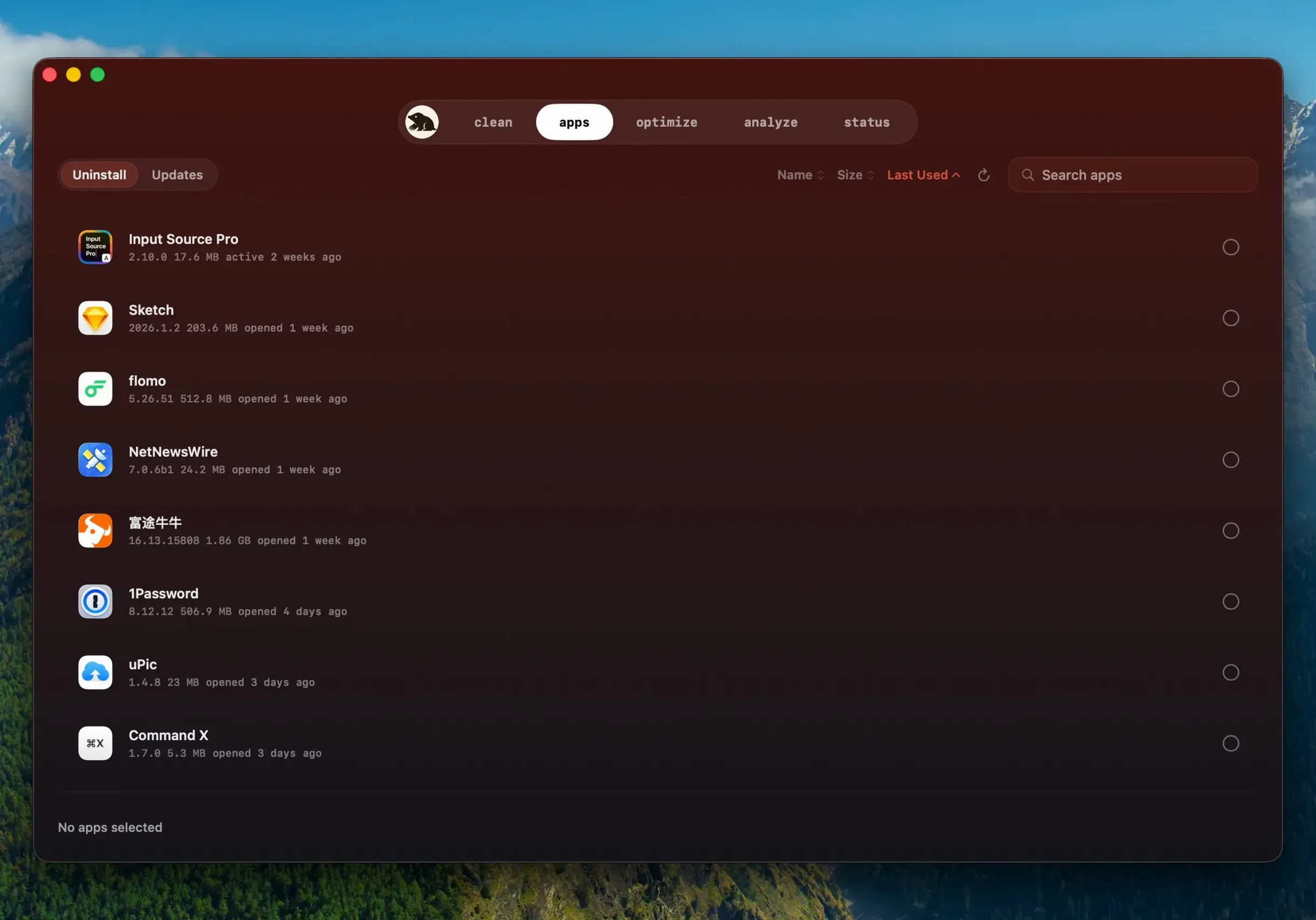
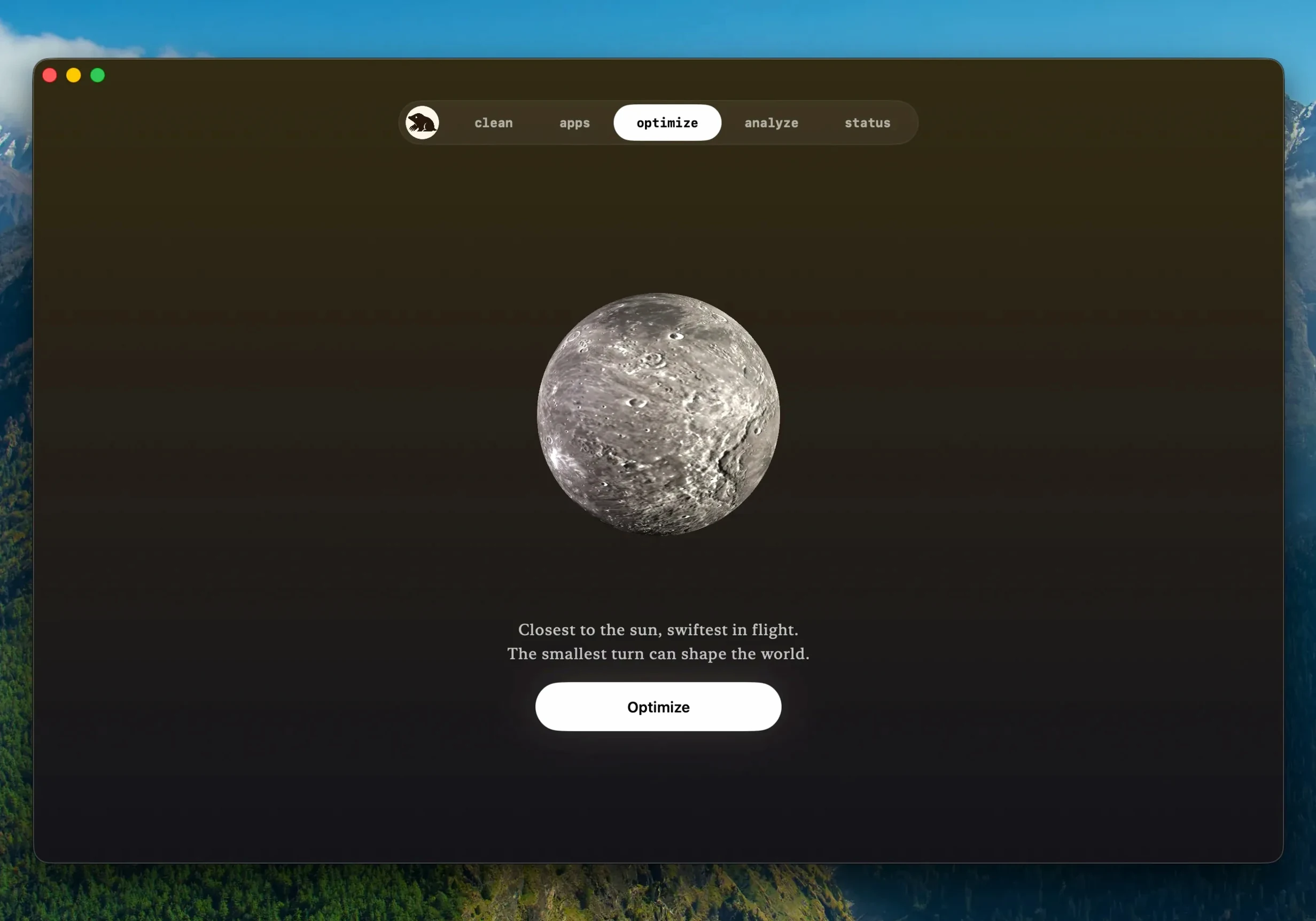
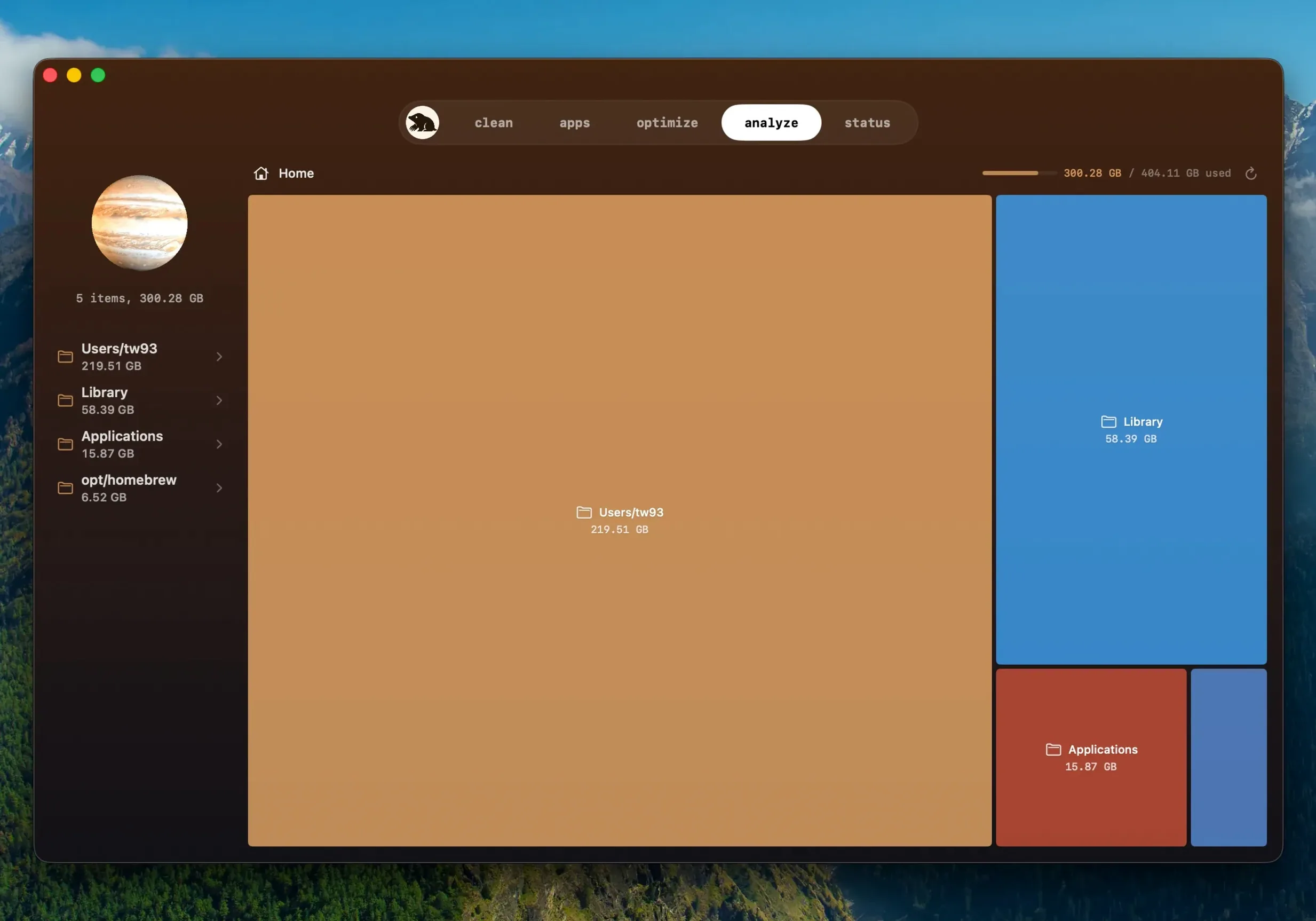
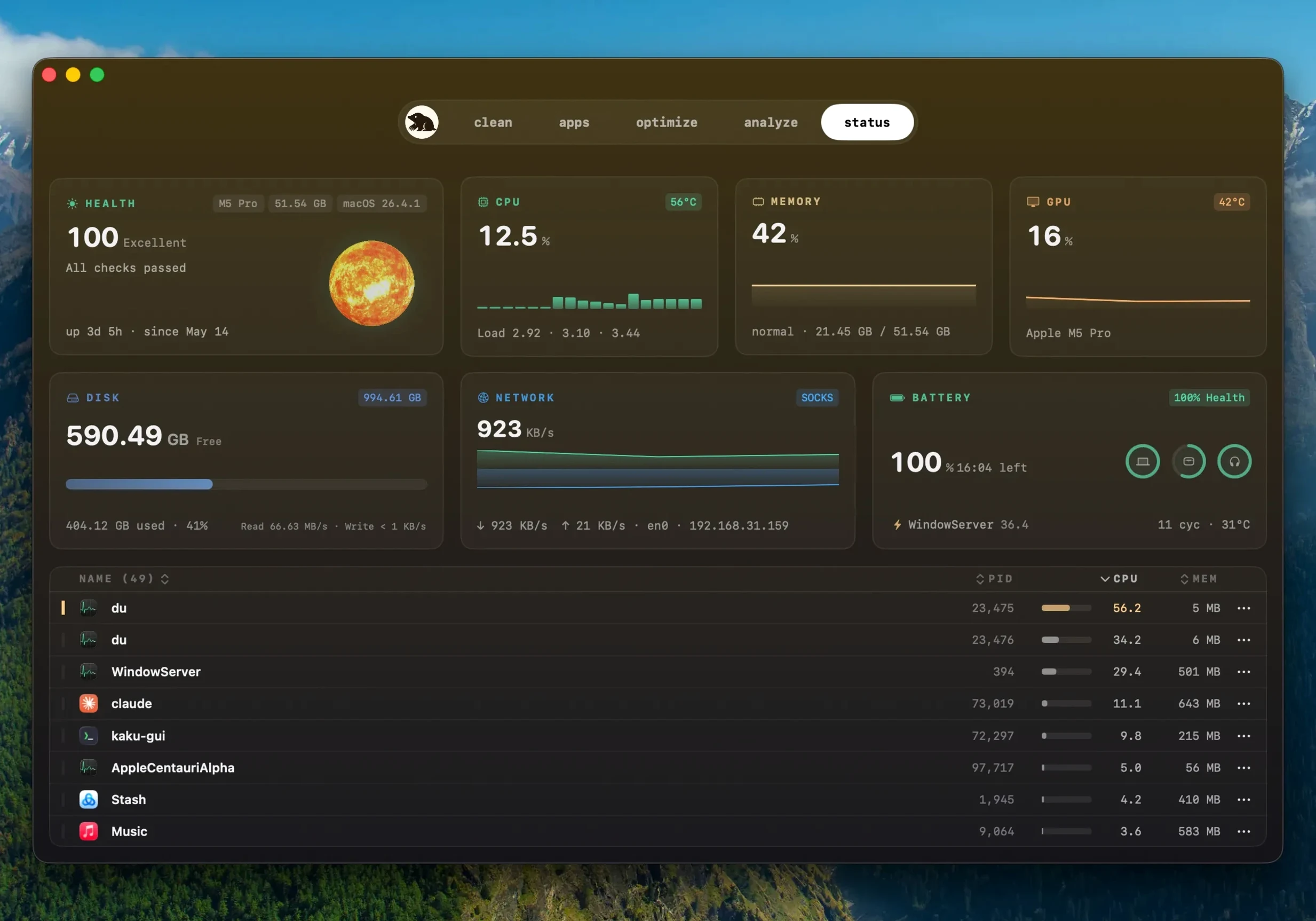
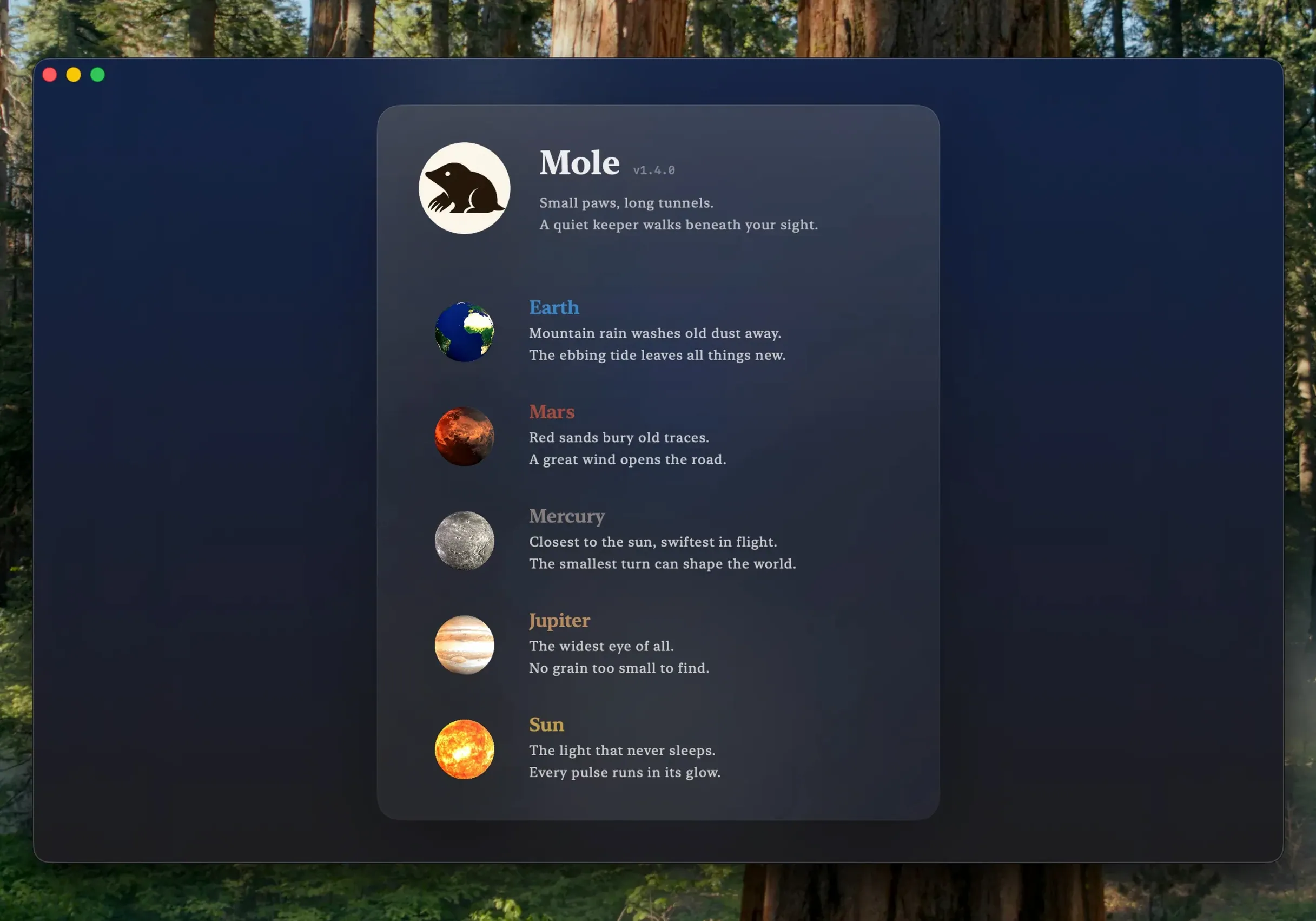
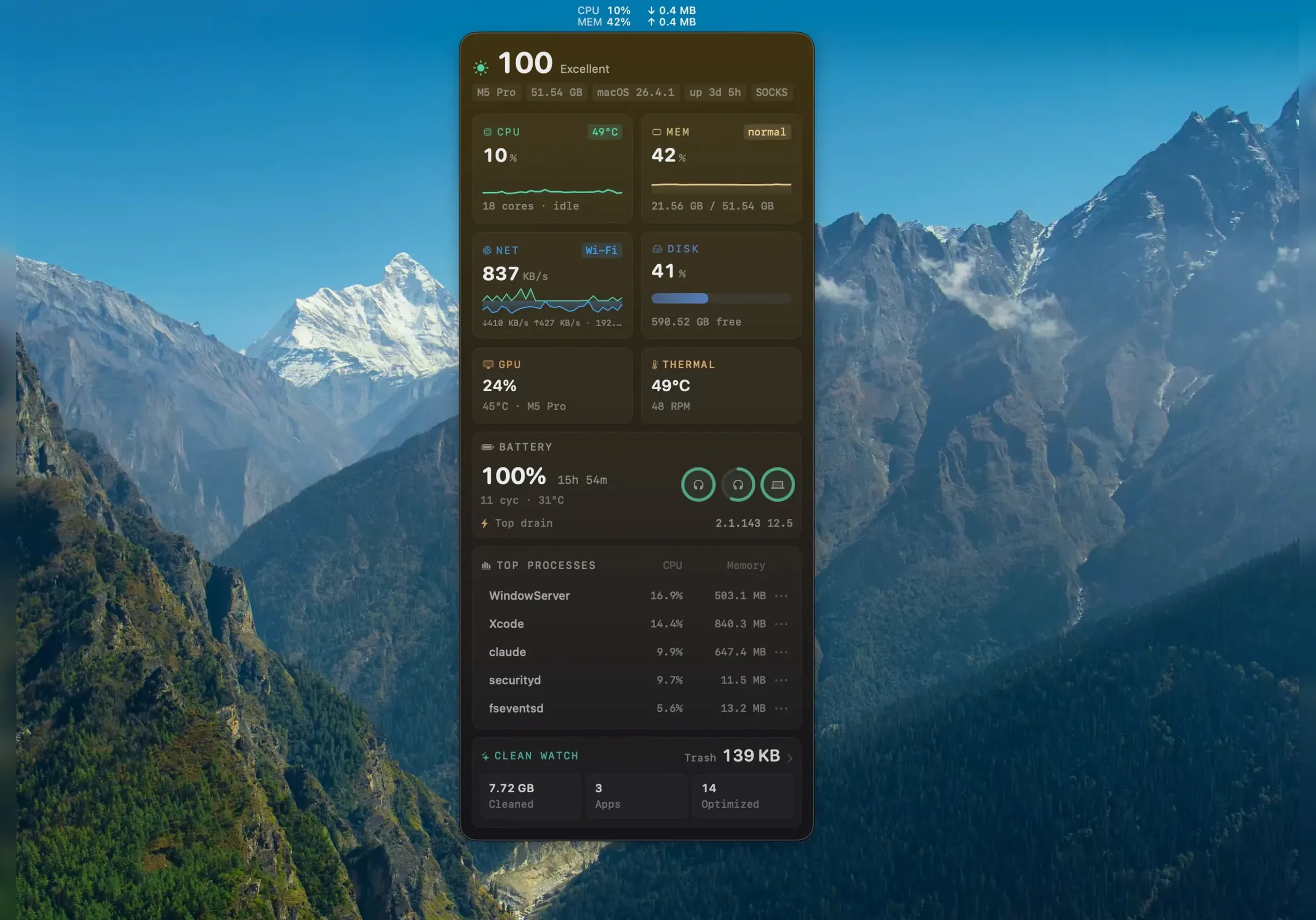
Think of it as BleachBit for your Mac, but with more caution built in. Mole scans your system for junk files — application leftovers, browsing history, Dock clutter — and shows you what it found before you remove anything. If something looks odd, Mole skips it rather than risk breaking something.
Scans cache, app data, and startup items
Mole deals with the usual suspects: leftover app data, cache files, startup items in the Dock. It supports a deep-scan mode that asks for full disk access for a more thorough pass. Nothing you scan is uploaded to the network — file contents and history stay local. The current version is 1.14.0, which can also detect a newer build of the same version and handles updates for apps you downloaded from websites.
For macos 14+ users who want numbers before cleanup
Anyone running macOS 14 or later who wants a straightforward cleanup tool that shows you the numbers before it acts. It is a separate download from the CLI project of the same name.
System status dashboard appears on launch
Start the app, and the system status overview is the first thing you see. CPU, memory, temperature — it is all there without you asking for it. If you are just curious, you can leave it there and get on with something else. When you do want to clean up, the scan tab is where you go. Hit the scan button and Mole walks through caches, logs, temporary files and application leftovers. A list appears with file sizes beside each item, so you can see what is taking up room before you touch anything.
Select what you want to clear. Confirm the action. Mole processes the removal locally. A quick check of the disk tree map afterwards shows the space freed up. If you have apps you installed from websites — not the store — the software update section in Mole can handle those. It will detect a newer build of the same version. Before it updates an app, it asks whether to quit the running copy. After the install finishes, it reopens the app for you. If a download fails partway, Mole reuses what it already fetched rather than starting over.
Grant full disk access for a thorough deep scan
The most frequent issue is the app asking for full disk access during a deep scan. That is expected. Grant it when prompted. Without it, the scan will still run, but it will be less thorough.
If Mole skips an item you expected to be flagged, it is because the scan deemed it suspicious. That is deliberate. You can always check the item manually elsewhere if you are certain it is safe.
The software update feature will not pick up apps you installed from stores or package managers. It looks for apps from websites only. If an update fails, check whether the app is currently running — Mole will ask to quit it first, but if you deny that, the update will not proceed.
Now handles web-app updates and flags newer builds
- Software updates for web-downloaded apps are now handled inside Mole itself.
- A newer build of the same version gets flagged, so you know you are on the latest patch.
- Mole now asks before quitting a running app and restarts it after the update installs.
- Finished downloads are reused if an update cannot complete on the first try.
These changes mean the app update routine is less disruptive. You do not need to remember what you had open — Mole puts it back for you.
- Apps downloaded from websites can update inside Mole.
- A newer build of the same version is detected.
- The app asks before quitting a running app and reopens it after installation.
- macOS 14 or later
- Intel or Apple Silicon
- Full disk access supported
Staffroom comments 0
Sign in or create an account here to leave a comment.
Nobody has commented on this one yet.