Alcove 1.7.9 (macOS)
One download for Apple Silicon and Intel. Opens the install steps and mirrors.
- Version
- 1.7.9
- Size
- 14 MB
- Earliest macOS
- 14 or later
- CPU type
- Universal
- Updated
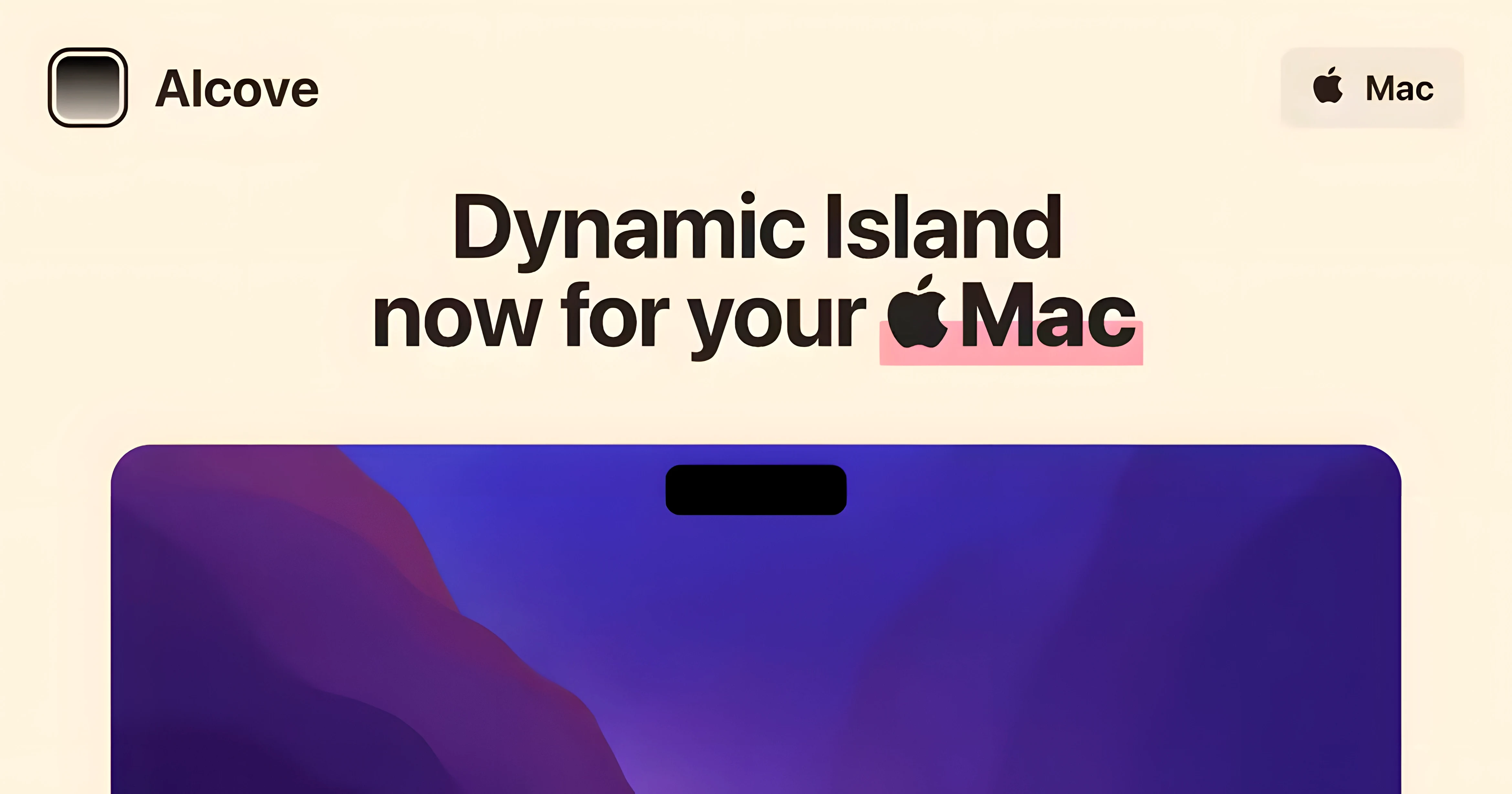
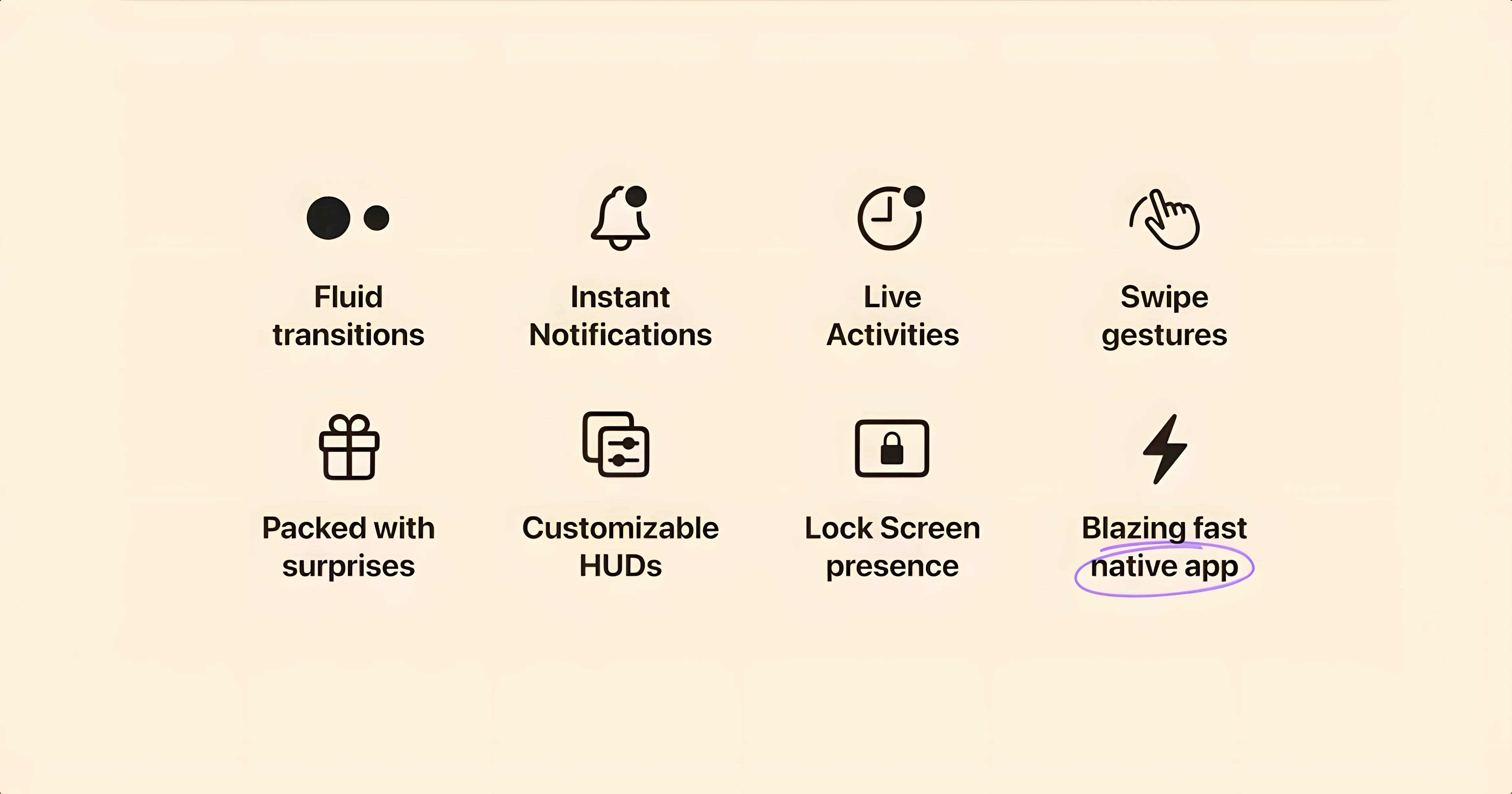
Alcove runs on any Mac with a notch — a MacBook Air or MacBook Pro running macOS 14 Sonoma or newer. It borrows the Dynamic Island idea from iPhone and places quick-hit controls around the camera cutout.
- Tap the notch area to trigger a custom volume slider that appears right next to it
- Swipe across the notch to scrub through a track without opening Music
- Brightness adjustments show a compact HUD instead of the stock blocky overlay
- Long-press the island to pull up a small Now Playing panel with track name and skip buttons
- Click the notch when a timer is running to see remaining time at a glance
One realistic task: you are listening to a podcast while cleaning up a desktop folder. A swipe across the notch skips back thirty seconds, no dock click needed. The stock HUDs never interrupt the screen centre. It is a small quality-of-life lift for anyone who finds the notch dead space.
Alcove does not replace your existing media apps or system controls — it sits on top of them. The custom volume and brightness HUDs override macOS’s own overlay but still talk to the same system sliders underneath. If you use pmset or third-party brightness tools, Alcove’s HUD reflects whatever the system reports; it is not a separate brightness engine.
Notifications arrive via macOS’s native notification centre. Alcove does not intercept or filter them — it simply repositions their appearance so they emerge from the notch capsule rather than the top-right corner. This means any app that sends a standard macOS notification (Slack, Mail, calendar alerts) will show up in the island without extra configuration.
Media playback detection depends on apps that register with the macOS media transport protocol. Apple Music, Spotify, VLC and most modern browsers expose playback state through this system. Apps that use their own notification-only method (some older podcast clients, for example) may not appear in the Now Playing panel. If a swipe across the notch does nothing, check the app’s media control support — it might need an update.
Alcove must be in /Applications, not a subfolder
- Alcove does not appear after drag-and-drop install — the app must be in
/Applications, not inside a subfolder. If you run it from the disk image or a nested folder, macOS will block it after a restart. Drag it directly to the Applications shortcut in the installer window. - Volume HUD shows but brightness HUD does not — this happens when Alcove is denied accessibility permissions. Head to System Preferences > Accessibility and grant Alcove permission to control the display. The first time you adjust brightness it will prompt for this.
- Swipes are hit-and-miss on some trackpads — the gesture area is the horizontal strip of the notch zone. If your trackpad Precision is set high or you use a mouse, the swipe zone feels narrow. You can adjust sensitivity in Alcove’s preferences (the gear icon in the island).
- Notch area feels unresponsive after sleep — a known macOS quirk with persistent overlay apps. Quit Alcove from the menu bar and relaunch it. The developer recommends disabling automatic updates to avoid version mismatches after sleep.
- Notifications stack instead of appearing one at a time — Alcove respects the macOS notification grouping set in System Preferences. If you have “Do Not Disturb” active, or if Notification Centre is set to bundle, the island shows one capsule with a count badge.
Alcove may overlap other notch-based apps
Does Alcove interfere with other notch-based apps? If you run something else that draws over the notch area (like a camera indicator or an always-on-top clock), the two may overlap. Alcove uses a system-level overlay, not a window — so it takes priority. You can pause Alcove from the menu bar to let other notch tools show.
Can I use it on an external monitor? Yes, but the notch area only exists on MacBooks with a physical camera notch. On an iMac or a Mac mini connected to a standard display, Alcove creates a virtual notch at the top centre of the screen. It works the same way, just without the cutout.
It polls the system for brightness, volume and media playback state, so there is a minimal CPU load — similar to keeping a small widget running. On Apple Silicon Macs the power draw is negligible.
Do I need to keep the disk image after installation? No. Once you have dragged the app to /Applications and launched it, you can eject and delete the disk image. Keep the app file itself in /Applications if you want it to persist across updates.
No “what's new” for 1.7.9. The release line gave nothing I could check, and I will not stretch it into a changelog.
- macOS 14 or later
- Apple Silicon or Intel Mac with a notch
- English interface
Staffroom comments 0
Sign in or create an account here to leave a comment.
Nobody has commented on this one yet.