
Bloom 1.5.46 (macOS)
One download for Apple Silicon and Intel. Opens the install steps and mirrors.
- Version
- 1.5.46
- Size
- 19 MB
- Earliest macOS
- 14 or later
- CPU type
- Universal
- Updated
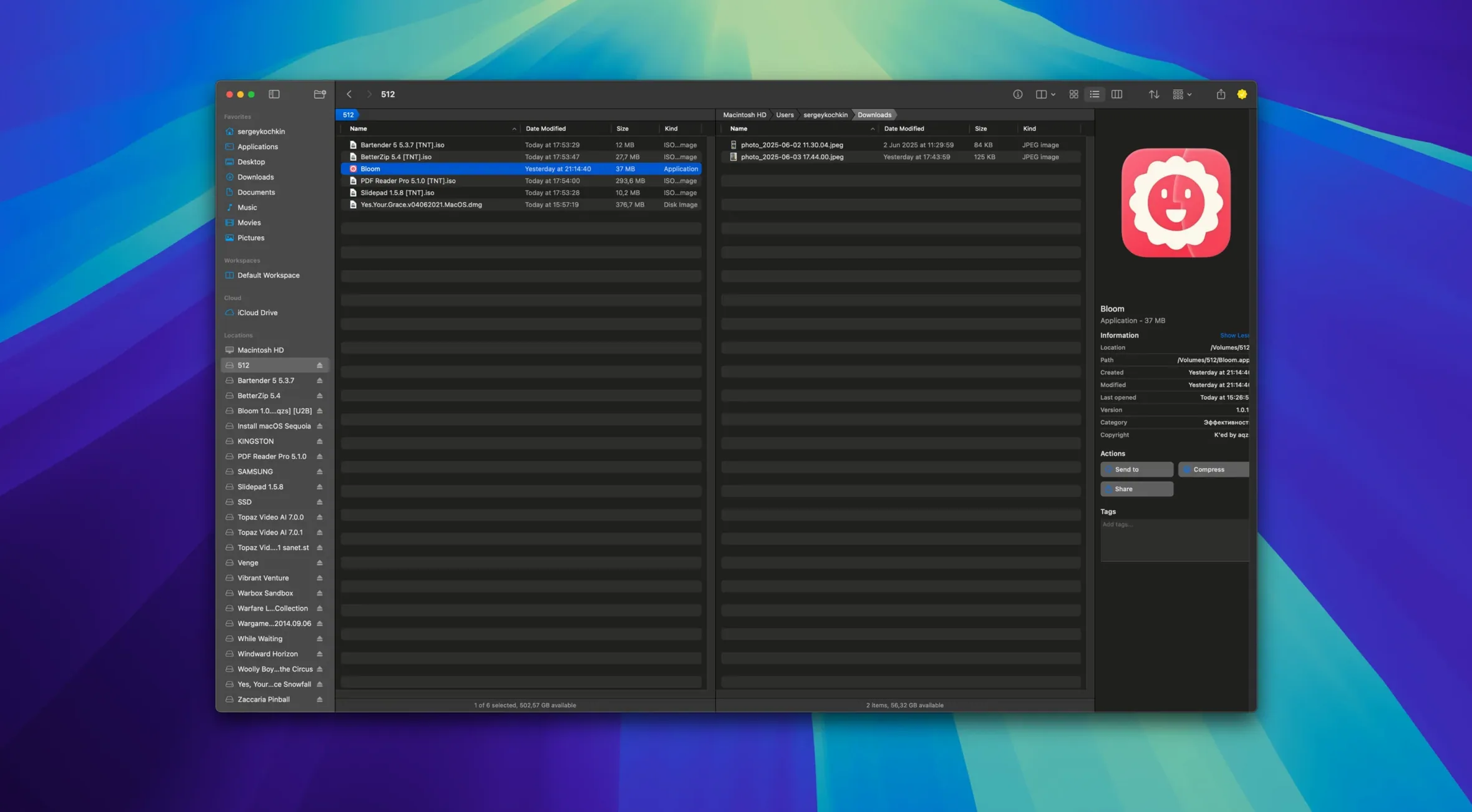
School IT technicians and anyone who wrangles large folder structures tend to look at Bloom sooner or later. It is pitched as a Finder replacement, and the feature list suggests it was built for people who want more control without extra clutter.
Previews under 10 MB and one-window grouping
- Quick text, image, and PDF previews, as long as the file stays under 10 MB.
- Grouping files by type or date without opening multiple windows.
- Pinning a Portal window above other apps or docking it to the screen edge.
- Jumping straight to a system location with ⌘⇧⏎.
- Starting a search inside the current folder with ⌘F rather than the whole disk.
- Scheduling file operations so copies or moves run later.
Only on macOS 14+, English interface, needs setup time
- It runs on macOS 14 and up, both Intel and Apple Silicon Macs.
- The interface is English only, with no localisation packs.
- Workspace layout is customisable, but you will spend a few minutes setting it up.
- Large file previews cap at 10 MB, so 4K video or big PSDs still need another app.
Some settings help straight away. Open the workspace customisation panel early — you can hide panels you never use and set column widths once. Automatic column resizing is on by default, but you may want to lock a few columns if you work with long filenames or dates. The Portal mode is worth testing before you decide on a layout: it strips the sidebar and preview pane, leaving only the file list in a compact window you can pin above windows or dock at the screen edge. That alone makes Bloom feel different to Finder.
Deep folder searches scoped by ⌘F, iCloud users
- Anyone managing school or office Macs where folder structures grow deep and search needs to stay inside one folder at a time. ⌘F scopes the search to the current directory, no recursive guessing.
- Users who rely on iCloud Drive and want tag management alongside it. Bloom integrates with iCloud Drive and lets you assign and filter by tags, which Finder still handles awkwardly.
- People who rename batches of files often. The advanced renaming with regular expressions is the kind of thing you do not notice until you have ten files to rename in a pattern.
- Anyone who needs to preview archive contents before deciding to extract. Double-click a zip in Bloom and it shows the contents without unpacking.
⌘R refreshes mid-task, every action is undoable
- ⌘R refreshes search results without restarting the search. Useful when new files land in a folder mid-task.
- Each operation is recorded for undo. That covers moves, renames, deletes — nothing is final until you clear the log.
- Launch Terminal straight from the folder you are viewing. Saves digging through the directory tree in a separate terminal window.
- Insert images from the internet without downloading them to a temp folder first. The tool handles the fetch.
- Create different file types from inside Bloom — useful when you need a blank text file or a new folder without leaving the app.
Disk usage and scheduling
The treemap view for folder scanning gives a visual breakdown of space used. It is not a full disk analyser, but for a quick look at what is filling a drive it works. The task scheduler lets you queue file operations to run later, which helps when you want to move or copy large folders overnight.
No “what's new” for 1.5.46. The release line gave nothing I could check, and I will not stretch it into a changelog.
- macOS 14 or later
- Intel or Apple Silicon Mac
Questions people ask
Can Bloom create new file types from scratch?
Yes, it includes a basic set of templates for creating different file types directly inside the workspace.
Staffroom comments 0
Sign in or create an account here to leave a comment.
Nobody has commented on this one yet.