
AnyTrans for iOS 8.9.14 (macOS)
Intel build. On Apple Silicon it runs through Rosetta 2. Opens the install steps and mirrors.
- Version
- 8.9.14
- Size
- 398 MB
- Earliest macOS
- 10.13 or later
- CPU type
- Intel
- Updated
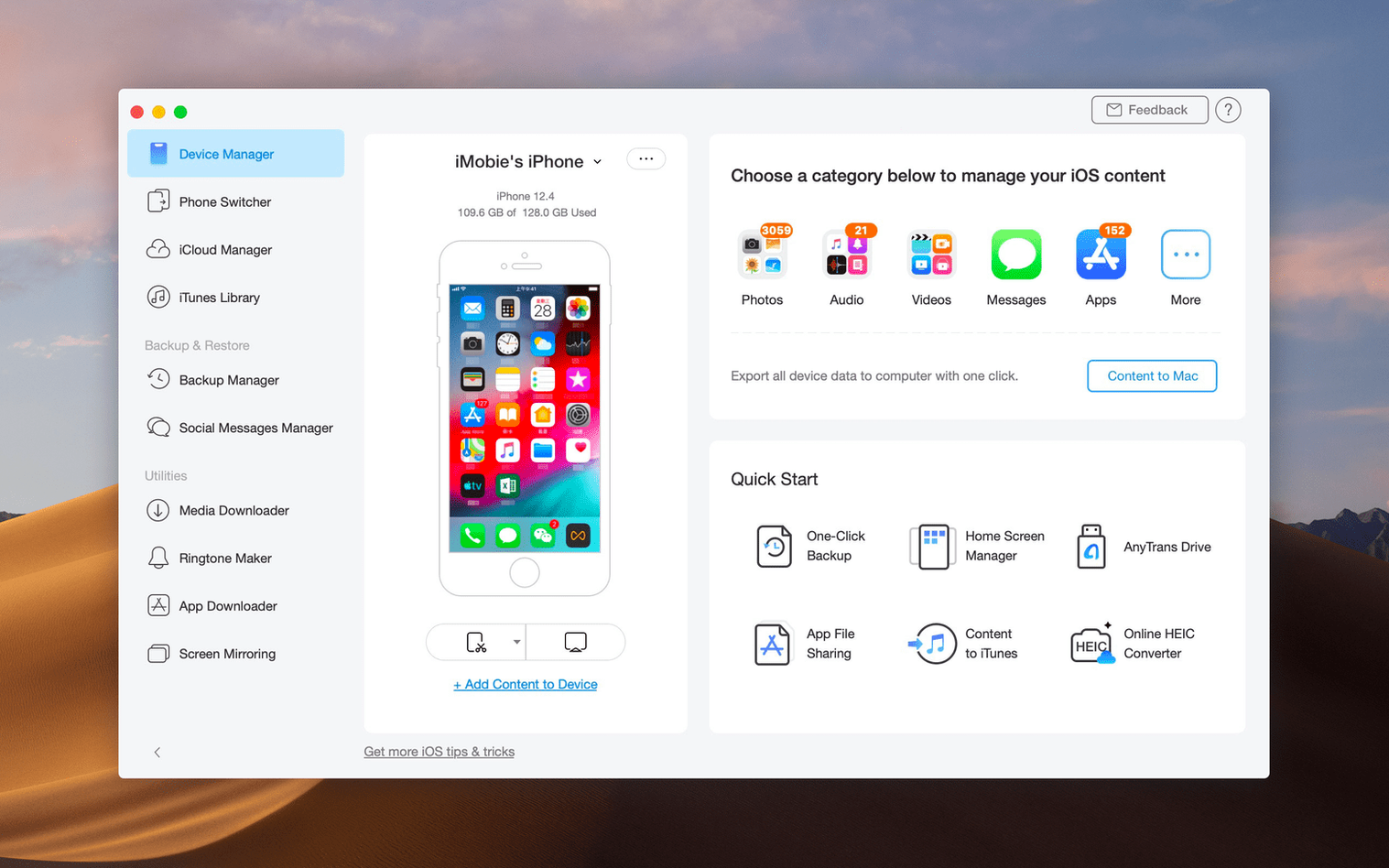
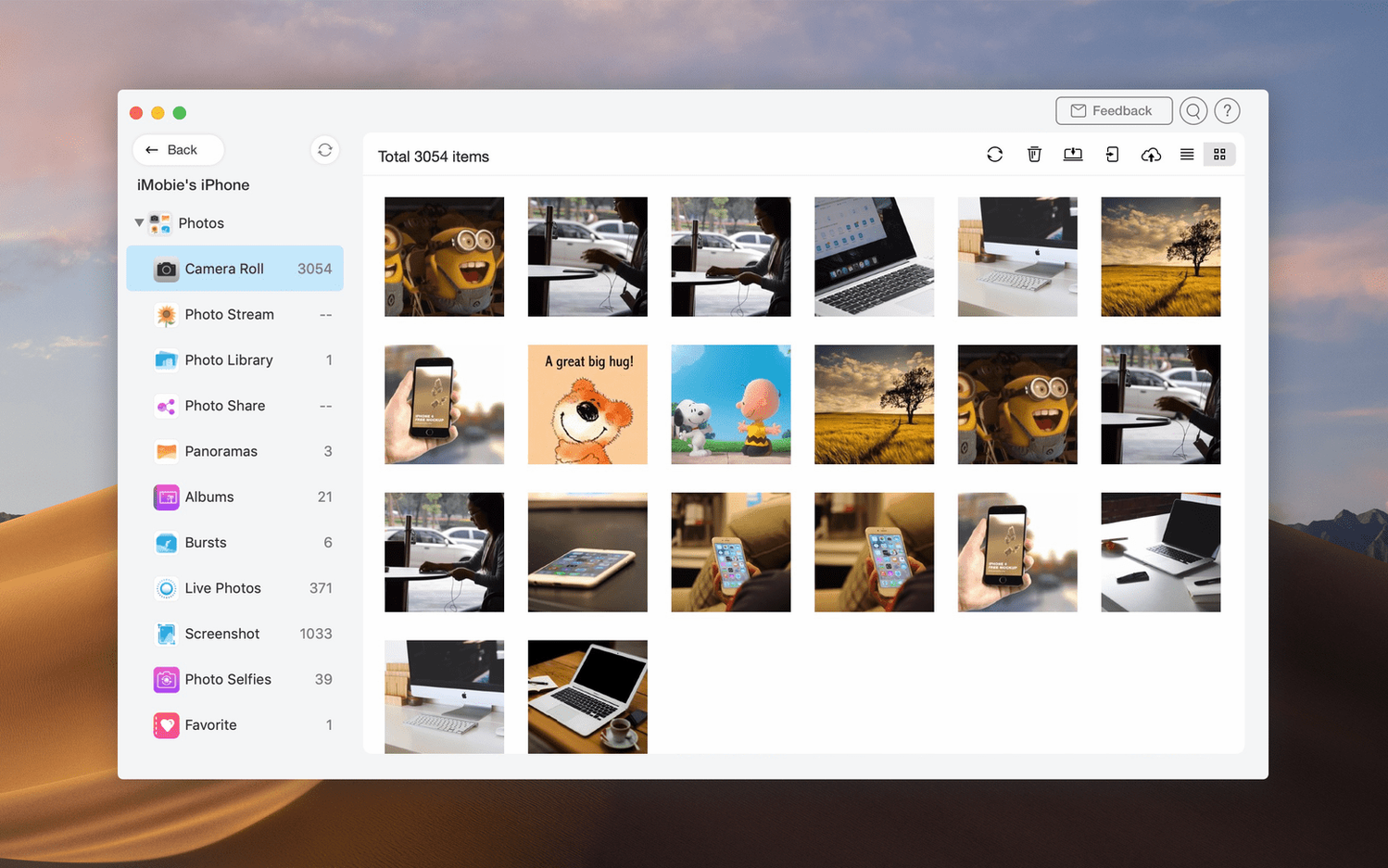
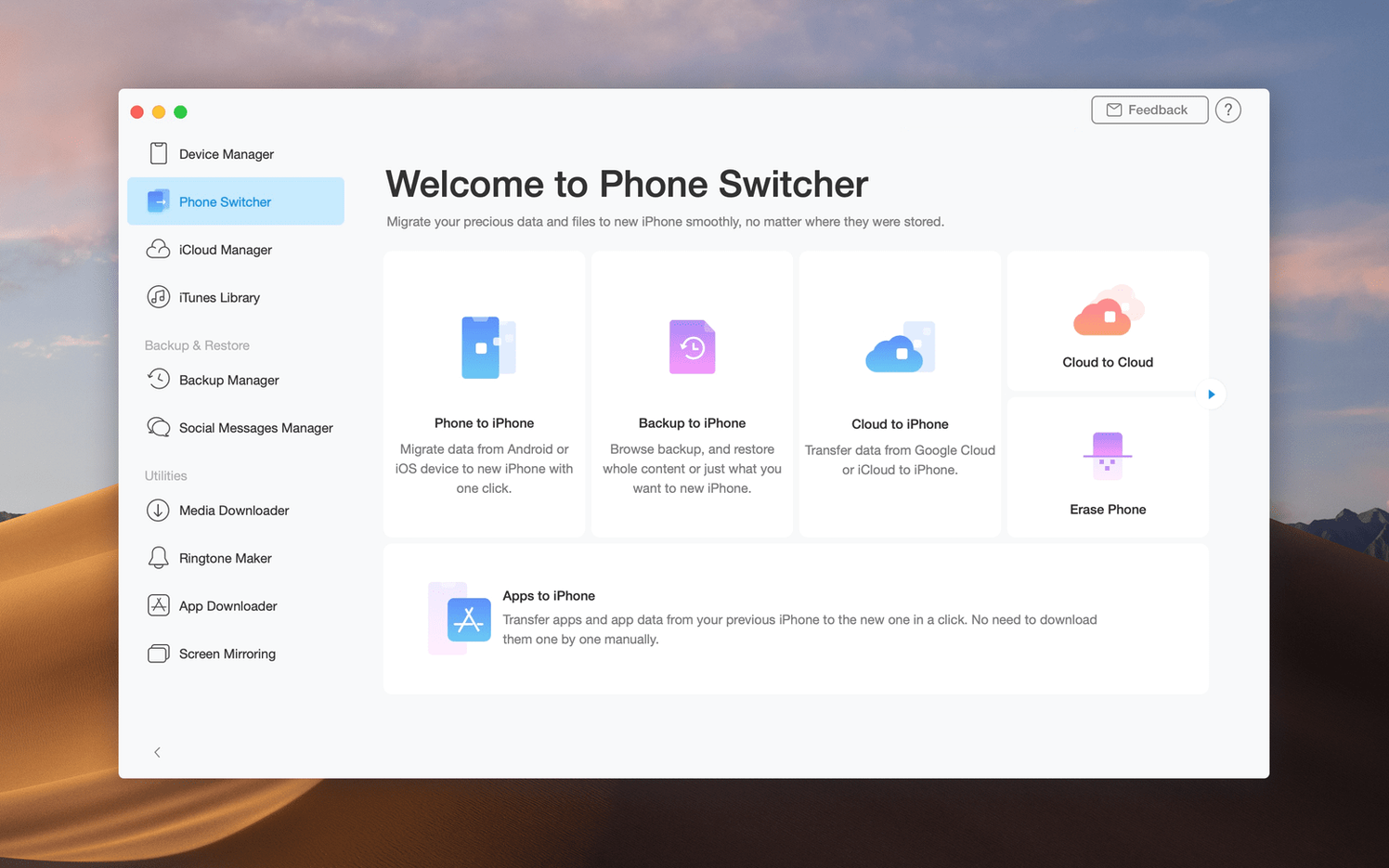
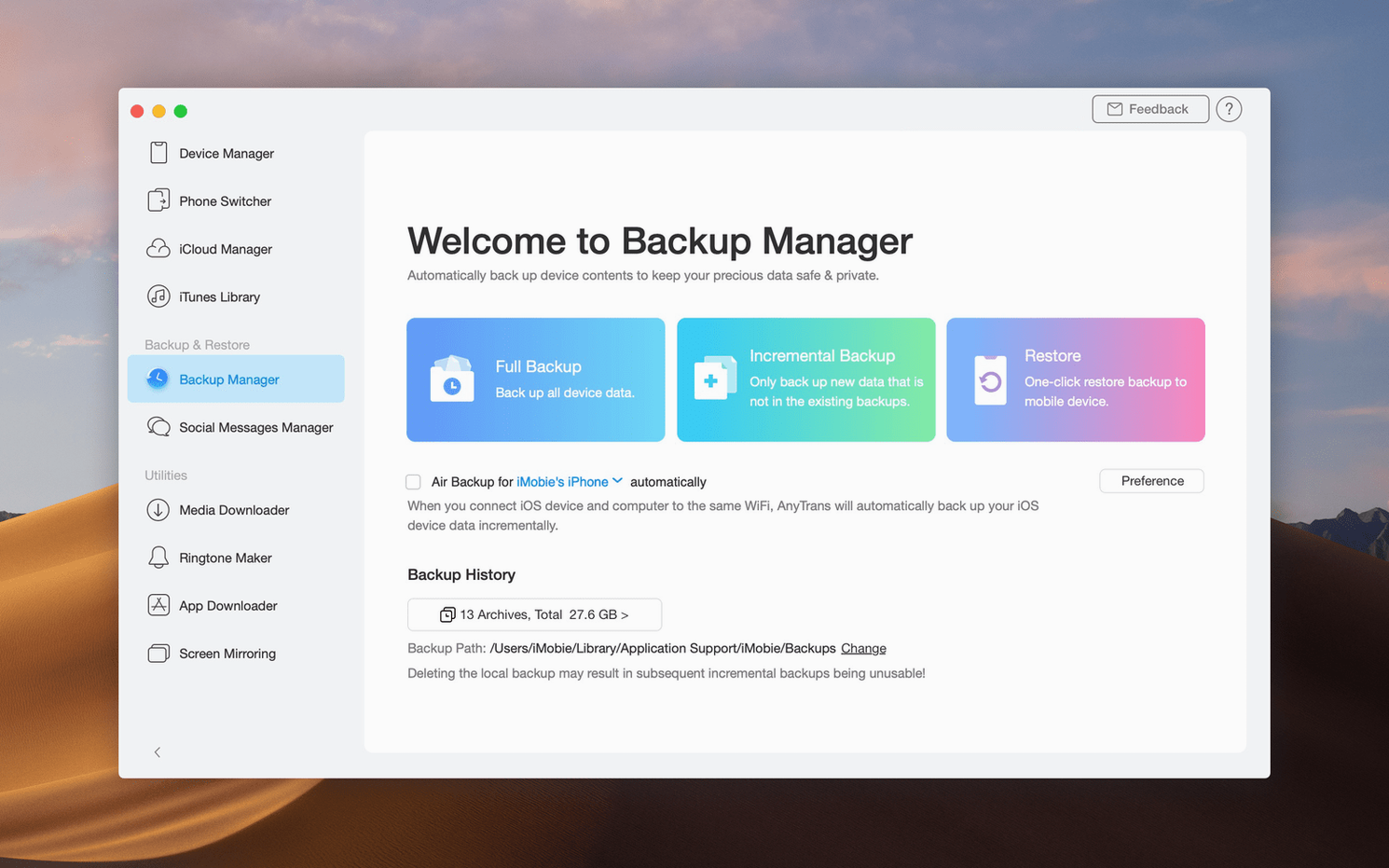
School term ends and a colleague hands you an iPhone 12 loaded with classroom photos from the last three years. It needs a full backup on the office Mac before the device is wiped and reissued. iTunes insists on an all-or-nothing snapshot; iCloud is slow over the staff Wi-Fi. AnyTrans for Mac offers a direct, selective route.
| Detail | Note |
|---|---|
| Version | 8.9.14 |
| Developer | iMobie Inc. |
| macOS | 10.13 High Sierra or later |
| Architecture | Intel |
Plug the iPhone in, skip the full-device backup prompt, and open the device manager. Tick only Photos and Videos, pick a folder on the Mac’s secondary drive, and start the transfer. The app pulls the selected media straight onto the desktop while leaving the rest of the phone untouched. Once the files land, verify the count against the Photos app, then wipe the handset. No iTunes library rebuild, no iCloud sync delays. The same tool can later move an Android contact list onto a replacement iPhone, pull a stranded iCloud file down to local storage, or shift content between two iCloud accounts when a staff member changes roles.
Typical working session
Plug the iPad into the Mac and launch AnyTrans. The device manager shows the iPad on the left, your Mac’s folders on the right. Click Music on the iPad side, tick the albums you want, then pick a destination on the Mac side. Hit the arrow button and the files copy over USB. No staging through iTunes, no waiting for iCloud to sync.
Next, open the iCloud tab in the left panel. Find a batch of PDFs stored in a teacher’s iCloud Drive. Select them, choose a shared department folder on the Mac, and transfer. The app logs into the iCloud account and downloads the files to the local path. No manual drag-and-drop through a browser.
Switch to the Media Downloader panel. Paste a URL from a school training video hosted on a public site. The downloader pulls the audio track as an MP3 for use in a classroom editing project. That is a straight copy to the Downloads folder with a few clicks.
Close iTunes before connecting your device
New users sometimes plug in the device and then open iTunes before launching AnyTrans. AnyTrans can conflict with an active iTunes connection. Close iTunes first, or quit the background helper process, so the app gets exclusive USB access.
Another slip is selecting the whole device for backup every time. AnyTrans defaults to a category view, so it is easy to tick everything out of habit. That fills the Mac’s drive with app data you probably never need. Stick to Photos, Videos and Documents unless you have a reason to grab system files.
Some people also miss the destination picker. The app will drop files into a default folder the first time. If you do not set a target, you end up hunting for the exported data later. Open the device manager and confirm the output path before each transfer.
Music teacher moves lesson recordings to a staff Mac
A music teacher at a secondary school has an iPad loaded with lesson recordings, backing tracks and scanned sheet music. She plugs the iPad into the staff room Mac, opens AnyTrans, and selects Audio from the category list. She ticks the MP3 files for Year 9 composition work and sends them to a shared drive. Then she switches to Documents, picks the PDF scores, and copies those to the same folder. The whole job takes under five minutes and uses a USB cable, not the network. No IT ticket required. AnyTrans for Mac does what the built-in iPad file browser cannot: categorised, selective transfer in one session.
No “what's new” for 8.9.14. The release line gave nothing I could check, and I will not stretch it into a changelog.
- macOS 10.13 High Sierra or later
- Intel processor
Staffroom comments 0
Sign in or create an account here to leave a comment.
Nobody has commented on this one yet.