SwitchResX 4.14.2 (macOS)
- Version
- 4.14.2
- Size
- 6 MB
- Earliest macOS
- OS X 10.10 or later
- CPU type
- Universal
- Updated
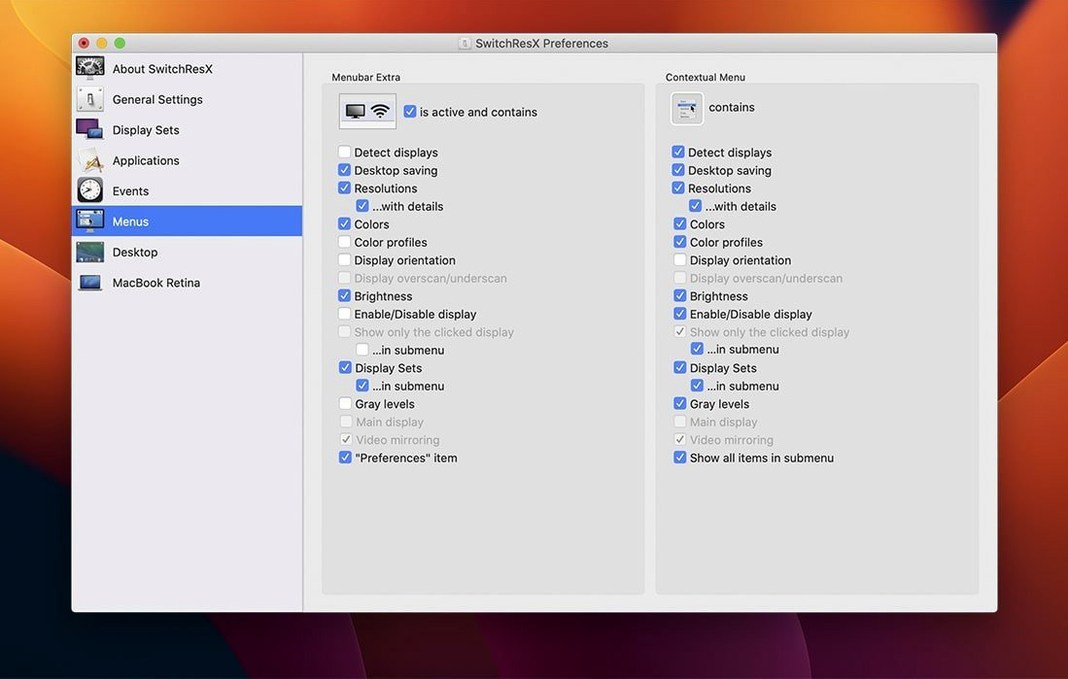
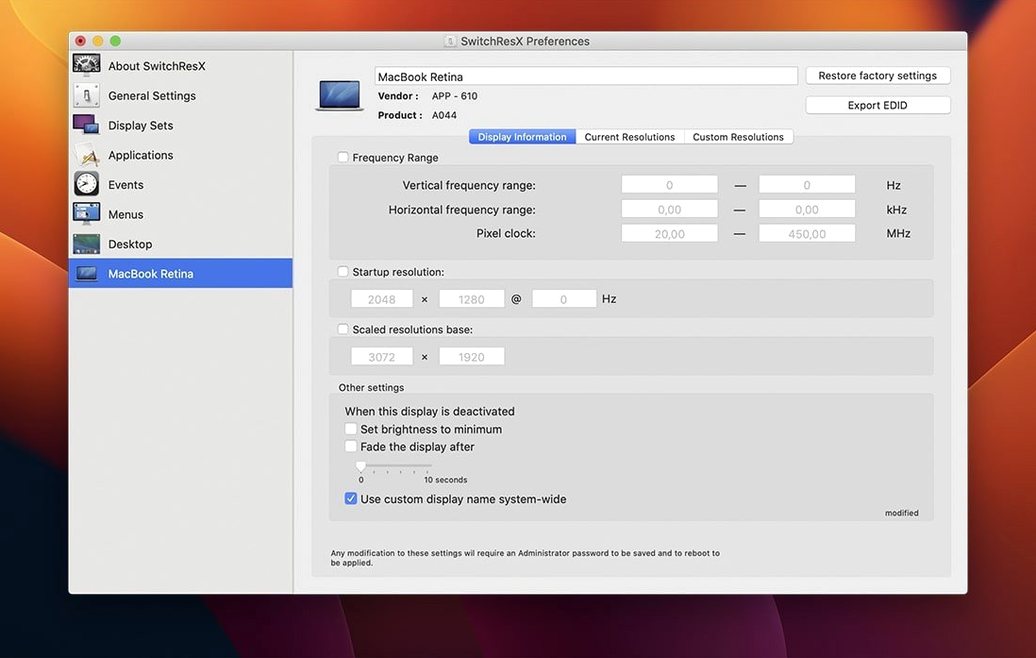
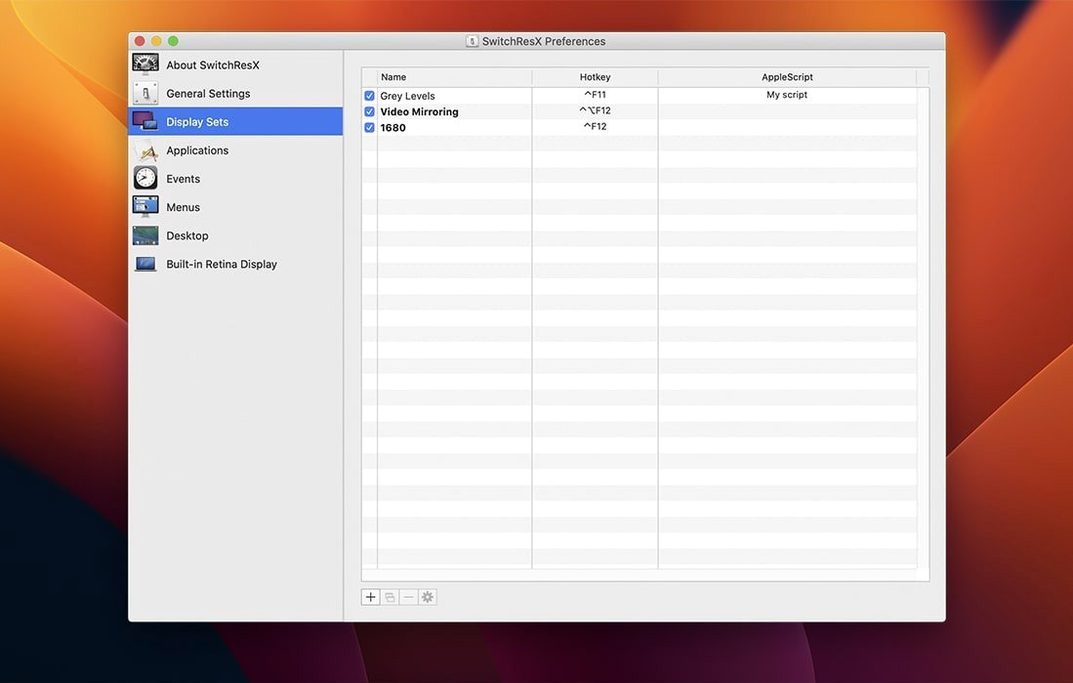
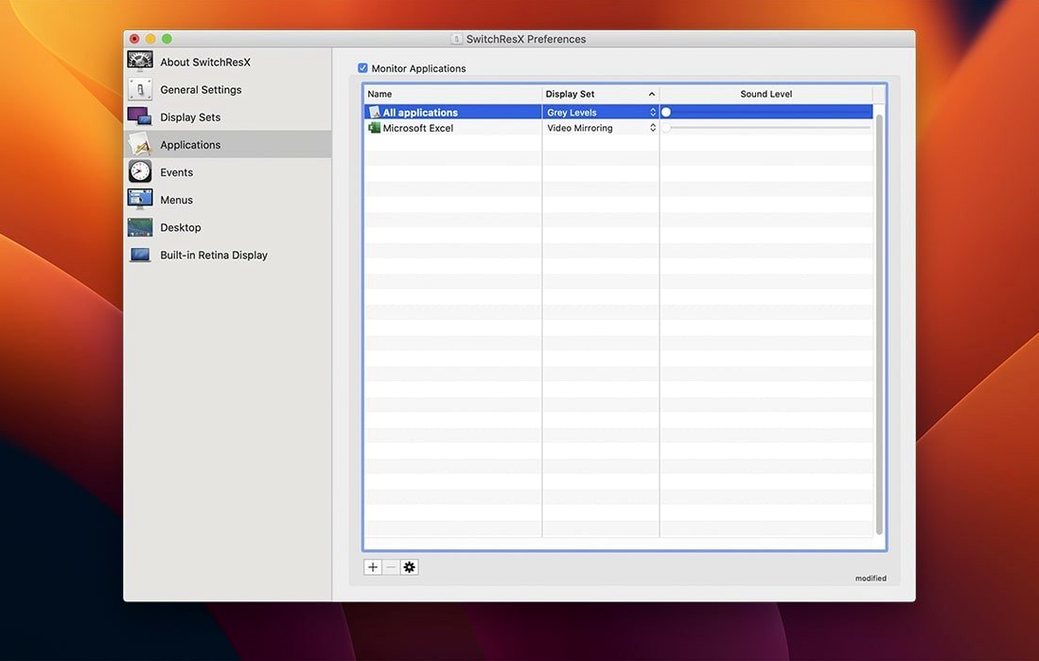
Anyone who’s bumped up against macOS’s limited resolution picker already reaches for SwitchResX. It gives you control that the Display panel doesn’t — custom resolutions, rotation, colour tweaks, per-app monitor assignments.
Force a resolution macOS won’t list
You define the exact pixel dimensions, refresh rate and scaling. Retina displays are supported. The utility writes the new mode into the system, and it stays there until you remove it.
Assign a resolution to one app
SwitchResX can switch the display when a specific application launches. Handy when an older piece of school software expects a 4:3 ratio and the rest of the day uses a widescreen laptop screen.
Mirror or disable displays with control
Version 4.14.2 finally lets you quit the Dock when disabling a display on Apple Silicon Macs. Mirroring and rotation work on external monitors too. AppleScript support means you can script a lab’s display setup from a single command.
Fixing a stretched projector image at a staff briefing
Say you’ve just connected a projector for a lunchtime staff briefing. macOS shows the standard resolutions, but the image is slightly stretched. You open SwitchResX from the Dock, click the display’s entry in the sidebar, and type in the exact horizontal and vertical pixels the projector wants — 1400 by 1050, say. The utility applies it at once. No reboot, no digging through hidden menu files.
Later that afternoon a teacher brings in a budget 4K monitor that macOS insists on calling “Built-in Display” with no model name. The dialog shows nothing useful. SwitchResX sees the unnamed display, lets you set a custom resolution and rotation. The fix for unnamed displays in version 4.14.2 means it won’t get confused when two such monitors appear in a school AV room.
You set up a separate Display Set for each room. One for the library projector, one for the staffroom TV, one for the lab’s ceiling projector. When you switch rooms, you recall the saved set, and the utility swaps resolution and mirror mode. Each Display Set keeps its own colour profile too, so the library’s warm projector doesn’t look washed out in the lab.
After the session, you disable the external display from the Dock icon. On an Apple Silicon Mac, version 4.14.2 lets you quit the Dock entirely after that — earlier builds wouldn’t release the icon until a restart.
SwitchResX versus macOS alternatives
SwitchResX isn’t the only option for resolution work on macOS. Here’s how it sits next to a couple of alternatives.
SwitchResX vs. Terminal + xrandr or cvt
The command line can set a custom resolution, but it takes a few steps: calculate modelines with cvt, pass them to xrandr. No per-app switching, no saving colour profiles, no easy way to script display rotation for a lab of 30 machines. SwitchResX wraps the same system calls in a GUI that remembers settings between sessions. For a school technician who doesn’t want to write shell scripts for every display in the building, the utility saves time.
SwitchResX vs. DisplayFusion
DisplayFusion is Windows-only, so it’s not a direct alternative for a Mac lab. But staff who dual-boot or run BootCamp sometimes ask why macOS can’t match Windows’ flexible multi-monitor control. SwitchResX fills that gap on the Mac side — custom resolutions, per-monitor rotation, application-triggered switches — without needing a separate OS.
SwitchResX vs. macOS’s built-in xrandr alternatives
macOS 10.10 and later include a xrandr-like tool, but it doesn’t save profiles, and it ignores unnamed displays. SwitchResX free download versions have long been the go-to for anyone who needs to push a display past the factory list. The utility’s AppleScript support also means you can automate display changes across a network by calling it from a deployment script.
No display attached bug fixed in October update
Version 4.14.2, from October 2025, fixes a handful of niggles that popped up in real labs.
- No display attached: Earlier versions would keep resaving their own settings every few seconds when the utility ran without a display. The Mac’s fans would spin up as the settings file wrote repeatedly. Now it stops.
- Nameless displays: Some third-party monitors appear in macOS with no name at all. The display list stayed blank. SwitchResX now handles them correctly — you can still select and configure them.
- Display Set deletion: Deleting one set when another used it afterwards caused a crash. That’s sorted in 4.14.2. Good for anyone who organises Display Sets by classroom and occasionally reorders them.
- Dock quit on Apple Silicon: Disabling a display on an M1 or M2 Mac used to lock the Dock icon. You could close the utility, but the Dock entry stayed. Version 4.14.2 lets you quit cleanly.
None of these changes add new features. They make the existing ones less fiddly. For a school where the same Mac runs a projector in the morning and a 4K monitor in the afternoon, that matters more than a shiny new panel.
- macOS OS X 10.10 or later
- Intel or Apple Silicon processor
Questions people ask
Does SwitchResX work on Apple Silicon Macs?
Yes, it runs on both Intel and Apple Silicon Macs. Version 4.14.2 specifically fixes quitting the Dock when disabling a display on Apple Silicon.
Can I create a resolution that macOS does not normally support?
Yes, that is the main purpose — you can define custom resolutions, refresh rates and scaling options that the default Display panel does not offer.
What was the main fix in version 4.14.2?
It fixed a bug where SwitchResX kept resaving and updating its own settings repeatedly when no display was attached, and fixed issues with unnamed displays and Display Set deletion ordering.
Staffroom comments 0
Sign in or create an account here to leave a comment.
Nobody has commented on this one yet.
Other Utilities tools
All Utilities tools-
 Tenorshare UltData
9.5.0Intel Macs only
29 MB
Utilities
-
 Transmit
5.11.7
34 MB
Utilities
-
 TunesKit iPhone Unlocker
2.7.0Intel Macs only
64 MB
Utilities
-
 ScreenFlow
10.5.2
95 MB
Utilities
-
 Screen Studio
4.1.0
981 MB
Utilities
-
 VideoByte BD-DVD Ripper
2.1.6Intel Macs only
124 MB
Utilities
-
 VideoProc Converter AI
8.13
254 MB
Utilities
-
 VideoProc Converter
6.6Intel Macs only
86 MB
Utilities