ScreenFlow 10.5.2 (macOS)
One download for Apple Silicon and Intel. Opens the install steps and mirrors.
- Version
- 10.5.2
- Size
- 95 MB
- Earliest macOS
- 10.15 or later
- CPU type
- Universal
- Updated
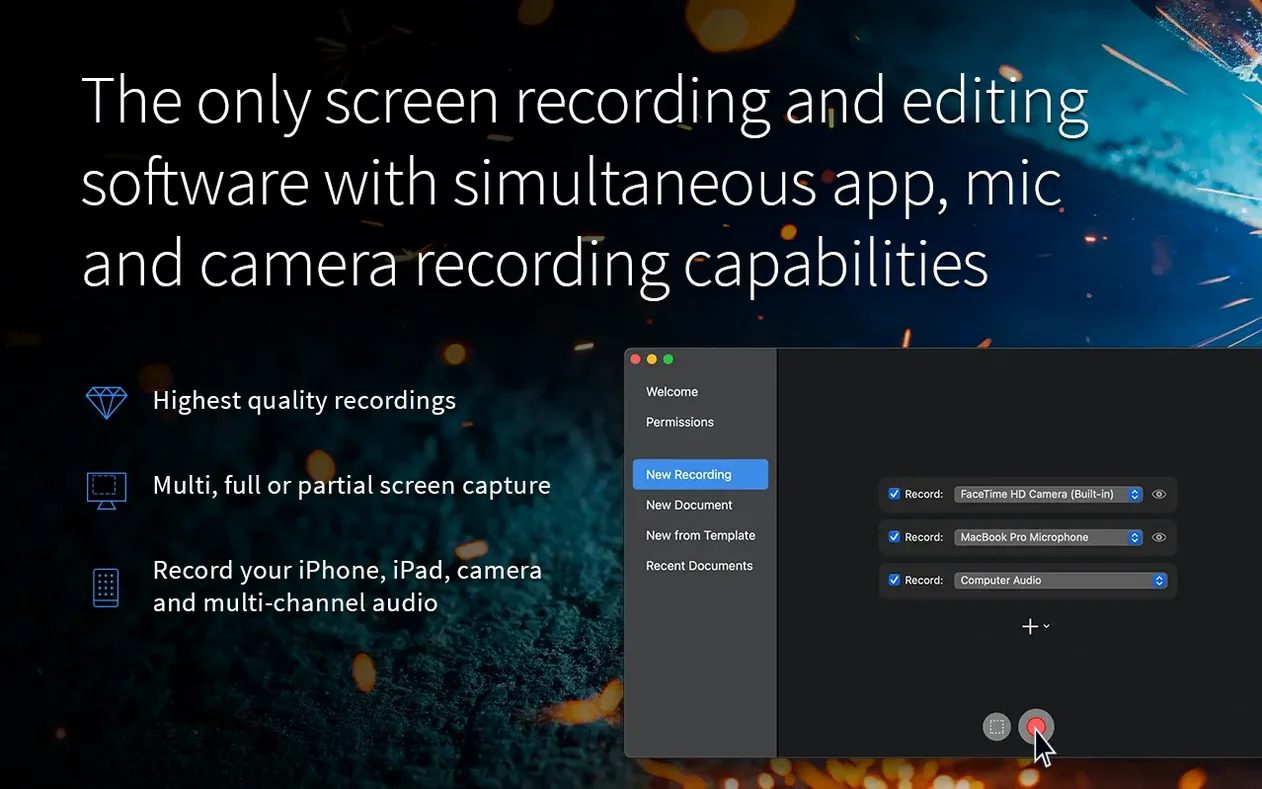
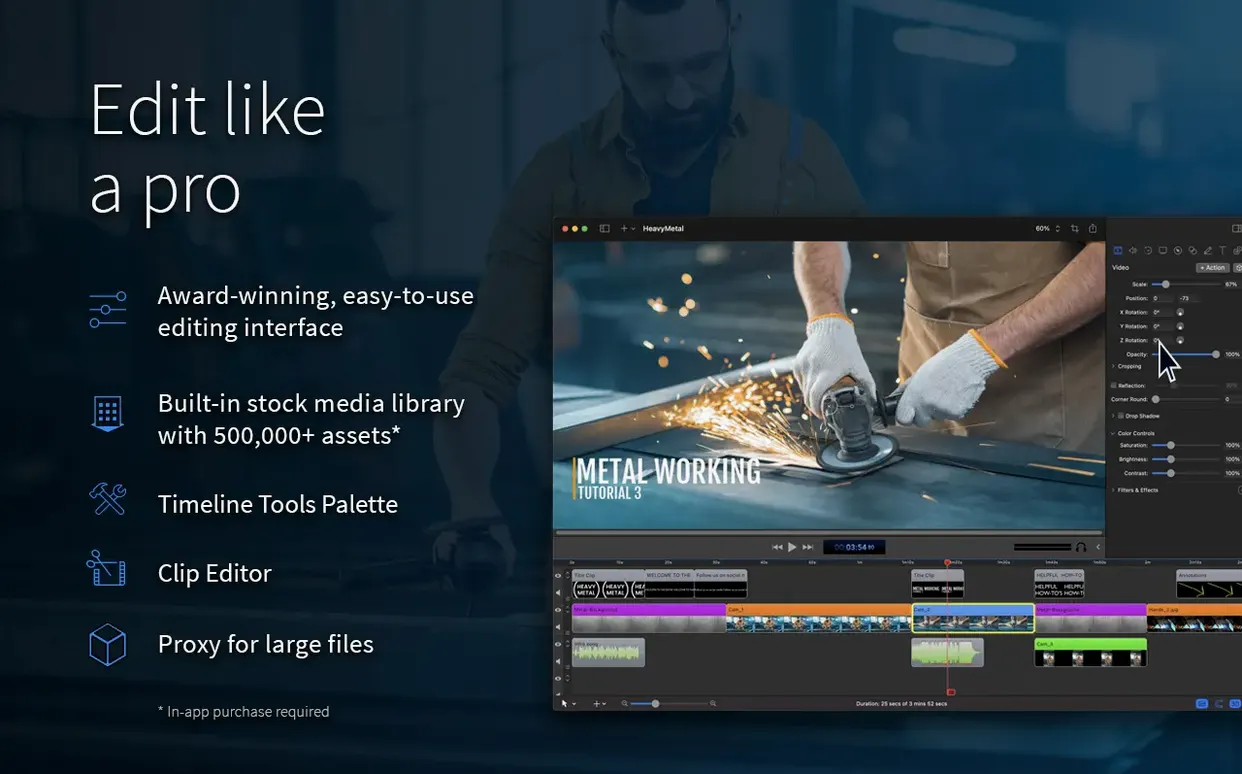
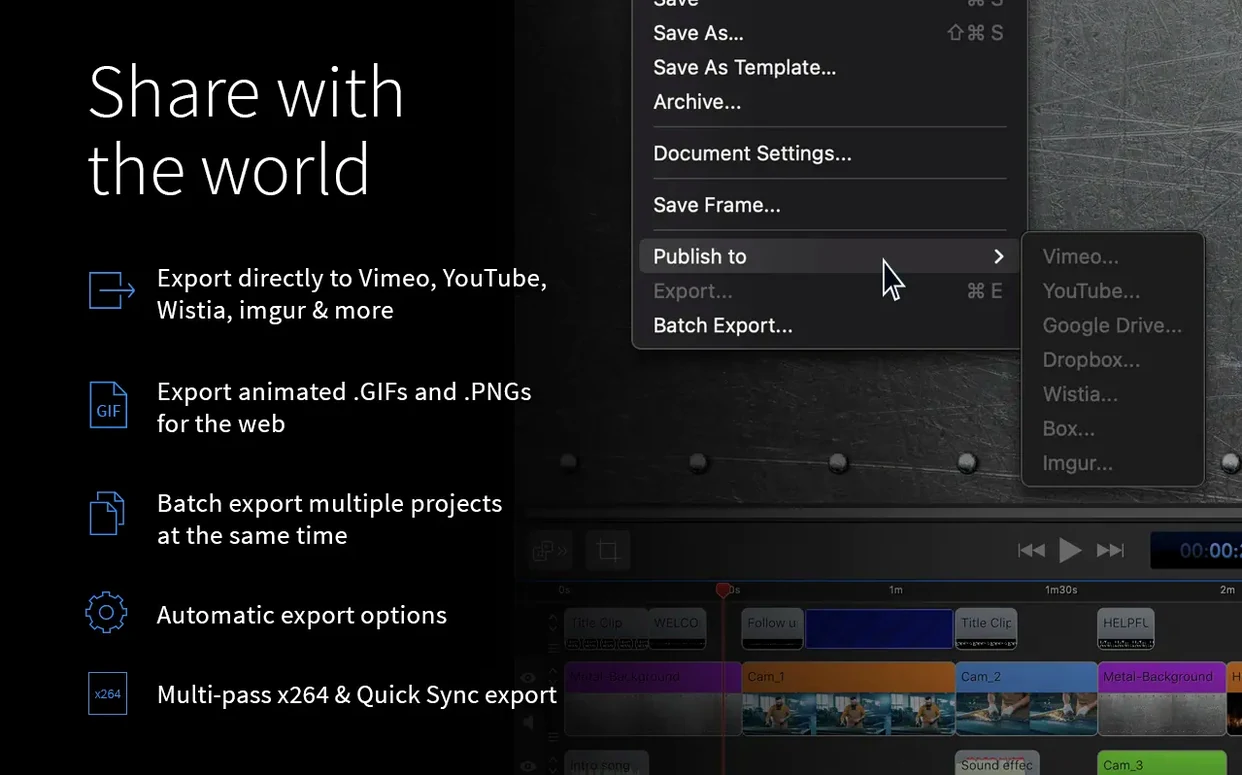
Version 10.5.2 fixes a crash on macOS 26.2 or later and corrects Chroma Key exports for certain screen recordings. The manage button under licences no longer points to a non-existent URL. That aside, ScreenFlow remains a straight-forward tool for recording and editing video on a Mac.
- Records part of the screen or a full monitor, plus camera video from an iPad or iPhone, microphone input, multichannel audio, and system audio — all at the same time.
- Editing tools handle images, recordings, clips, text, audio, and other video files without leaving the app.
- Zoom and pan effects, callouts, annotations, subtitles, chroma key, and video motion effects are built in, so you don't need a second editor for polish.
- Runs on macOS 10.15 and later. Supports both Apple Silicon and Intel 64-bit Macs.
- Interface available in English, German, Spanish, French, and Japanese.
Audio sync drifts in long recordings
The most common problem people hit is audio sync drifting after a long recording. ScreenFlow handles the first few minutes fine, but if you record a 45-minute lecture or a prolonged demo, the microphone track can slowly fall out of step with the screen capture. The fix is to split the recording into 20-minute chunks before you start. You cannot fix it easily in the editor without re-syncing by eye.
Trying to key out a background on VFR footage gives you jerky edges and green spill that never quite cleans up.
Third, the export to ProRes can fail if your scratch disk is low on space. ProRes files are large. ScreenFlow does not warn you before it starts the encode — it just halts with a generic error. Keep at least 10 GB free on your system drive for a five-minute export. More for longer projects.
Record at 1920×1080 to avoid huge files
New users often record everything at full monitor resolution without thinking about file size. You do not need 4K for a software tutorial or a quick bug report. Set the recording area to a 1920×1080 crop box instead of the full display. The video is still sharp enough for YouTube or Slack, and the file is a quarter of the size.
Another beginner mistake is ignoring the audio input selector before recording. ScreenFlow defaults to the built-in microphone. If you plug in a USB mic after launching the app, it does not switch automatically. Check the input dropdown under Audio in the recording panel before you press record.
A third one: dragging clips straight from the media bin onto the timeline without trimming them first. You end up with a long, messy timeline full of silence and mouse-wandering. Trim the start and end of each clip in the preview window before you place it. It saves ten minutes of cutting later.
Test with a two-minute screen, mic and camera export
Start by recording a two-minute test piece that uses screen capture, microphone, and a camera overlay. Export it as an MP4 and as a ProRes file. That confirms your audio routing, your export settings, and your disk space are all working before you commit to a real project.
Learn the zoom and pan tool early. It is the single feature that stops you needing to re-record a section where you clicked something small. Instead of re-shooting, drop a zoom keyframe on the timeline and let ScreenFlow enlarge that area for a few seconds. It feels like a cheat, but it is the intended workflow.
Keep the library panel open. Beginners close it because it takes up screen space, but the library holds your imported images, music clips, and stock videos. Dragging from the library is faster than digging through Finder for every asset. You can also colour-code clips in the library for different projects.
Finally, set up a default export preset that matches your most common destination. Name it "YouTube default". Then you never have to re-enter those values. The same applies if you mostly export ProRes for later editing in DaVinci Resolve — save that preset once.
The fix for the macOS 26.2 crash matters if you are on a newer system. Otherwise, the same reliable recording and editing workflow applies.
- Fixed a crash with macOS 26.2 or higher.
- Fixed exports with Chroma Key for certain screen recordings.
- Fixed the manage button under licenses going to a non-existent URL.
- macOS 10.15 or later
- Apple Silicon or Intel 64-bit
Questions people ask
What macOS versions does ScreenFlow support?
ScreenFlow requires macOS 10.15 or later and works on both Apple Silicon and Intel 64-bit Macs.
What languages is the interface available in?
The interface languages are English, German, Spanish, French, and Japanese.
Can I record multiple audio sources at once?
Yes, it can capture microphone input, multichannel audio input, and computer audio simultaneously.
Staffroom comments 0
Sign in or create an account here to leave a comment.
Nobody has commented on this one yet.