RightFont 10.2.1 (macOS)
One download for Apple Silicon and Intel. Opens the install steps and mirrors.
- Version
- 10.2.1
- Size
- 18 MB
- Earliest macOS
- 11.1 or later
- CPU type
- Universal
- Updated
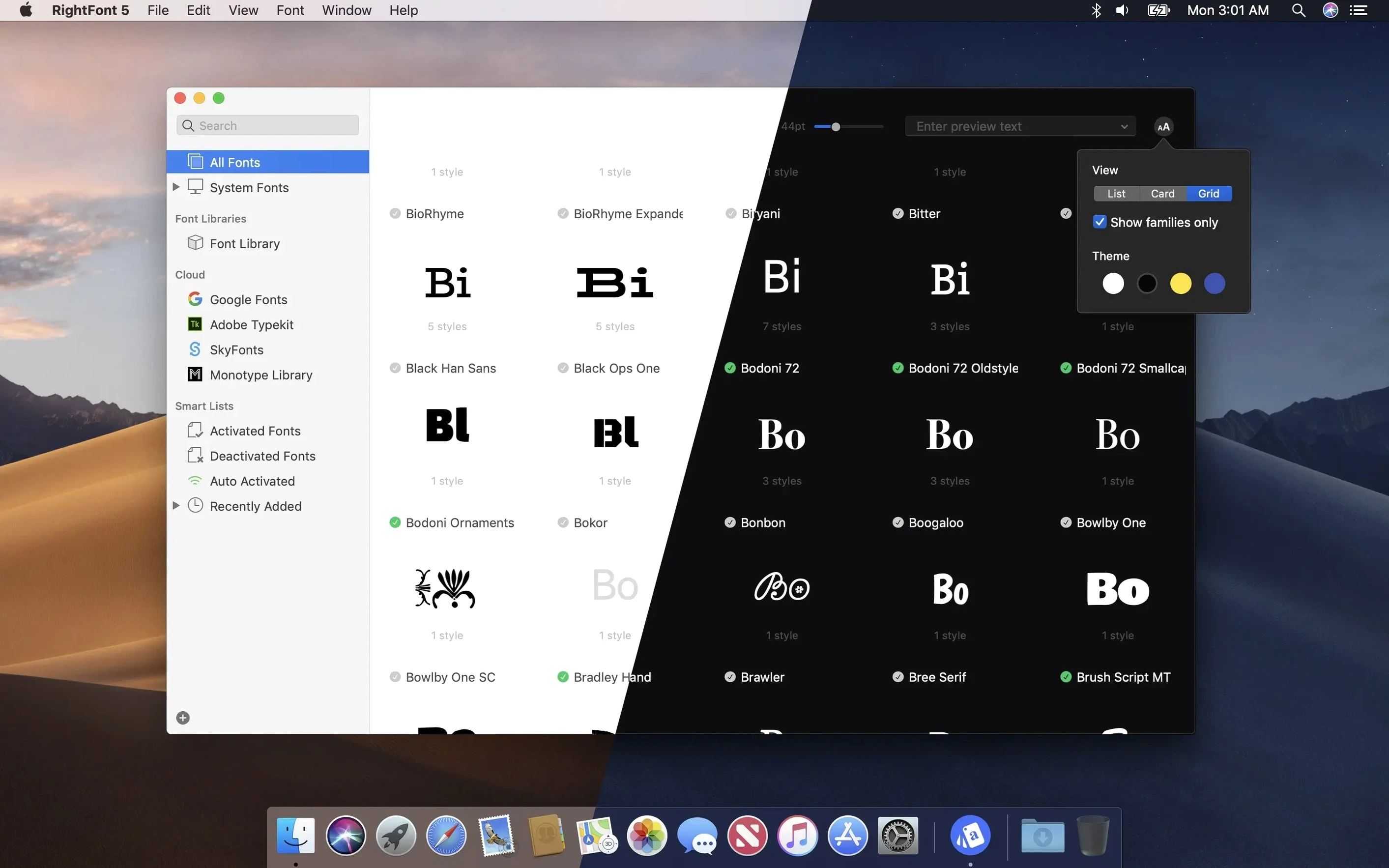
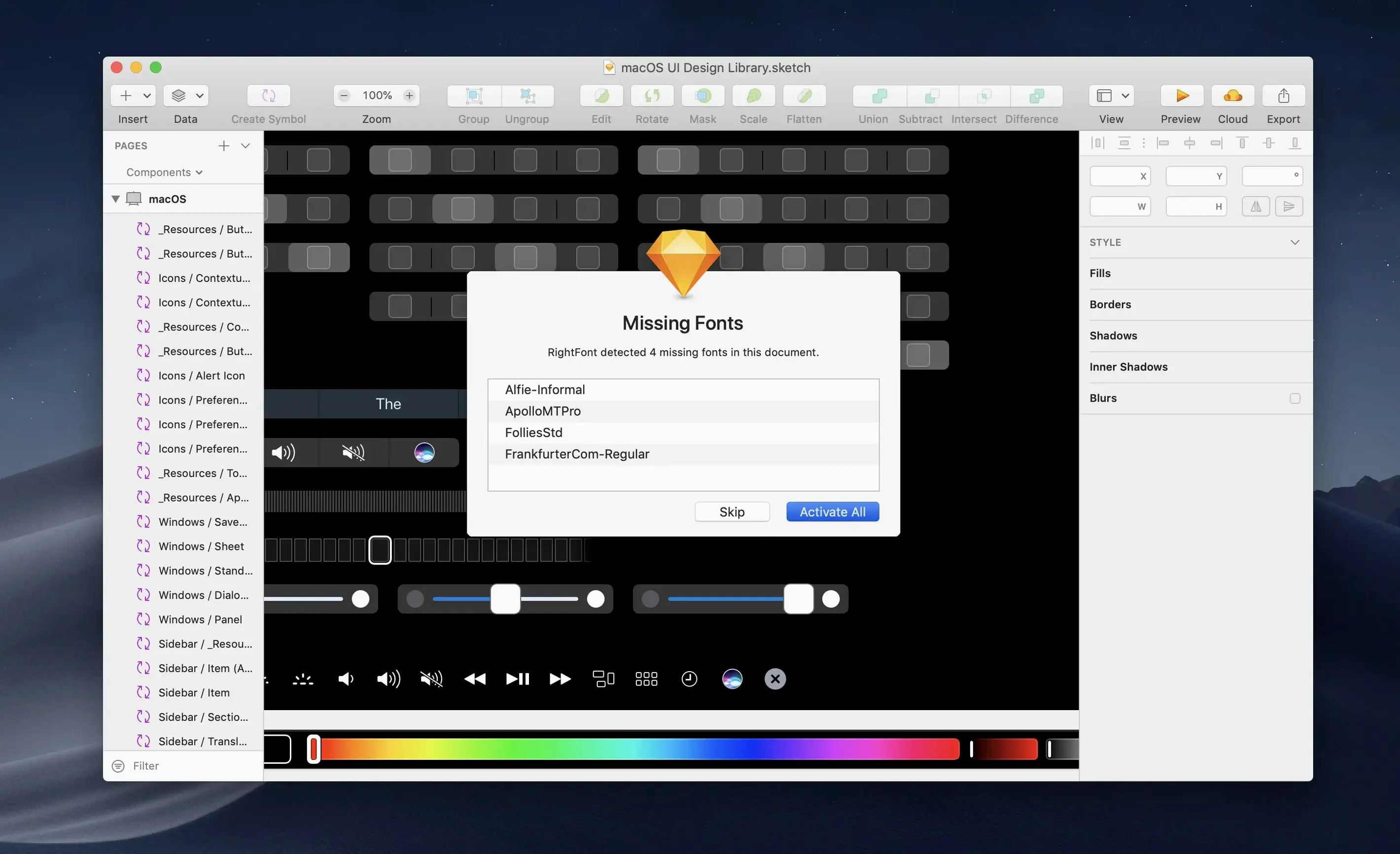
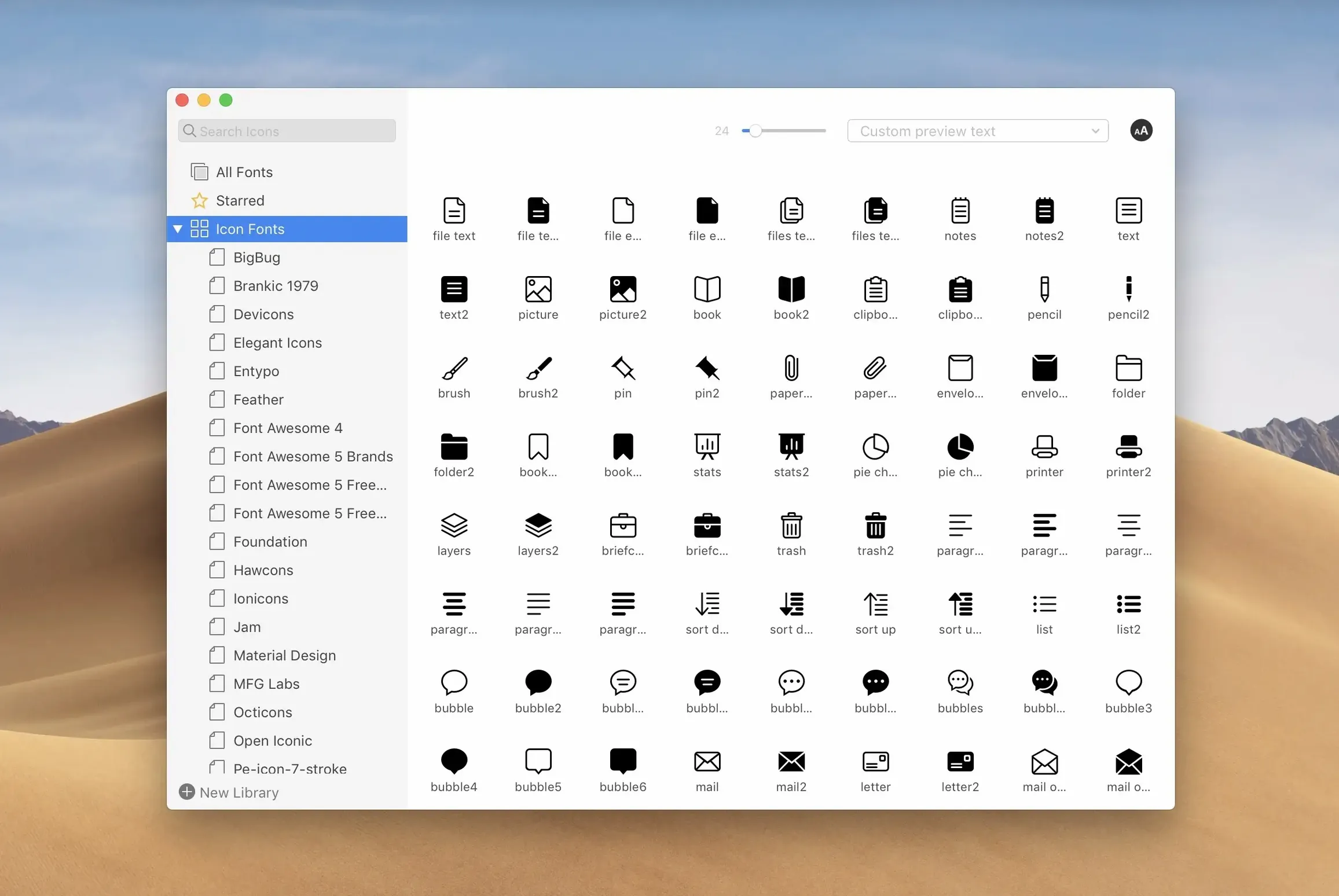
Open RightFont and the first thing you notice is the Font Library — a central view that lists every font on your Mac. Double-click a font to preview it; drag one out to share or back it up. No install step needed, it just works.
Font Library
Your central collection. Every installed font appears here. Preview, organise, export.
Menu Bar Workflow
RightFont sits in the menu bar. Click it to activate or deactivate fonts without opening the full window. Good for quick switches.
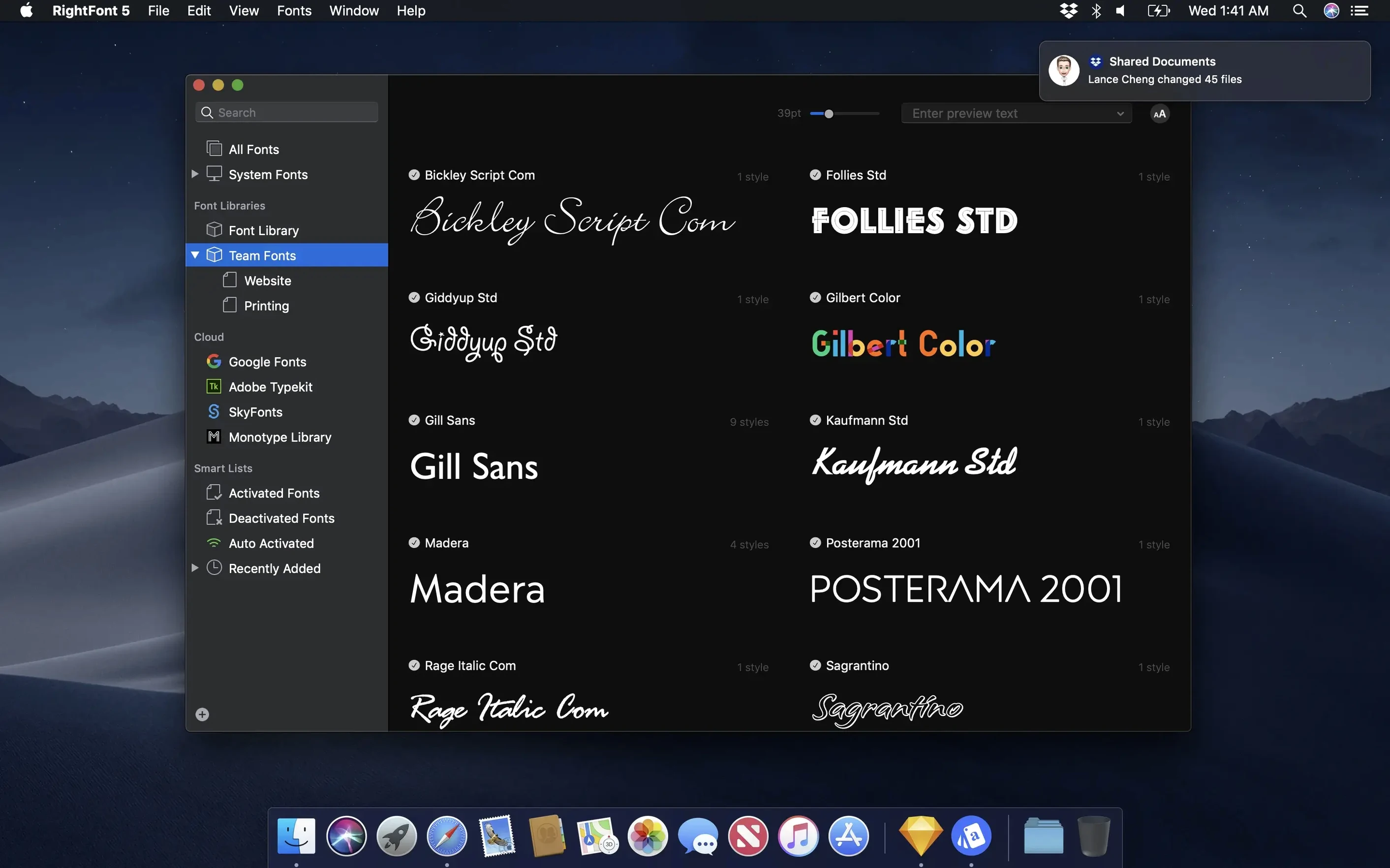
Font Lists
Create named lists — project fonts, favourite serifs, whatever. Add fonts from the library to a list; activate whole lists at once.
Tags
Tag fonts with keywords (like "heading" or "body"). In version 10.2.1 you can drag a subtag back to the main Tags section if you misplace it.
Design App Integration
Activating every font at once slows macOS
A few things catch people out when they first use RightFont. The main one is activating every font you own at once. RightFont makes it easy to turn on whole libraries, but macOS doesn't handle hundreds of active fonts well — menus slow down, apps take longer to start. Keep your active set to what you need for the current job.
Another slip is ignoring the search field. RightFont shows results as you type, so there's no reason to scroll through a long list. Type a few characters of the font name and you're there.
Beginners also forget that tags and font lists serve different purposes. Tags are for categorising by style or use — "serif", "display", "mono". Lists are for collections you activate together. A tag might hold 200 fonts; a list should be a tight grouping you can switch on for a specific project. Mixing them up means you end up activating more than you intended.
Workflow: preparing fonts for a brochure
Say you have a client brochure and want a clean set of fonts ready before you open the design app. Here is how that goes in RightFont.
- Open the Font Library and deactivate all fonts (RightFont has a toggle for that). Start from zero.
- Search for and preview the fonts you are considering. RightFont shows you the full character set, so you can check for the glyphs you need — ligatures, fractions, that sort of thing.
- Create a new font list called "Brochure Spring 2025". Drag in the three or four fonts you settled on.
- Activate the whole list. RightFont keeps them active in the menu bar and the design app sees them immediately.
- Open Adobe Illustrator or your app of choice. Select a text layer, double-click it, and RightFont lets you cycle through the activated fonts without leaving the design window.
- When the job is done, deactivate the list. Your system is back to its default font set.
RightFont works alongside Font Book, not as a replacement
People often wonder whether RightFont replaces the system Font Book. It does not. Font Book still handles system-level installation. RightFont sits alongside it, activating and deactivating fonts on demand without copying them into system folders. That is why it is safe to try — nothing gets moved or deleted.
Another question is whether the integration works with every design app. The double-click-to-apply feature depends on the app exposing its text layers, so older or niche software may not support it. The menu bar activation still works regardless.
Some ask if they need admin rights to use it. No. RightFont runs at user level. No password prompts for installation or activation. That makes it practical on managed school Macs where admin access is restricted.
Works with Adobe Illustrator, QuarkXPress, and others. Double-click a text layer in a design app to change its font directly from RightFont.
- macOS 11 or newer
- Intel or Apple Silicon
Questions people ask
Does RightFont work on Apple Silicon Macs?
Yes, the official site says it supports both Intel-based Macs and Apple silicon Macs.
What macOS version do I need?
RightFont requires macOS 11 or newer.
Can I use RightFont with Adobe software?
Yes, it supports use with design software, including changing a text layer font by double-clicking in Adobe Illustrator.
Staffroom comments 0
Sign in or create an account here to leave a comment.
Nobody has commented on this one yet.