CloudMounter 4.18 (macOS)
Intel build. On Apple Silicon it runs through Rosetta 2. Opens the install steps and mirrors.
- Version
- 4.18
- Size
- 68 MB
- Earliest macOS
- 10.14 or later
- CPU type
- Intel
- Updated
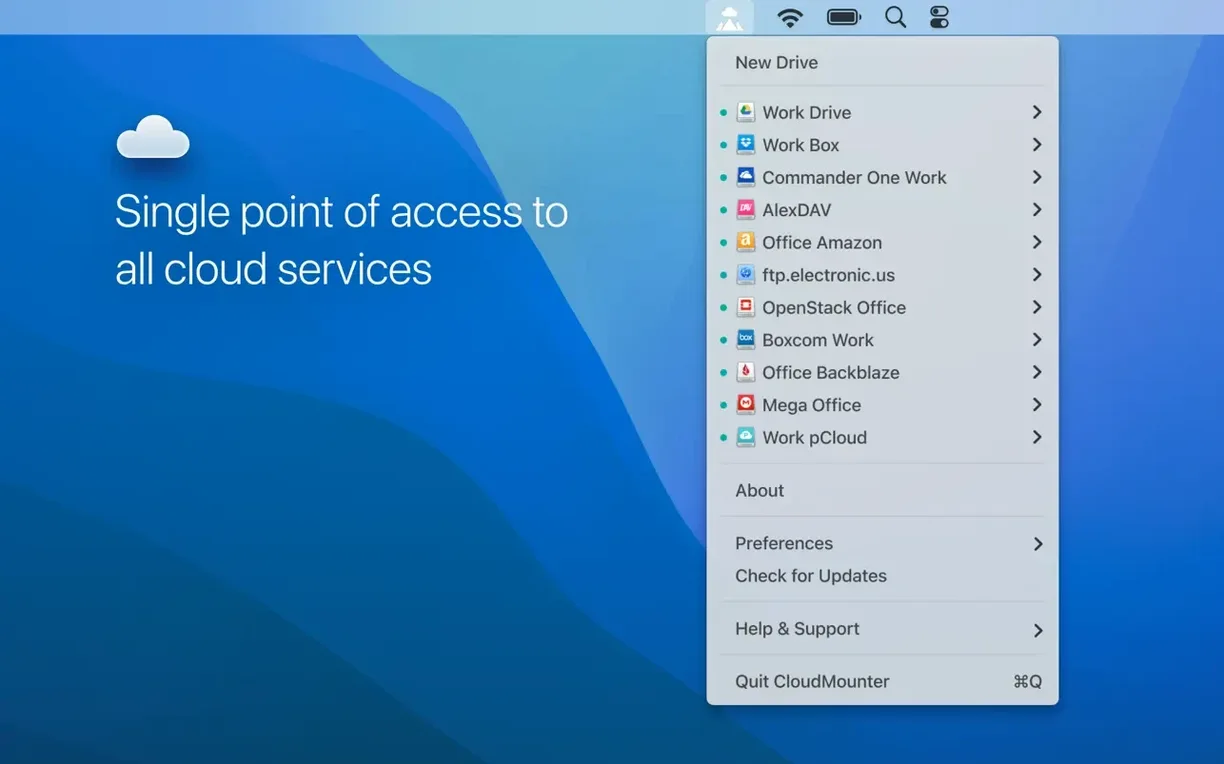
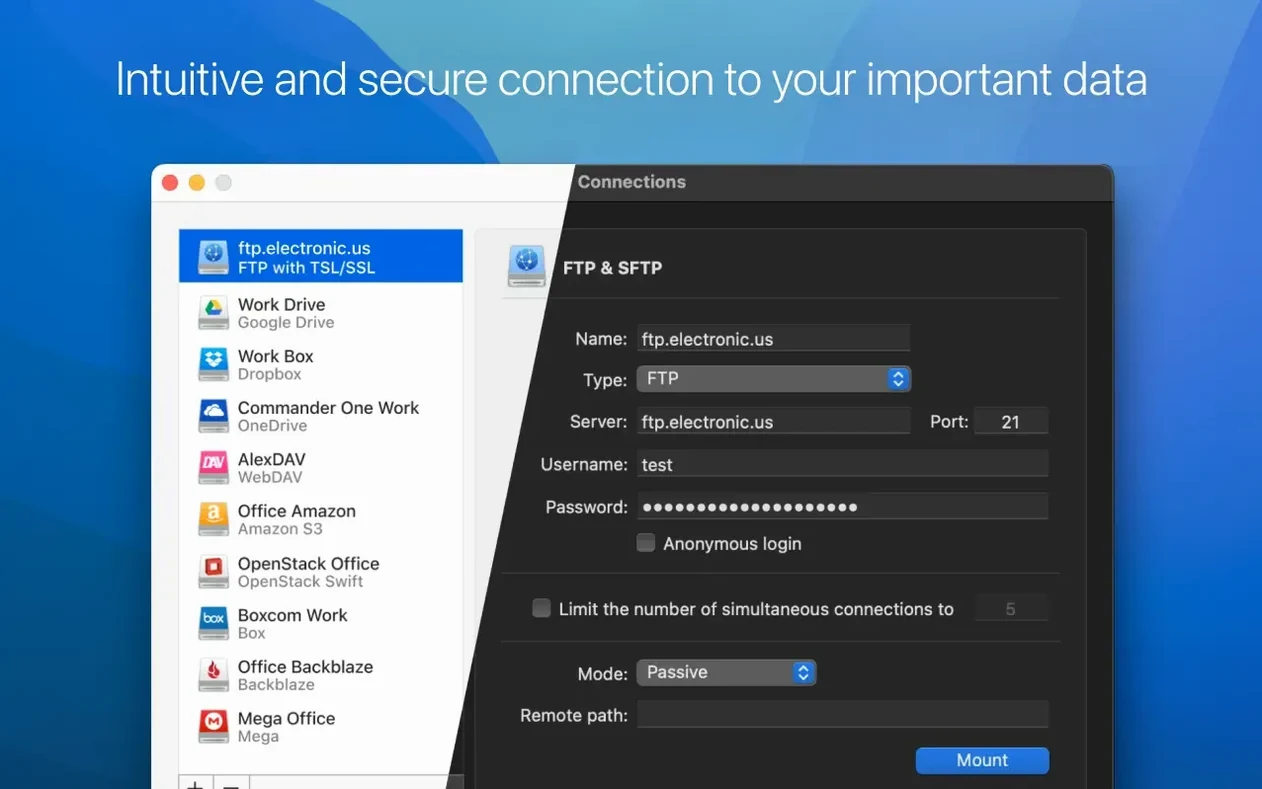
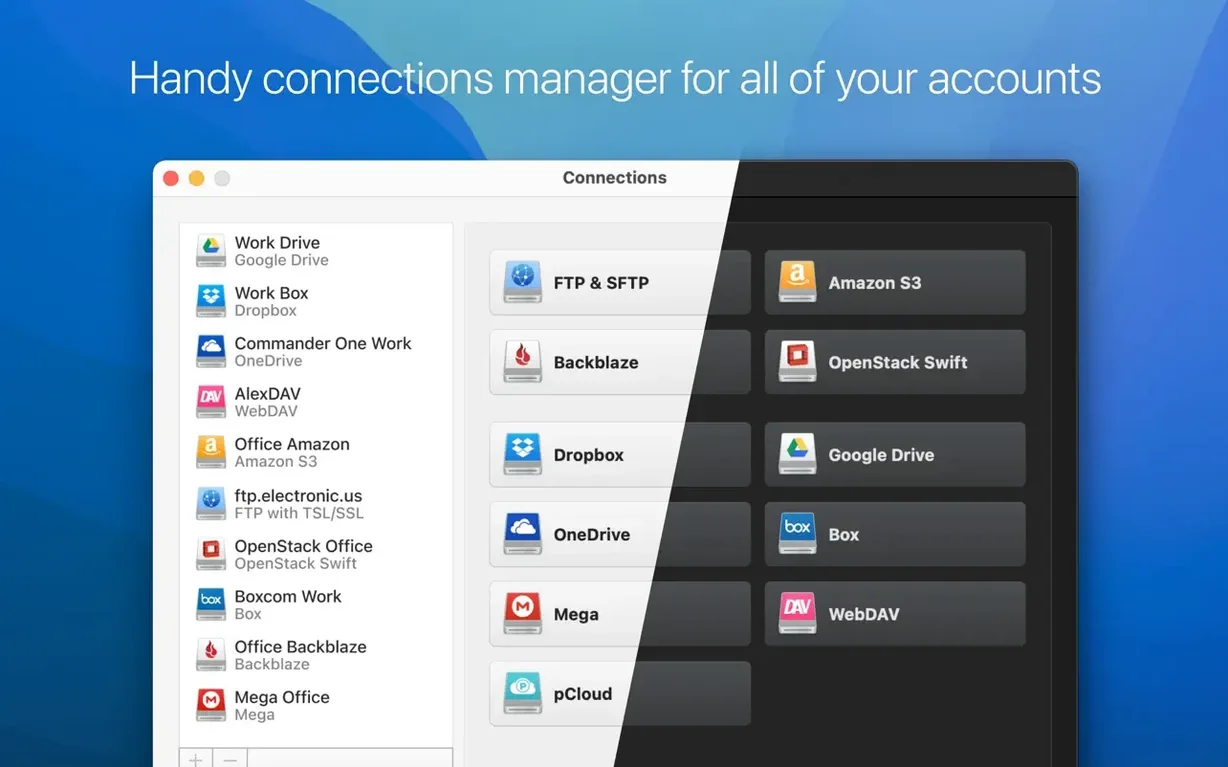
CloudMounter 4.18 supports a dozen storage services: Google Drive, Dropbox, OneDrive, Amazon S3, FTP, SFTP, FTPS, OpenStack Swift, Box, Backblaze B2, WebDAV, and MEGA. It mounts each as a local drive in Finder, without syncing files to your disk. Here are the first things a newcomer should try.
- Mount a Google Drive account — it shows up in the Finder sidebar like any other volume. Drag files in and out. No sync, no local copy, just direct access.
- Try an SFTP connection to a remote server. Enter host, port, user, and password. CloudMounter remembers the connection for next time.
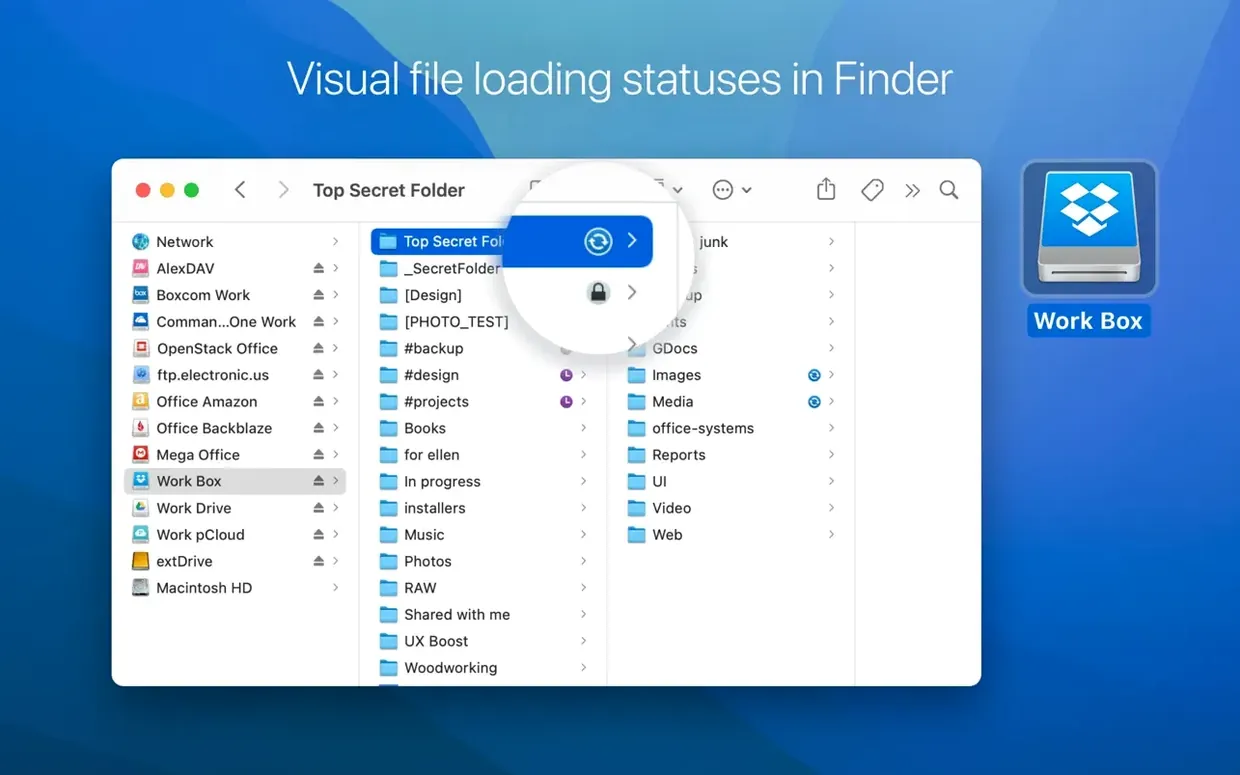
- Open the preferences pane and see the list of mounted drives. Each one shows transfer status and progress icons.
- Change the cache volume if you want downloads stored on a different drive. The app lets you pick any location.
- Switch the interface language — the app supports eleven languages, including English, German, Spanish, French, and Japanese.
Does not store files locally
Does CloudMounter store files locally? No. It mounts remote storage as drives you can browse and edit, but files are not synced to your hard drive. That saves space and keeps your local disk clean. Files transfer only when you open or edit them.
Can I use multiple accounts from the same service? Yes. You can add several Google Drive or Dropbox accounts and mount them all separately. Each appears as its own drive in Finder.
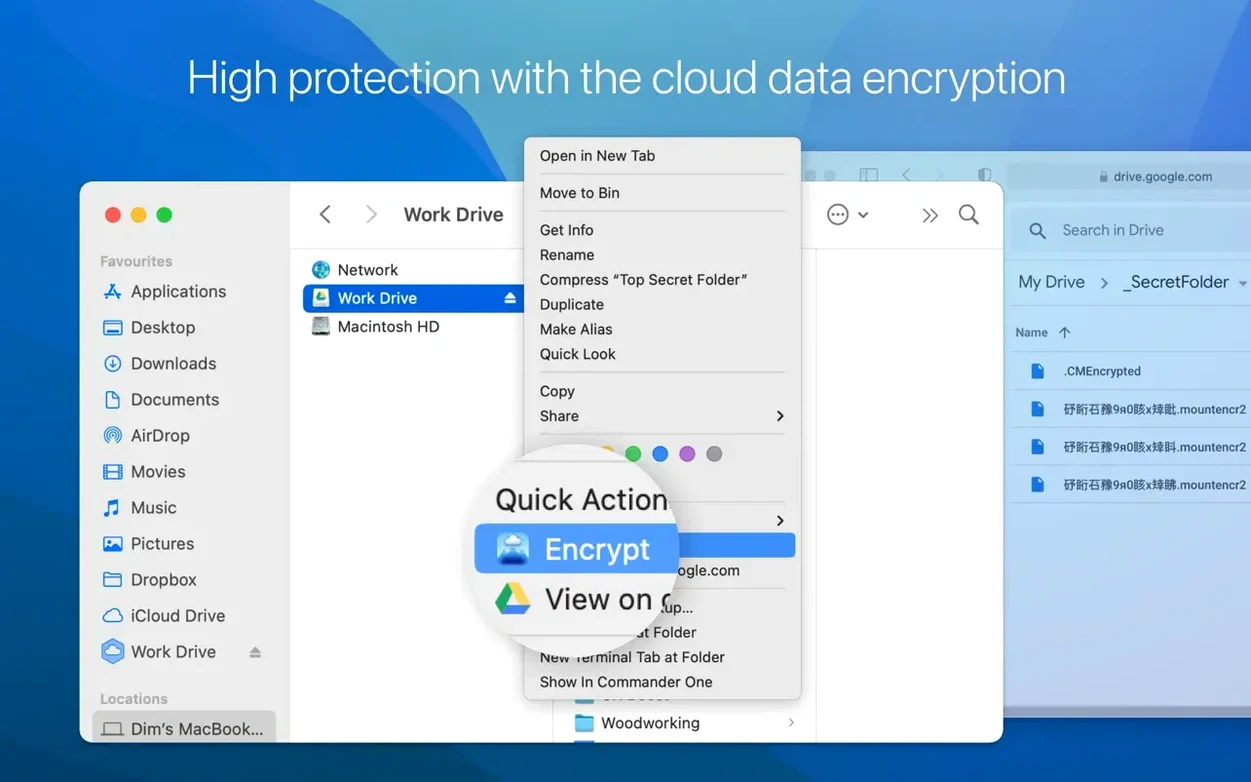
Does it work with encryption? CloudMounter offers AES-256 encryption for cloud data. You can choose to encrypt files before they leave your Mac.
How do I authorise a cloud service? You log in through the app's connection dialog. For services like Google Drive or OneDrive, it opens your browser for OAuth, then returns to CloudMounter. FTP and SFTP connections ask for host, port, and credentials directly.
What happens when I disconnect a drive? The mounted volume disappears from Finder. Your files remain on the remote server. No data is lost.
Expect offline access errors without internet
The most common one is expecting offline access. CloudMounter does not cache entire folders for offline use. If you lose internet, the mounted drive will show an error or appear empty. Plan for that if you work on a train or in a patchy coverage area.
Another mistake is ignoring the cache volume setting. By default, temporary files download to your system disk. If you are working with large files, point the cache to a drive with more space. The settings pane lets you change this before mounting.
Beginners also forget to check permissions on SFTP connections. CloudMounter mounts the remote server with the credentials you provide. If the remote user lacks write access to a folder, you will see an error when trying to save a file there. Test with a simple upload first.
Some people try to mount a service without completing the OAuth flow. The browser window must finish authorising before CloudMounter adds the drive. Closing it early leaves the account in a half-configured state.
Finally, users sometimes rename or move the CloudMounter app after installing it. The app writes configuration files to its own location. Moving it afterwards can break the saved connections. Install it in Applications and leave it there.
Mounts remote storage like ExpanDrive and Mountain Duck
CloudMounter sits alongside tools like ExpanDrive and Mountain Duck. All three mount remote storage as local drives in Finder. The differences are in the details.
ExpanDrive supports many of the same services — Google Drive, Dropbox, OneDrive, SFTP, WebDAV — and adds S3 and Backblaze B2. Like CloudMounter, it mounts as a Finder volume without syncing. CloudMounter requires no such key to run after installation.
Mountain Duck also mounts cloud and remote storage as local drives. It supports a similar range of services and keeps files on demand rather than syncing them. Mountain Duck uses its own volume implementation in Finder, whereas CloudMounter relies on macOS’s own virtual filesystem. Some users find Mountain Duck’s configuration panels more granular, but CloudMounter’s interface is more straightforward for a school environment.
For FTP and SFTP-only needs, Transmit or ForkLift offer more specialised file transfer features — queuing, scheduling, and remote-to-remote transfers. CloudMounter does none of that; it is a mounting tool, not a full FTP client. Pick CloudMounter when you want multiple cloud accounts and remote servers visible in Finder without separate sync folders or client software.
CloudMounter runs on macOS 10.14 or later, Intel only. Version 4.18 was released on 18 June 2026.
- Improved uploading of large files.
- Improved work with MEGA connections.
- Fixed download cancellation for files on SFTP connections.
- Fixed file downloading issues when cache volume is changed.
- Fixed displaying of storage usage information for online connections.
- macOS 10.14 or later
- 64-bit Intel Mac
Questions people ask
Does CloudMounter sync files to my local disk?
No. CloudMounter mounts cloud storage as a local drive but does not automatically sync files to the local disk.
Which cloud services does CloudMounter support?
It supports Google Drive, Dropbox, Amazon S3, OneDrive, FTP, SFTP, FTPS, OpenStack Swift, Box, Backblaze B2, WebDAV, and MEGA.
What macOS versions does CloudMounter 4.18 require?
It requires macOS 10.14 or later and runs on 64-bit Intel Macs.
Staffroom comments 0
Sign in or create an account here to leave a comment.
Nobody has commented on this one yet.
Other Utilities tools
All Utilities tools-
 Cocktail Sequoia Edition
18.7.1Intel Macs only
3 MB
Utilities
-
 CleanShot X
5.0.2
46 MB
Utilities
-
 Commander One PRO
3.18.0
53 MB
Utilities
-
 Compressor
5.3
122 MB
Utilities
-
 Canopy
2
11 MB
Utilities
-
 Boom 3D
2.2.6
Utilities
-
 dBpoweramp Music Converter
2026.09.13
31 MB
Utilities
-
 Bloom
1.5.46
19 MB
Utilities