
CleanShot X 5.0.2 (macOS)
One download for Apple Silicon and Intel. Opens the install steps and mirrors.
- Version
- 5.0.2
- Size
- 46 MB
- Earliest macOS
- 11 or later
- CPU type
- Universal
- Updated
Version 5.0.1 was a minor housekeeping release — bug fixes and small improvements. No new marquee features. What it does confirm is that the core toolkit in CleanShot X remains settled. The big rework came in 5.0, and the point-one release just tidies the edges.
What the 5.0 update established
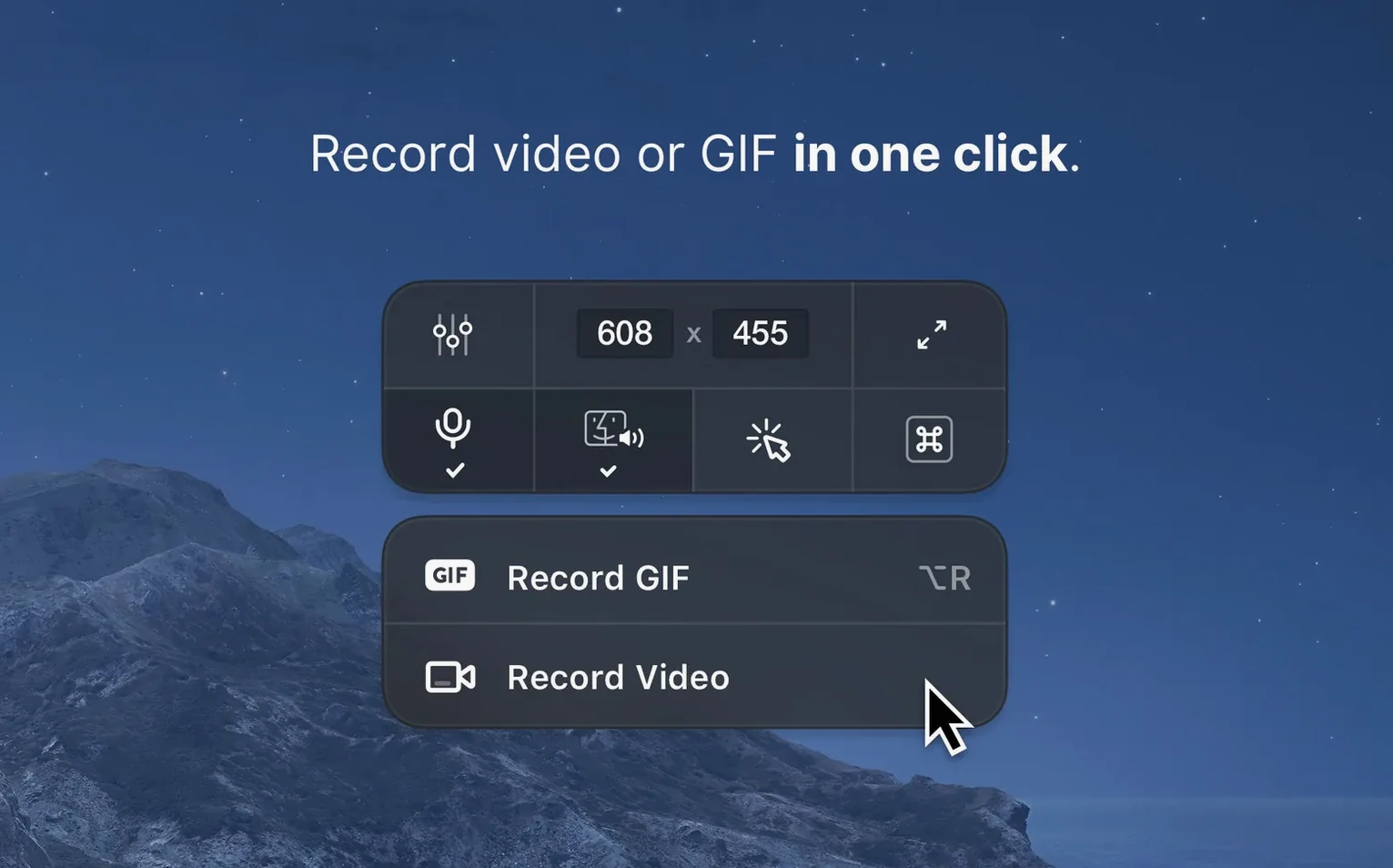
Version 5.0 arrived as a major refresh. The app still handles screenshots, screen recordings, and quick annotations inside one Mac-native panel. It can record video or GIF during capture, set a timer, and switch between Retina and standard resolution on the fly. Desktop notifications get disabled while recording, so nothing pops over the work. Backgrounds for screenshots can be a solid colour or an image, and the desktop icons hide before the shot fires if that setting is on.
CleanShot X still installs as a single app file
The app remains a single installer that copies into Applications and runs from Launchpad. It still asks for screen recording permissions on first launch — standard for any capture tool on macOS 11 and up. The interface language is English, the architecture is universal, and the feature list hasn't shrunk. A minor update after a major release usually means the foundation is holding.
First days with cleanshot x
After the installer lands in Applications, give the app the permissions it needs for screen recording. macOS will prompt you once. Accept it. The app does not nag again.
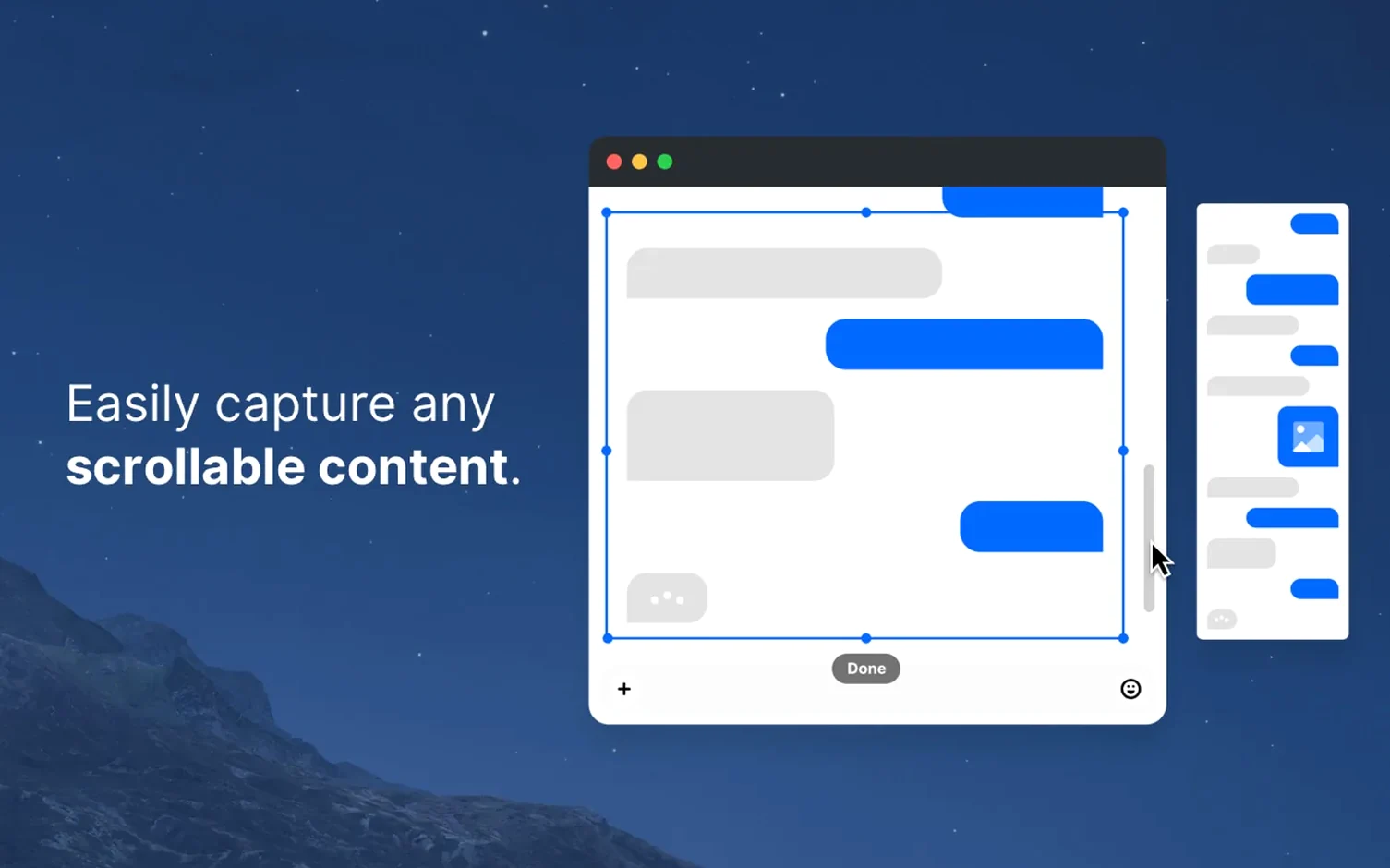
Spend ten minutes mapping the capture modes to your workflow. Area capture is the default. Full screen and window capture sit a click away. Scrolling capture is tucked in the same menu — try it on a long webpage or a tall document. It works well enough that you will forget the old ⌘+⇧+3 habit.
Set a timer buffer for recordings. Two or three seconds lets you switch windows without the clip starting mid-drag. The timer lives in the capture menu. Use it.
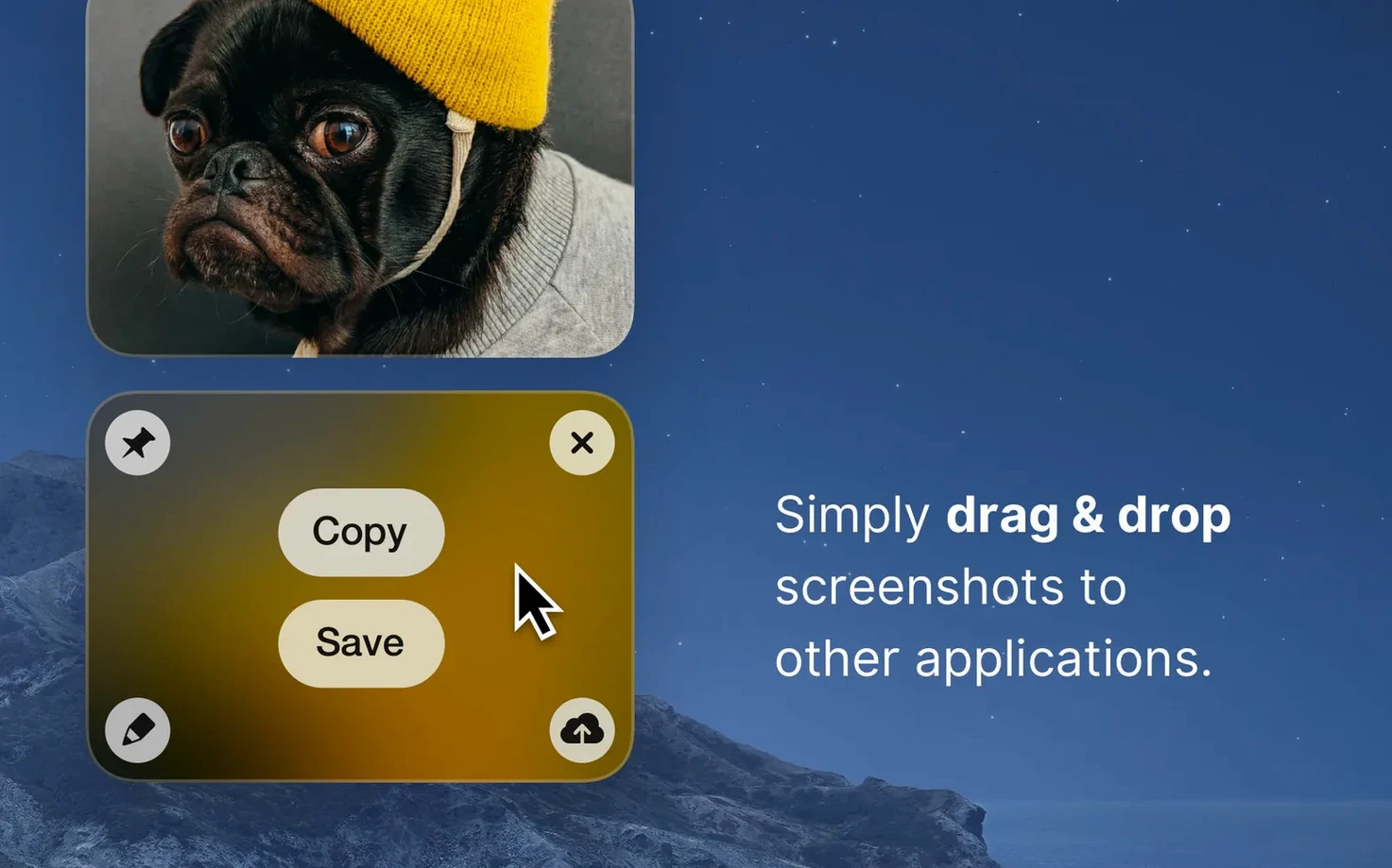
Pin a test screenshot. The pin keeps a window above everything else on screen. Handy for comparing a screenshot against a live app. Double-click the pinned image to dismiss it.
Hide desktop icons before every screenshot if you work from a cluttered desktop. The setting is in preferences. Toggle it on once and forget it.
Snagit
Snagit has been around longer and includes a video editor with more timeline controls. CleanShot X is lighter on disk and launches faster. Snagit insists on its own library for storing captures. CleanShot X lets you save where you want. Both handle scrolling capture, but CleanShot X's pinning feature has no direct equivalent in Snagit.
Monosnap
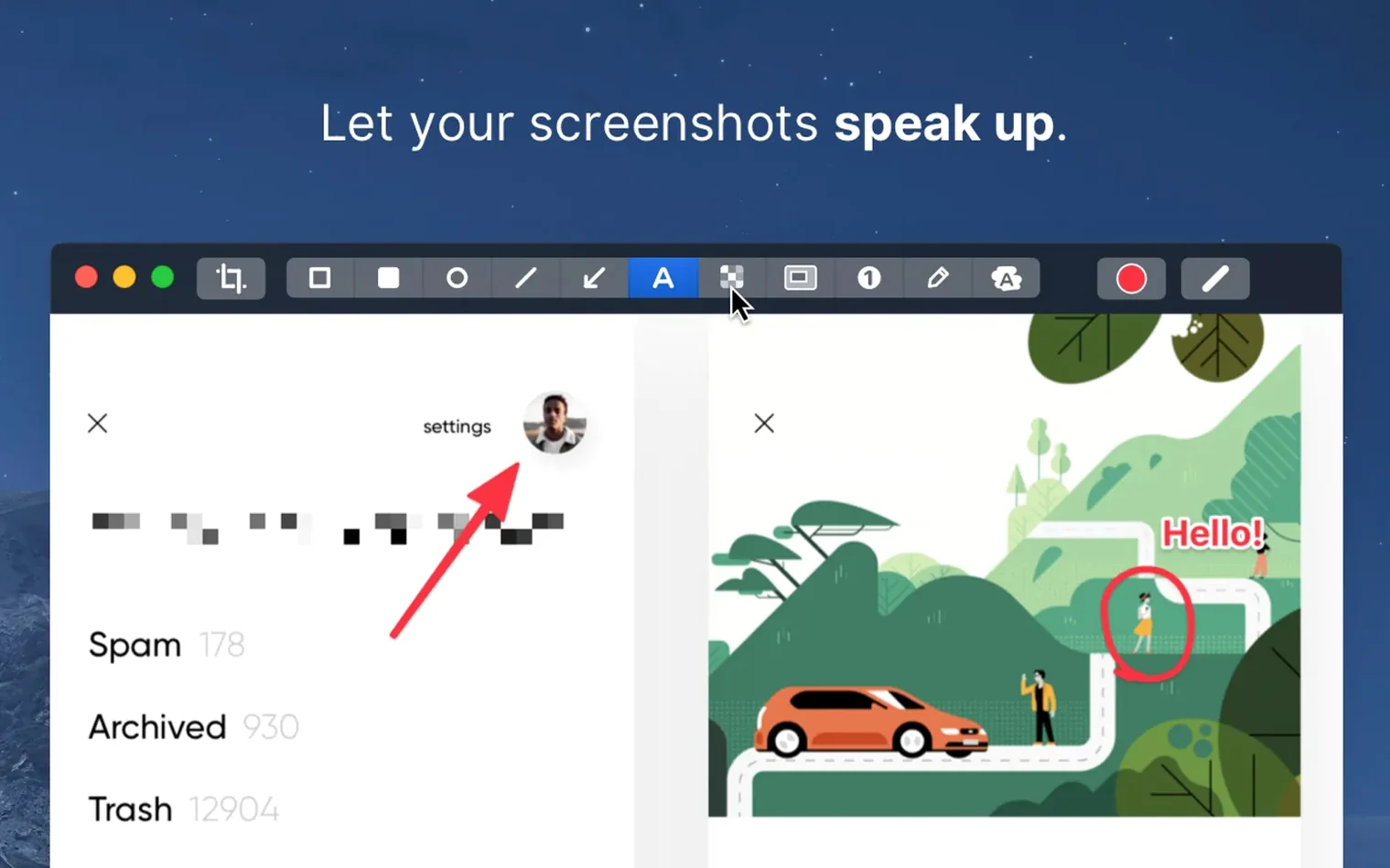
Monosnap offers a free tier but limits recording length and resolution. CleanShot X does not meter its output. Monosnap uploads to its own cloud by default. CleanShot X saves locally unless you choose otherwise. Monosnap's annotation tools are basic shapes and text. CleanShot X's editor lets you highlight, hide, and add comments in more depth.
macOS built-in screenshot tools
The built-in tools (⌘+⇧+4, ⌘+⇧+5) are adequate for a quick grab. They lack annotation, video editing, timer, resolution switching, and desktop-icon hiding. CleanShot X replaces them rather than supplements them. Once configured, you will likely stop using the built-in shortcuts entirely.
Beginners forget to change the default desktop output folder
- Forgetting to set the output folder. CleanShot X saves to the desktop by default. That fills up fast. Point it to a dedicated Screenshots folder in preferences on day one.
- Recording without disabling notifications. The app has a setting for that. Turn it on before a long recording. An iMessage pop-up mid-demo is avoidable.
- Overlooking the resolution switch. Retina mode produces crisp screenshots for display work. Standard resolution creates smaller files for documentation. Pick the right one before capture — resizing afterwards loses detail.
- Ignoring the pin feature. New users close screenshots after viewing. Pinning keeps a reference visible while you work in another window. It is one of the app's most useful tricks and the easiest to miss.
- Saving every grab. CleanShot X can dump captures straight into the trash after use. Set a cleanup rule in preferences if you capture and discard frequently.
- Minor bug fixes and improvements.
- macOS 11 or later
- Apple Silicon and Intel Macs
Questions people ask
Does CleanShot X let you hide desktop icons before a screenshot?
Yes, it can automatically hide desktop icons when taking a screenshot, then restore them after the capture.
Staffroom comments 0
Sign in or create an account here to leave a comment.
Nobody has commented on this one yet.
Other Utilities tools
All Utilities tools-
 CloudMounter
4.18Intel Macs only
68 MB
Utilities
-
 Cocktail Sequoia Edition
18.7.1Intel Macs only
3 MB
Utilities
-
 Commander One PRO
3.18.0
53 MB
Utilities
-
 Compressor
5.3
122 MB
Utilities
-
 Canopy
2
11 MB
Utilities
-
 Boom 3D
2.2.6
Utilities
-
 Bloom
1.5.46
19 MB
Utilities
-
 dBpoweramp Music Converter
2026.09.13
31 MB
Utilities