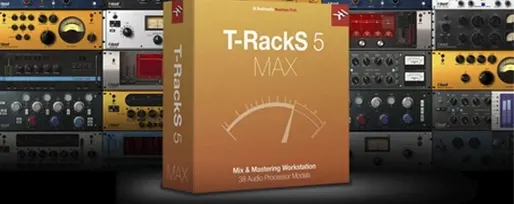
T-RackS 6.3.2 (macOS)
One download for Apple Silicon and Intel. Opens the install steps and mirrors.
- Version
- 6.3.2
- Size
- 2.3 GB
- Earliest macOS
- 10.15 or later
- CPU type
- Universal
- Updated
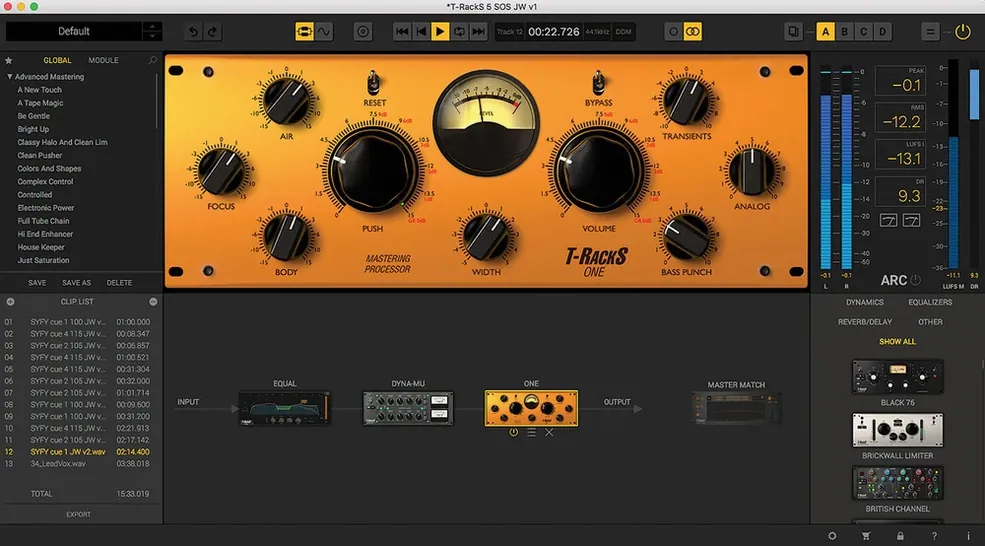
If you already use a DAW for multitrack work but find its built-in tools lacking for the final two-track stage, T-RackS 6 fills that gap. It runs standalone, as a plug-in suite, or as separate plug-in devices (Audio Units, VST 3, AAX).
Supports macOS 10.15 on Intel and Apple Silicon
- macOS 10.15 and later
- Intel 64-bit and Apple Silicon
- 64-bit only
- Floating-point processing up to 192 kHz and 32-bit
- Audio Units, VST 3, AAX
What the 6 brings
Version 6 adds four processors: Master Match for reference-based EQ matching, Dyna-Mu for optical-style compression, EQual for surgical EQ, and ONE for a clean channel strip. The GUI has been redesigned, and export now supports multiple file formats with four user-selectable dithering options. The language throughout is English.
Mixing engineers use the standalone Mastering Console outside their DAW
This suite suits anyone who finishes tracks for release. Mixing engineers who deliver stems and want control over the final two-track can use the standalone Mastering Console without opening their DAW. Mastering engineers will appreciate the 16-slot chain and the ability to run serial or parallel processing on the same session. DAW users who prefer to stay inside their host can load individual processors as Audio Units, VST 3, or AAX — the plug-in format is their choice, not the suite's restriction.
Home project-studio producers with one room often skip a dedicated mastering stage. T-RackS 6 lets them assemble an album, sequence tracks, embed metadata, and export multi-format files from one window. That removes the step of bouncing each track and importing it into a separate mastering app.
Module Manager lets you toggle processors on or off without uninstalling
- Module Manager — Lets you enable or disable individual processors without uninstalling the whole suite. Useful if you only ever reach for three of the nine processors and want a leaner list when browsing.
- Master Match X — Analysing a reference track's frequency curve and applying a matching EQ curve to your own master saves time if you aim for a similar tonal balance. It is not a magic button, but it reduces the guesswork.
- Dithering options — Four distinct types, selectable per export. If you distribute to different platforms (streaming, CD, vinyl pressing), you can choose the dither that suits each destination without reprocessing the whole chain.
- Album assembly — Sequencing and metadata embedding happen inside the same session. No need to export individual files and tag them with a separate utility afterwards.
Drag a finished stereo mix into the 16-slot modular chain
Start the standalone Mastering Console and drag a finished stereo mix into the track. The track loads into the modular chain, which shows 16 empty slots by default. You add Dyna-Mu to slot 1 for gentle optical compression, then EQual in slot 2 to cut a narrow band at 3 kHz where the vocal sits too forward. Master Match goes into slot 3 — you load a reference track from a recent release and let it generate an EQ curve, which you then adjust manually before applying.
Once the chain sounds right, switch to album assembly view. You import three more tracks, sequence them, and add track titles as metadata. Export is set to 44.1 kHz, 16-bit WAV for CD, with the Type 2 dither selected. The suite writes all four files in one pass, with consistent gain staging across the album. No extra bounces, no separate tagging step.
Open Module Manager and Console preferences to disable unused processors
After installation, open the Module Manager and disable any processors you do not intend to use. That keeps the processor list shorter and avoids scrolling past tools you never load. Next, in the standalone Console preferences, confirm the sample rate and bit depth match your interface or your target format. If you work at 96 kHz, set it there before loading any tracks — the suite processes at up to 192 kHz, but starting at the session rate avoids unnecessary resampling. Finally, pick your default dither from the four options and save that as your export preset. You can change it per export later, but having a sensible default saves one click every time you render.
No “what's new” for 6.3.2. The release line gave nothing I could check, and I will not stretch it into a changelog.
- macOS 10.15 Catalina or later
- 64-bit CPU and 64-bit operating system
- Intel or Apple Silicon processor
- Interface language: English
Questions people ask
Can T-RackS 6 run on an Apple Silicon Mac?
Yes, it supports both Intel 64-bit and Apple Silicon Macs natively under macOS 10.15 or later.
What plug-in formats does it support?
It supports Audio Units, VST 3, and AAX formats.
What sample rates can it handle?
It supports floating-point processing up to 192 kHz at 32-bit.
Staffroom comments 0
Sign in or create an account here to leave a comment.
Nobody has commented on this one yet.
Other VST Plugins tools
All VST Plugins tools-
 Superior Drummer
3.4.4
625 MB
VST Plugins
-
 Steinberg SpectraLayers Pro
13.0.20
3.9 GB
VST Plugins
-
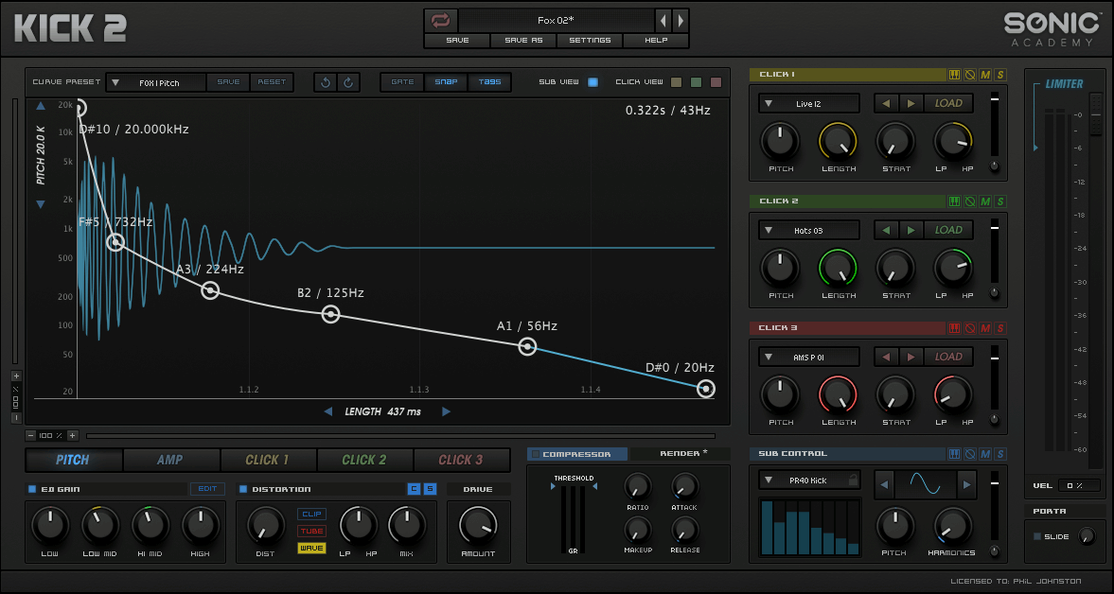 Sonic Academy KICK
1.1.8
358 MB
VST Plugins
-
 Slate Digital Submerge
1.0.5
38 MB
VST Plugins
-
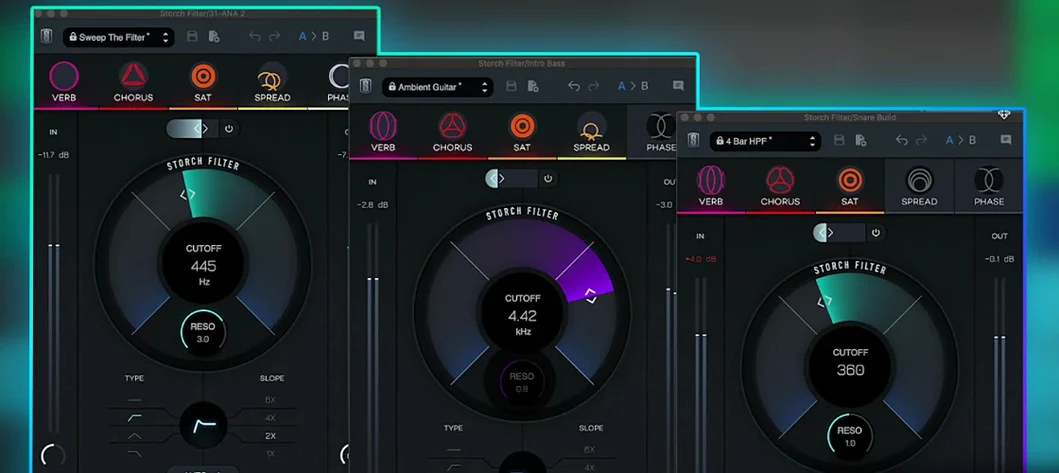 Slate Digital Storch Filter
1.0.6
69 MB
VST Plugins
-
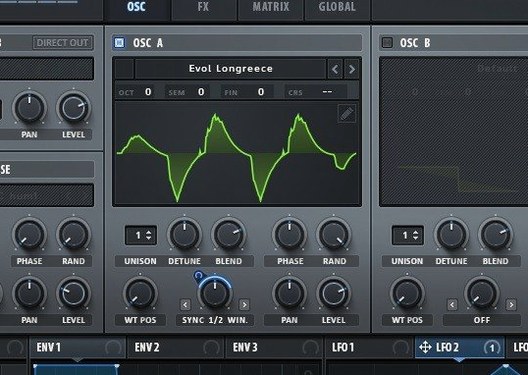 Serum
2.1.5
1.2 GB
VST Plugins
-
 UJAM Symphonic Elements STRIIIINGS
1.3.1
4.4 GB
VST Plugins
-
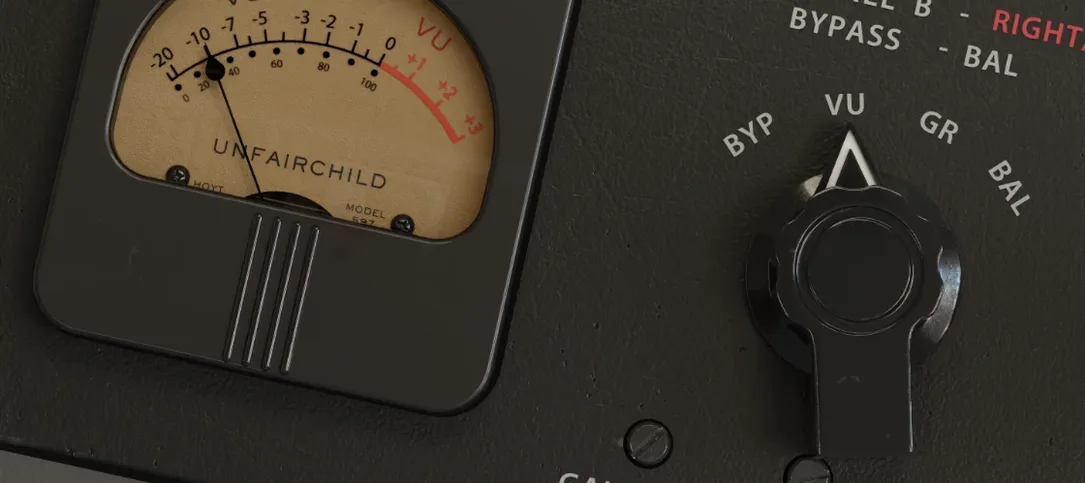 UnderTone Audio UnFairchild
1.0.8
220 MB
VST Plugins