
CapCut 9.3.0 (macOS)
One download for Apple Silicon and Intel. Opens the install steps and mirrors.
- Version
- 9.3.0
- Size
- 1.1 GB
- Earliest macOS
- 10.14 or later
- CPU type
- Universal
- Updated
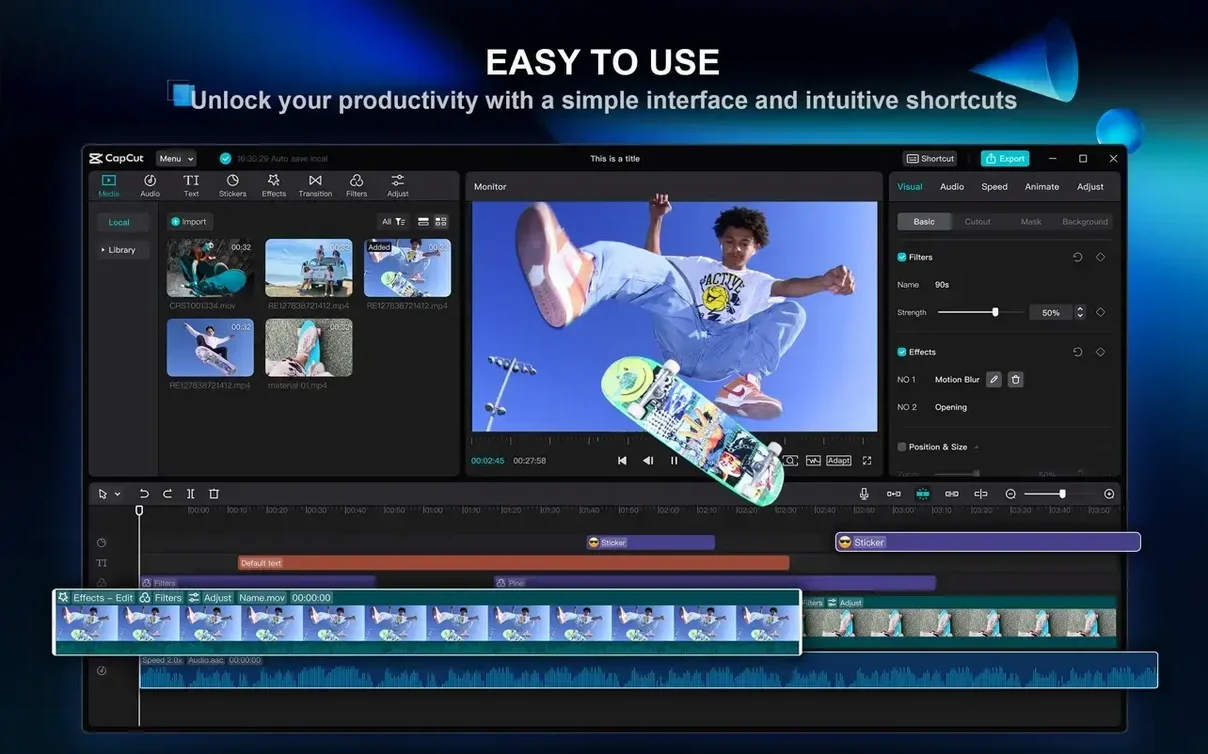
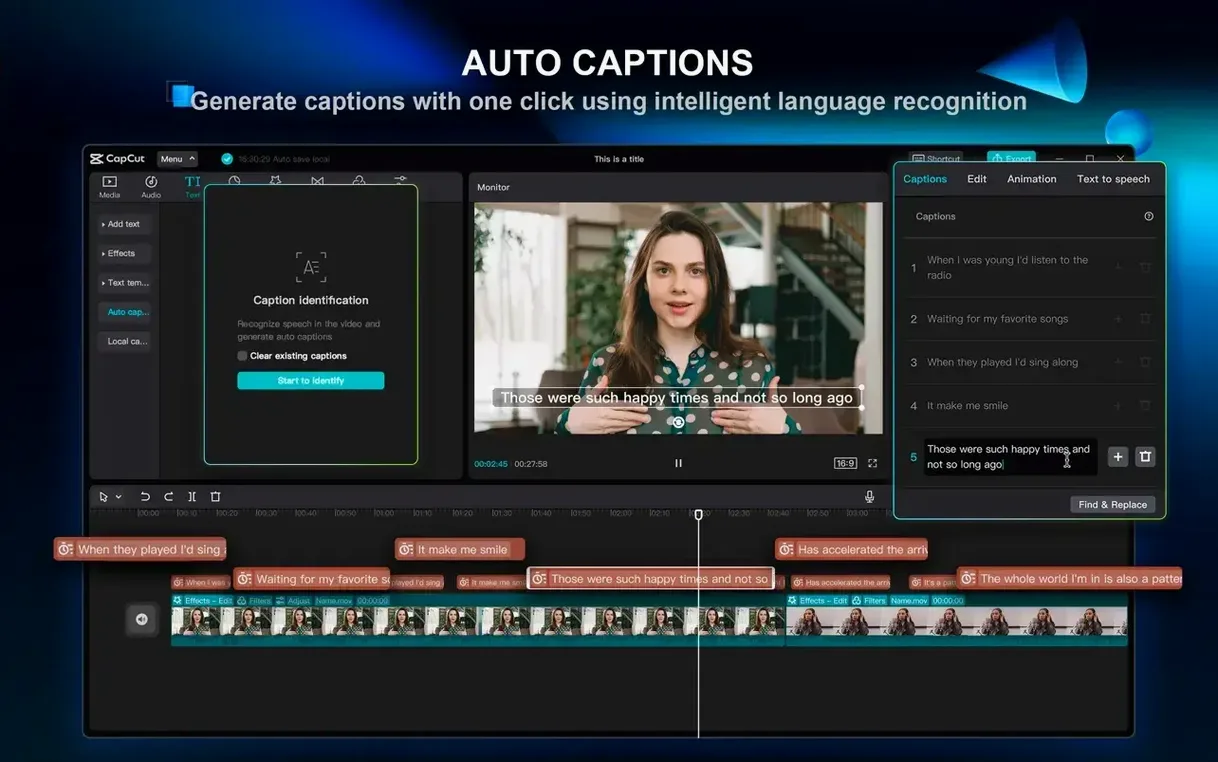
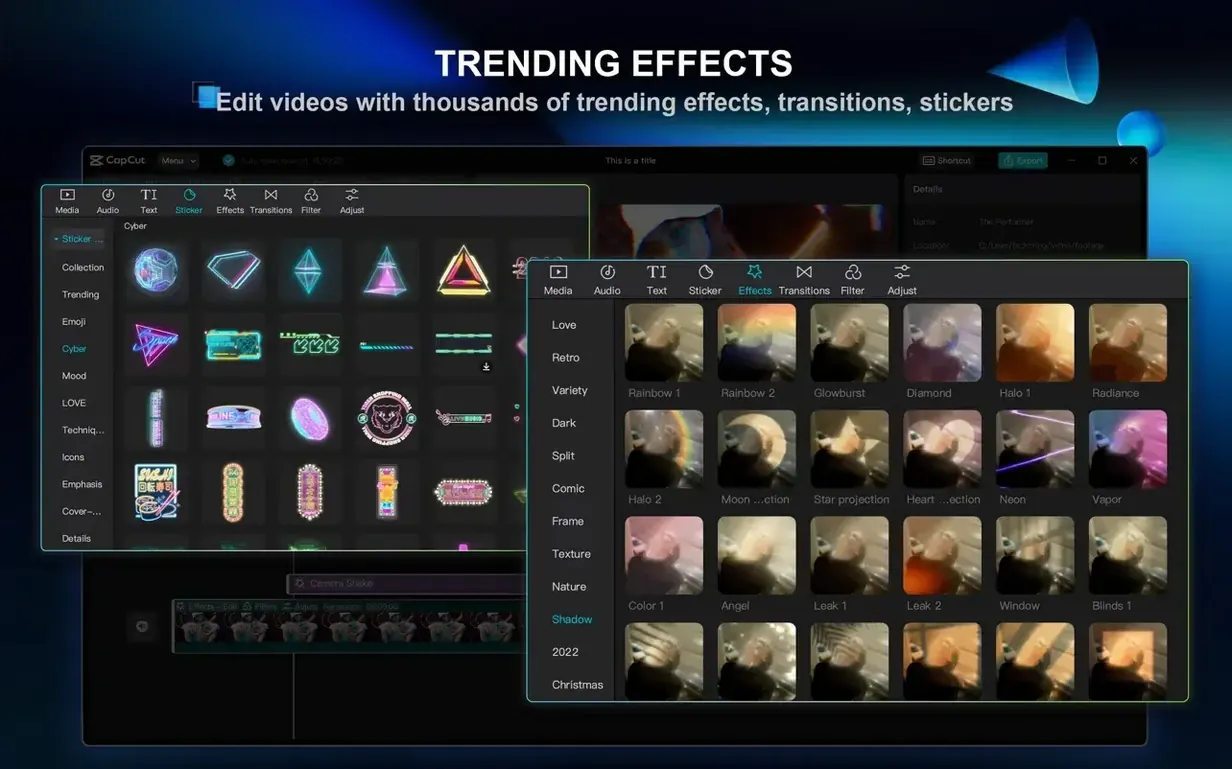
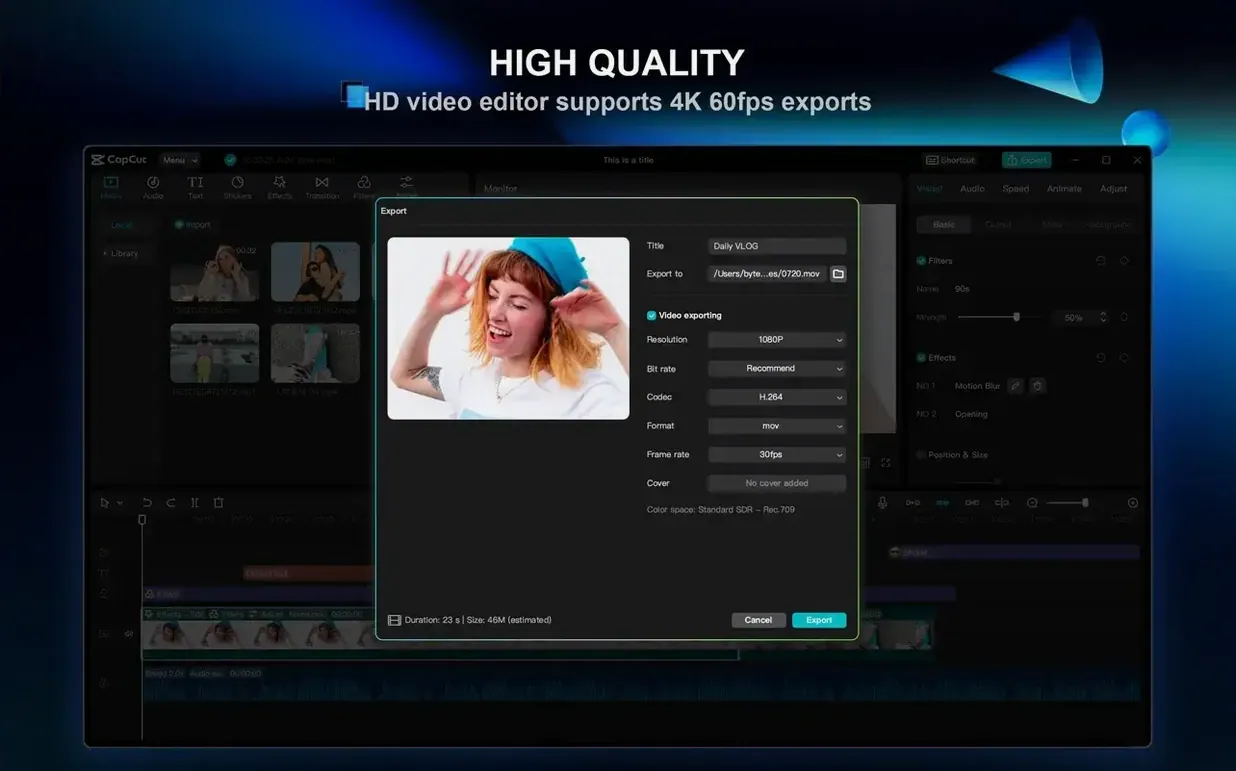
Auto captions. That's the feature most of my colleagues ask about first. CapCut 9.3.0 can pull speech from a clip and turn it into subtitles without much fuss. The same goes for removing filler words and pauses from podcast audio — one action, no manual scrubbing.
Text to speech, video stabilization, and 4K at 60 fps
- Cutting, joining, and splitting clips on multiple tracks
- Text to speech with a set of different voices
- Video stabilization for shaky footage
- 4K export at 60 frames per second
What has stayed the same
The Mac build still asks for macOS 10.14 or later, though ByteDance's own page mentions 10.15 in places. A 2-core processor and 4 GB of RAM get you editing; 8 GB makes it smoother. Intel and Apple Silicon both work. The app remains a general-purpose editor with AI bits bolted on rather than a specialist tool. You get a lot of function for a small footprint, and the interface has not changed shape in ways that would annoy someone used to the previous version.
A workflow: cleaning up a recorded lecture
I had a 40-minute classroom recording with a shaky start, long pauses, and no subtitles. Here is how CapCut handled it from the import to export.
- Dragged the video into the timeline. CapCut laid it on a single track by default.
- Deleted that segment. No re-encoding needed for that edit.
- Selected the whole clip and ran the filler-word removal. It flagged the pauses and "ums" in the audio track. One click cleared them. The timeline shortened noticeably.
- Applied the automatic subtitle generation. The app scanned the remaining speech and placed captions at the correct timestamps. I checked a few lines — they matched well enough that I did not correct any.
- The file landed in the output folder with burned-in subtitles and the gaps already stitched.
Chroma key samples off-colour green screens
- Chroma key by colour — the background removal tool lets you pick a specific colour from the video. If your green screen has a slight blue cast, you can sample the exact shade and it keys that, not a generic green.
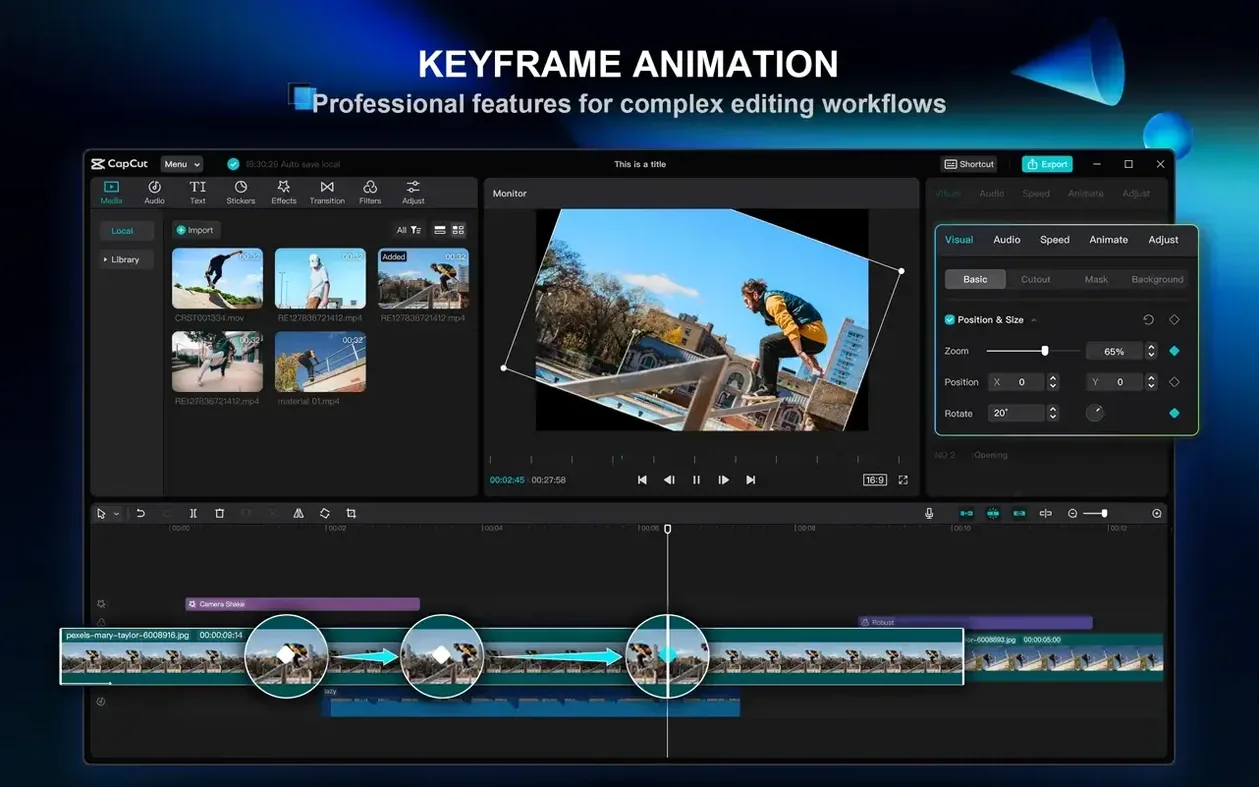
- Keyframe animation works on position, scale, and rotation. You can set a start and end keyframe on an overlay text layer, and CapCut interpolates the motion. No plug-in needed.
- Video from script — paste a block of text, choose a voice, and the app builds a video with the speech track and placeholder visuals. Useful for rough drafts or social media shorts.
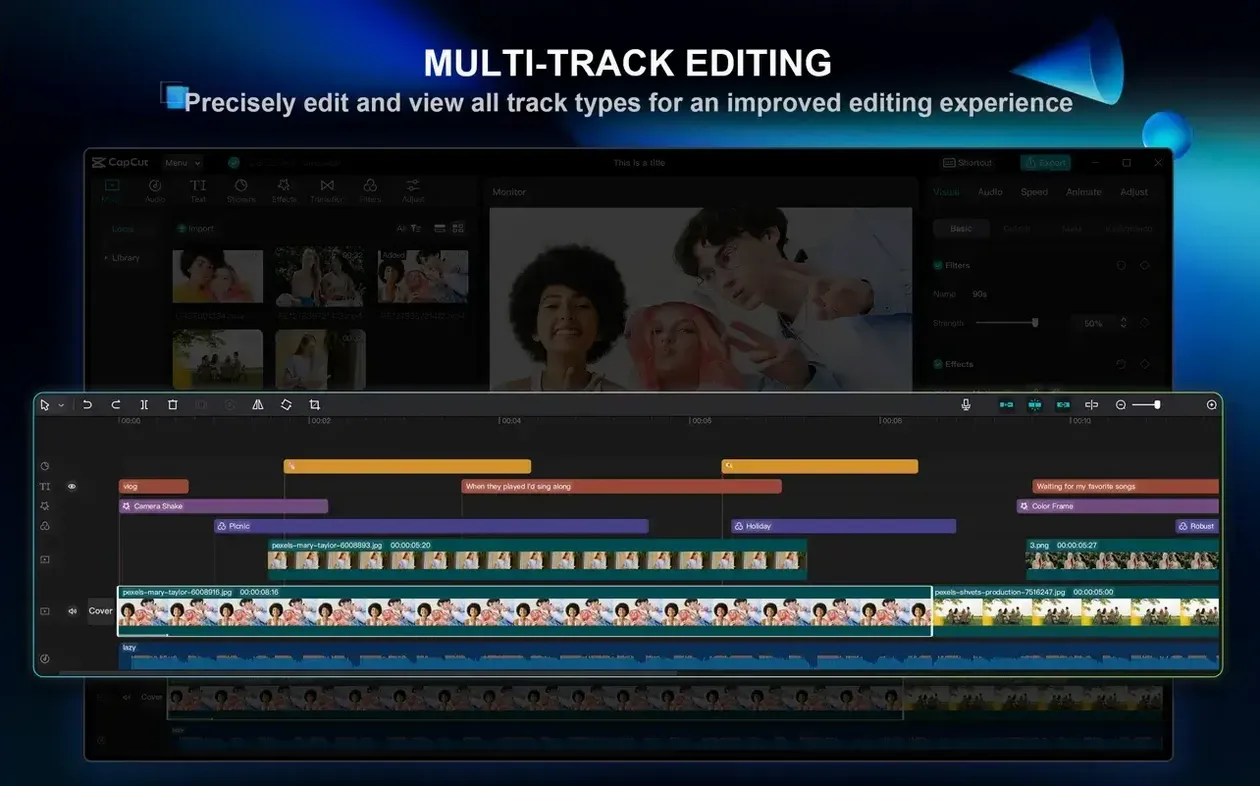
- Multi-track editing lets you stack video, audio, text, and stickers on separate lanes. If you need a picture-in-picture effect, you place the second clip on a higher track and shrink its viewport. No extra software.
Importing a 12-minute interview and editing on the timeline
I opened CapCut on a Tuesday afternoon with a 12-minute interview clip. The editor loaded with a blank timeline and a media import panel on the left.
First, I dragged the interview into track 1. The waveform appeared under the video thumbnails. I trimmed the opening silence by dragging the clip edge inward. CapCut shows the waveform in real time, so find the first spoken word is straightforward.
Next, I added a lower-third title. I clicked the text tool, typed the interviewee's name, and dragged the text layer onto a new track above the video. The keyframe button on the text properties panel let me animate it sliding in over half a second. I placed a keyframe at the start off-screen and one at the end where I wanted it.
For the background, I used the chroma key tool to remove a white wall behind the subject. I picked the colour from the preview, and CapCut masked it. The edge detection was clean enough that the subject's hair did not flicker.
When the interview had a long pause mid-way, I selected that region and ran the filler-word removal. The gap disappeared and the timeline snapped shut. The remaining audio stayed in sync with the video.
Finally, I added auto captions. No render queue, no waiting for analysis passes. The app stayed responsive throughout. For the size of the tool, that is the main thing.
No “what's new” for 9.3.0. The release line gave nothing I could check, and I will not stretch it into a changelog.
- macOS 10.14 or later
- 2-core processor minimum
- 4 GB RAM minimum; 8 GB or more recommended
- Intel and Apple Silicon supported
Questions people ask
Does CapCut for Mac run on Apple Silicon?
Yes. The current build supports both Intel and Apple Silicon Macs.
Can CapCut generate subtitles automatically?
Yes. It can generate subtitles from speech in a video without manual typing.
Staffroom comments 0
Sign in or create an account here to leave a comment.
Nobody has commented on this one yet.