BricsCAD 24.2.04 (macOS)
Intel build. On Apple Silicon it runs through Rosetta 2. Opens the install steps and mirrors.
- Version
- 24.2.04
- Size
- 1.1 GB
- Earliest macOS
- 10.15 or later
- CPU type
- Intel
- Updated
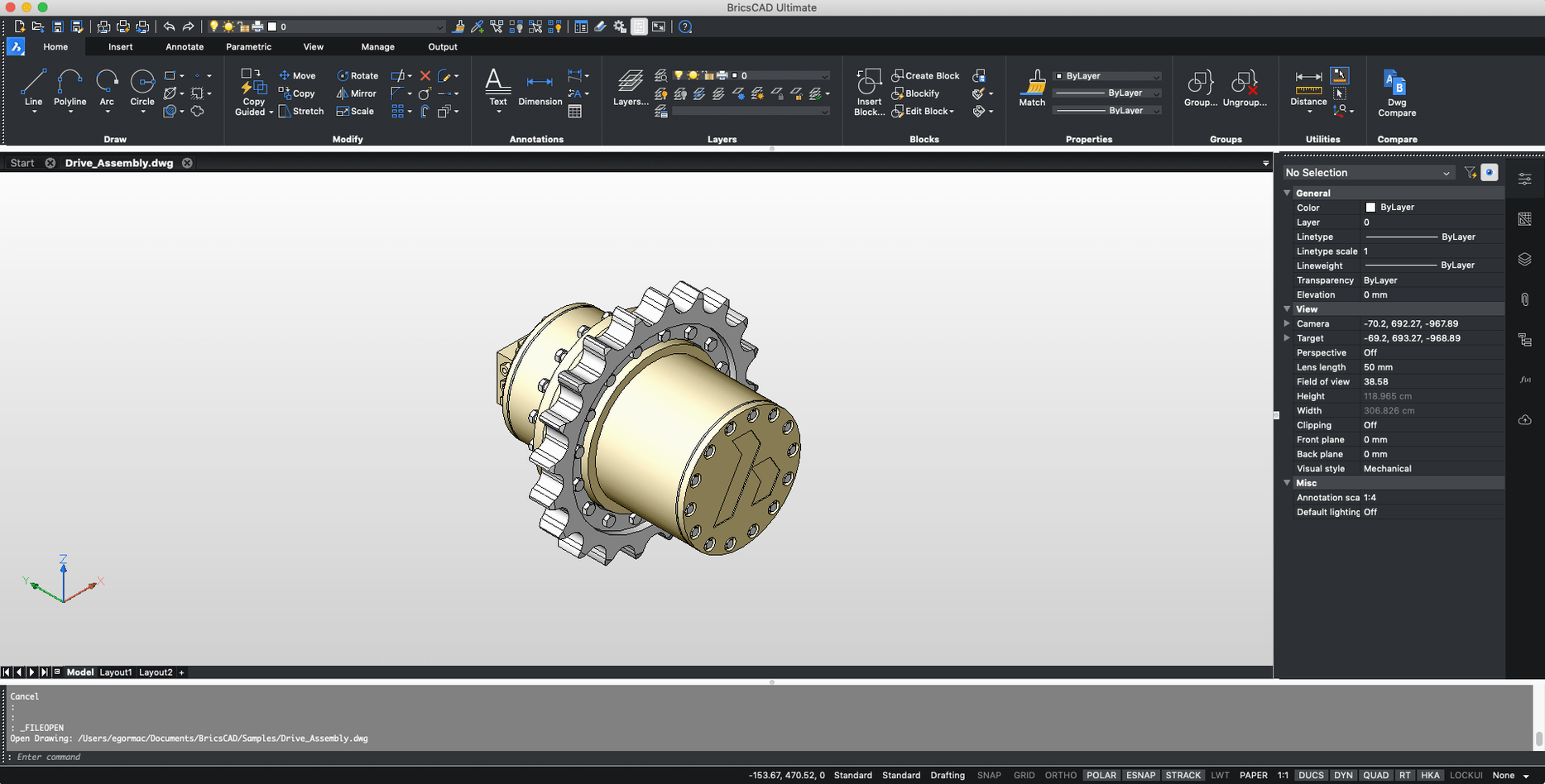
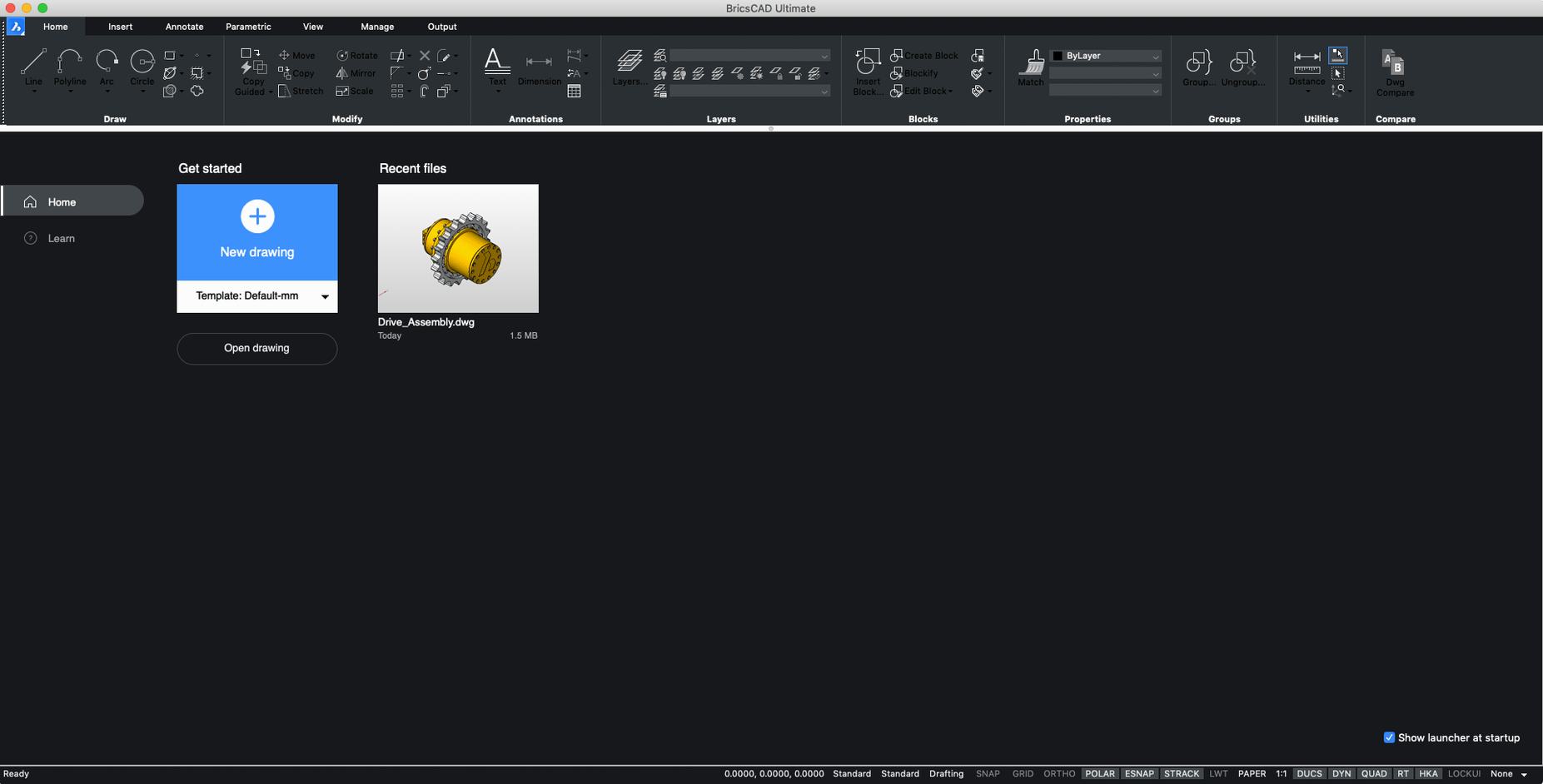
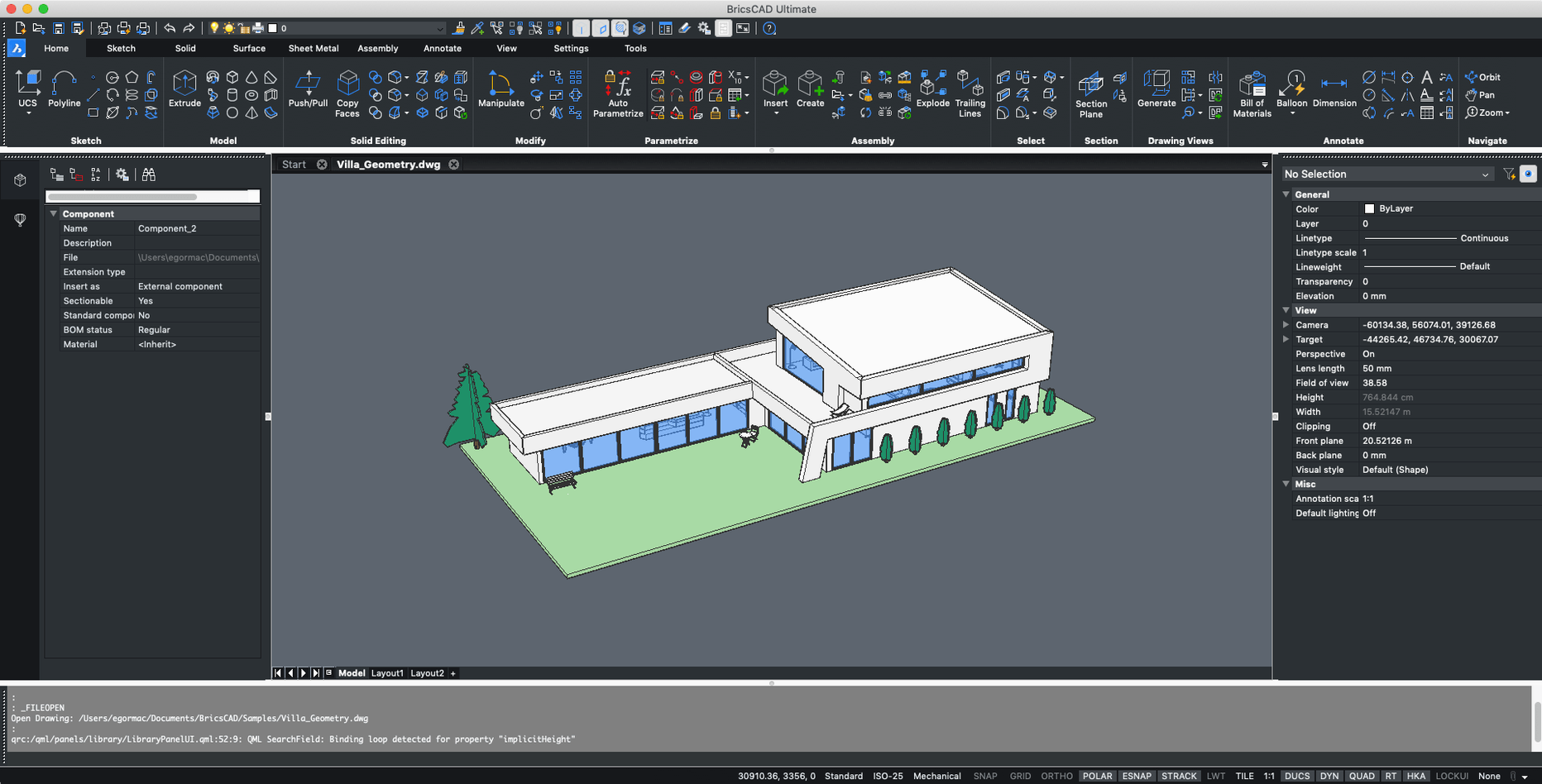
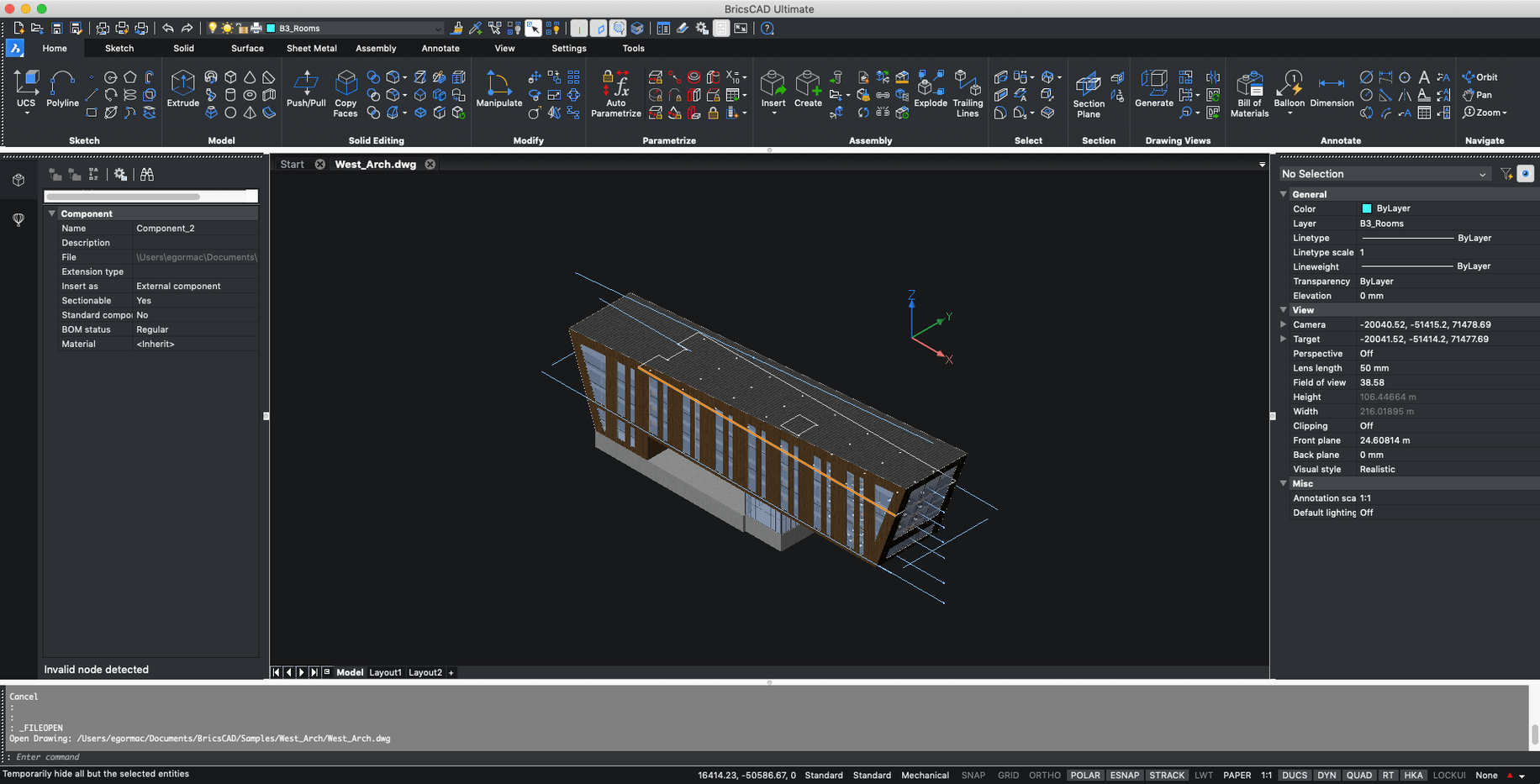
BricsCAD for Mac is a CAD application for 2D drafting and 3D modeling, built to handle DWG files alongside AutoCAD workflows.
| Detail | Info |
|---|---|
| Version | 24.2.04-05-1 |
| macOS | 12 or higher (Sonoma, Ventura, Monterey, Big Sur) |
| Languages | English, Russian |
Compatibility first: the developer lists macOS 12 as the minimum, with V24 supported on Sonoma, Ventura, Monterey, and Big Sur. The build covers Intel Macs. If your machine clears that bar, you get a native drafting environment for 2D drawings and 3D models, with support for AutoCAD custom menus, toolbars, scripts, and snaps. That matters when you inherit a pile of old drawing files and want the same commands to work.
Dark theme and other first tweaks
BricsCAD ships with defaults aimed at the broadest audience. For a school or a single-user workstation, a few tweaks save time.
- Turn on the Dark theme in the Display settings if you work evenings — the default light interface is harder on the eyes after a few hours.
- Set the default file format to the AutoCAD version your colleagues or students use. BricsCAD remembers the choice per session; change it once in the Options panel under Save/Open.
- Enable the Ribbon interface if you prefer toolbar-style access, or disable it if screen space is tight. The toggle lives in the Workspace switcher at the bottom of the window.
- Check the Units settings before starting a new drawing. A mismatch between millimetres and inches early on is the kind of mistake that costs a lesson.
- Under Drafting > AutoSnap, adjust the Marker size and Snap sensitivity. The defaults work for most people, but a larger marker helps when students share a screen on a projector.
How BricsCAD compares with similar Mac apps
There are three main options for native or near-native CAD work on macOS: BricsCAD, the Mac edition of AutoCAD, and LibreCAD. Each has a different feel.
- BricsCAD vs AutoCAD for Mac: Both open and write DWG files. Both support custom menus and scripts. BricsCAD uses its own Lisp-based scripting and a different dialog layout, so an AutoCAD user needs a short re-learning period. The main difference is BricsCAD's Mechanical and BIM editions, which bundle specialised tools that AutoCAD charges extra for — or does not offer on macOS at all. BricsCAD also runs on Linux, which is handy if a school or office mixes operating systems.
- BricsCAD vs LibreCAD: LibreCAD is free and open-source, but it handles only 2D drafting. Its file format is DXF, not DWG, so importing existing projects requires a conversion step. BricsCAD reads DWG natively and supports 3D modelling. For a workflow that involves existing AutoCAD drawings or any third-party add-ons, BricsCAD is the closer match.
- BricsCAD vs DraftSight: DraftSight also opens DWG files and offers a similar feature set to BricsCAD. DraftSight's macOS version has historically lagged behind Windows updates. BricsCAD's Linux support and the inclusion of all editions (Shape, Lite, Pro, Mechanical, BIM, Ultimate) in the same installer make it more flexible for environments where different users need different toolsets.
Copying over AutoCAD menu files
After you run the installer and follow the included activation instructions, spend ten minutes on these tasks before opening a real project.
- Copy over any existing AutoCAD menu files (.mnr, .mns) or scripts you rely on. Place them in the BricsCAD support folder so the app finds them on launch. The path is typically
~/Library/Application Support/Bricsys/V24. - Test a few keyboard aliases. BricsCAD recognises many AutoCAD short commands, but not every obscure one. Run the ALIAS command to see the current list, and add your own if something is missing.
- Set the automatic save interval to five or ten minutes, especially if you are working on a large 3D model. The setting is under Options > Open and Save > Autosave.
- If you switch between English and Russian interfaces, remember that the language choice is applied on next launch. Change it in System Preferences > Language or via a quick edit of the config file — whichever is faster for your setup.
- Keep the release notes page open in a browser tab for the first week. BricsCAD V25 installs independently of V24, so if you upgrade later, the old version stays put and you can test side by side.
No “what's new” for 24.2.04. The release line gave nothing I could check, and I will not stretch it into a changelog.
- macOS 12 or higher
- Intel architecture
- Interface: English, Russian
Questions people ask
Which macOS versions does BricsCAD support?
The system requirements page states macOS 12 or higher is supported, with V24 confirmed on Sonoma, Ventura, Monterey, and Big Sur.
Can BricsCAD work with AutoCAD files and settings?
Yes. BricsCAD is described as compatible with Autodesk AutoCAD and can use AutoCAD custom menus, toolbars, scripts, and snaps.
Staffroom comments 0
Sign in or create an account here to leave a comment.
Nobody has commented on this one yet.