KeyShot 2025.1 (macOS)
One download for Apple Silicon and Intel. Opens the install steps and mirrors.
- Version
- 2025.1
- Size
- 1.8 GB
- Earliest macOS
- 12 or later
- CPU type
- Universal
- Updated
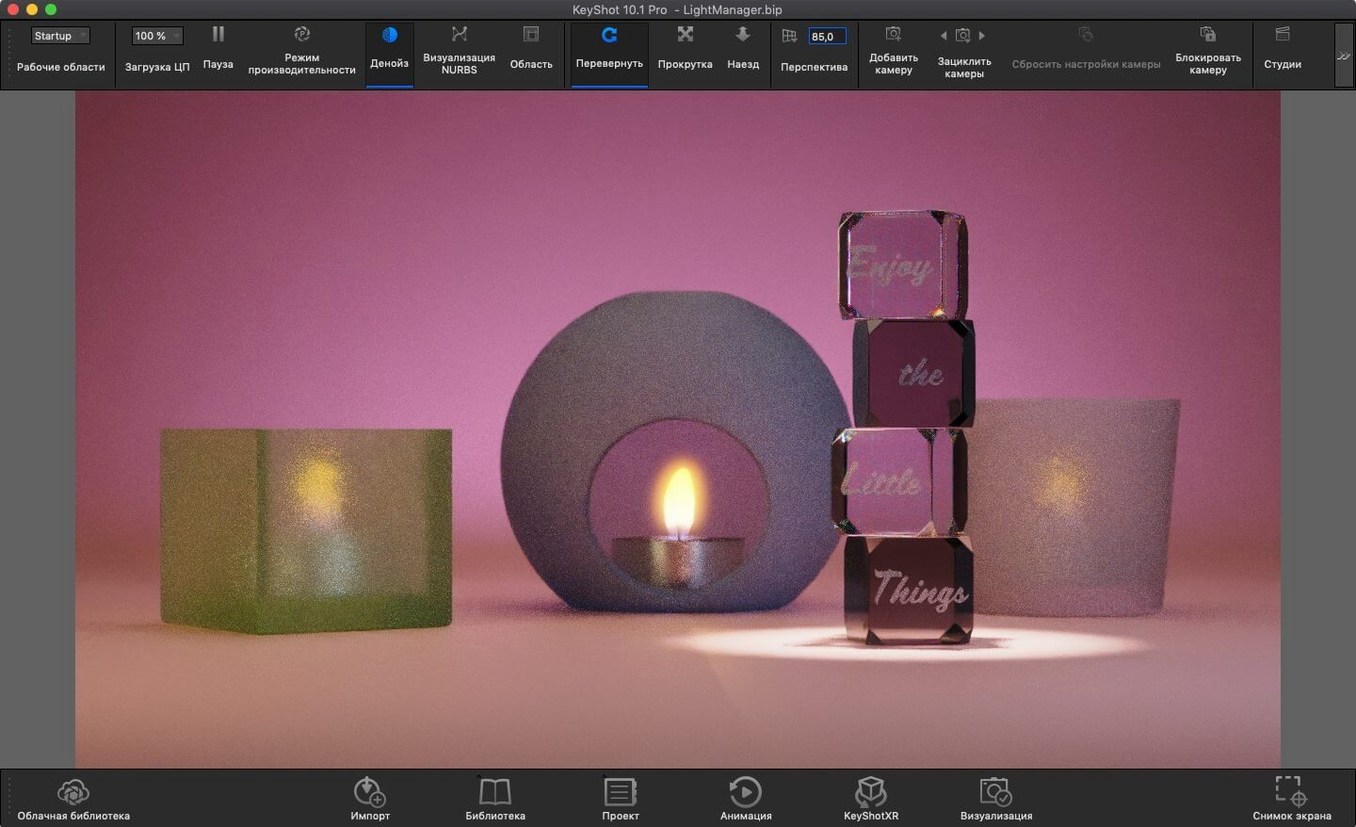
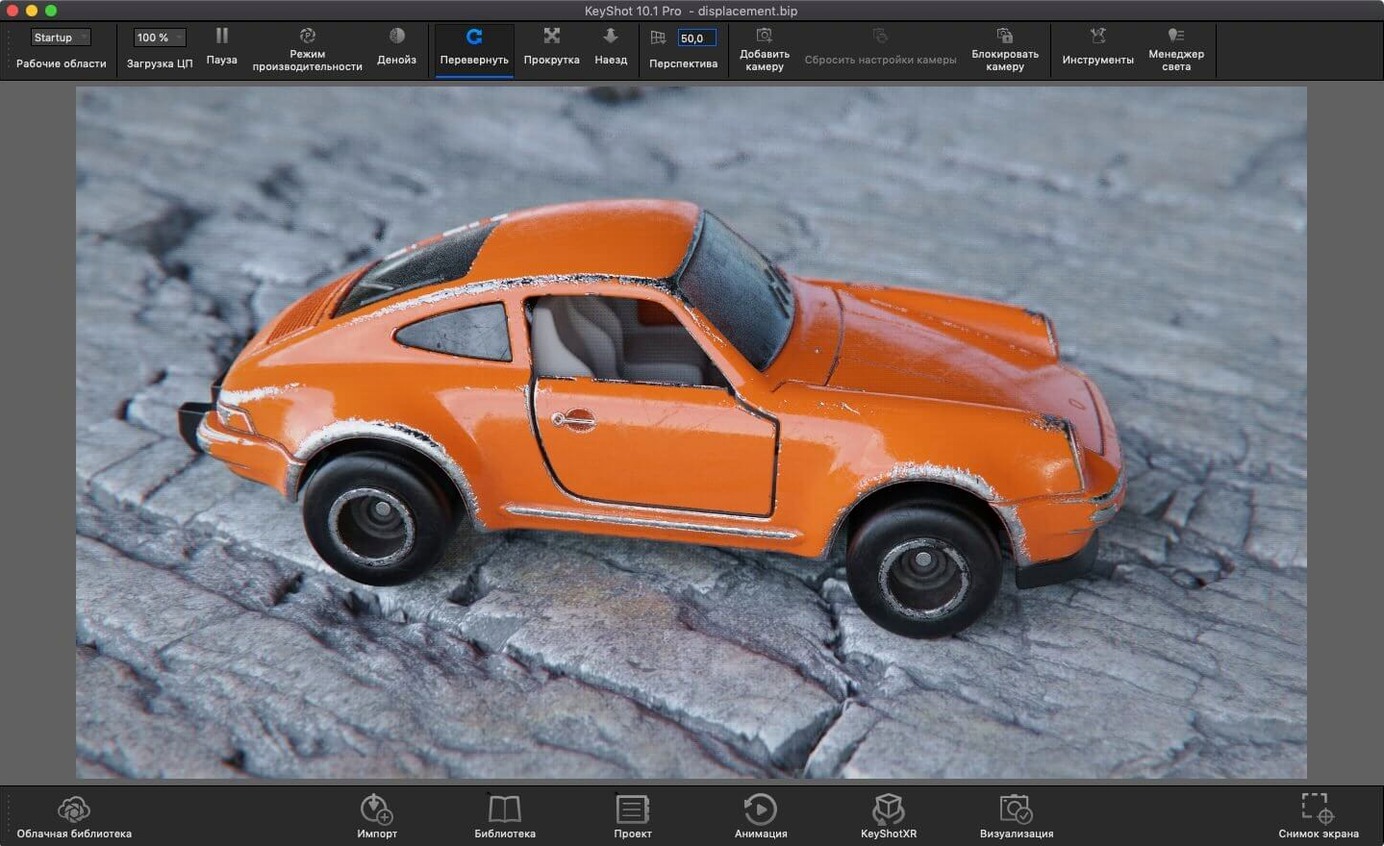
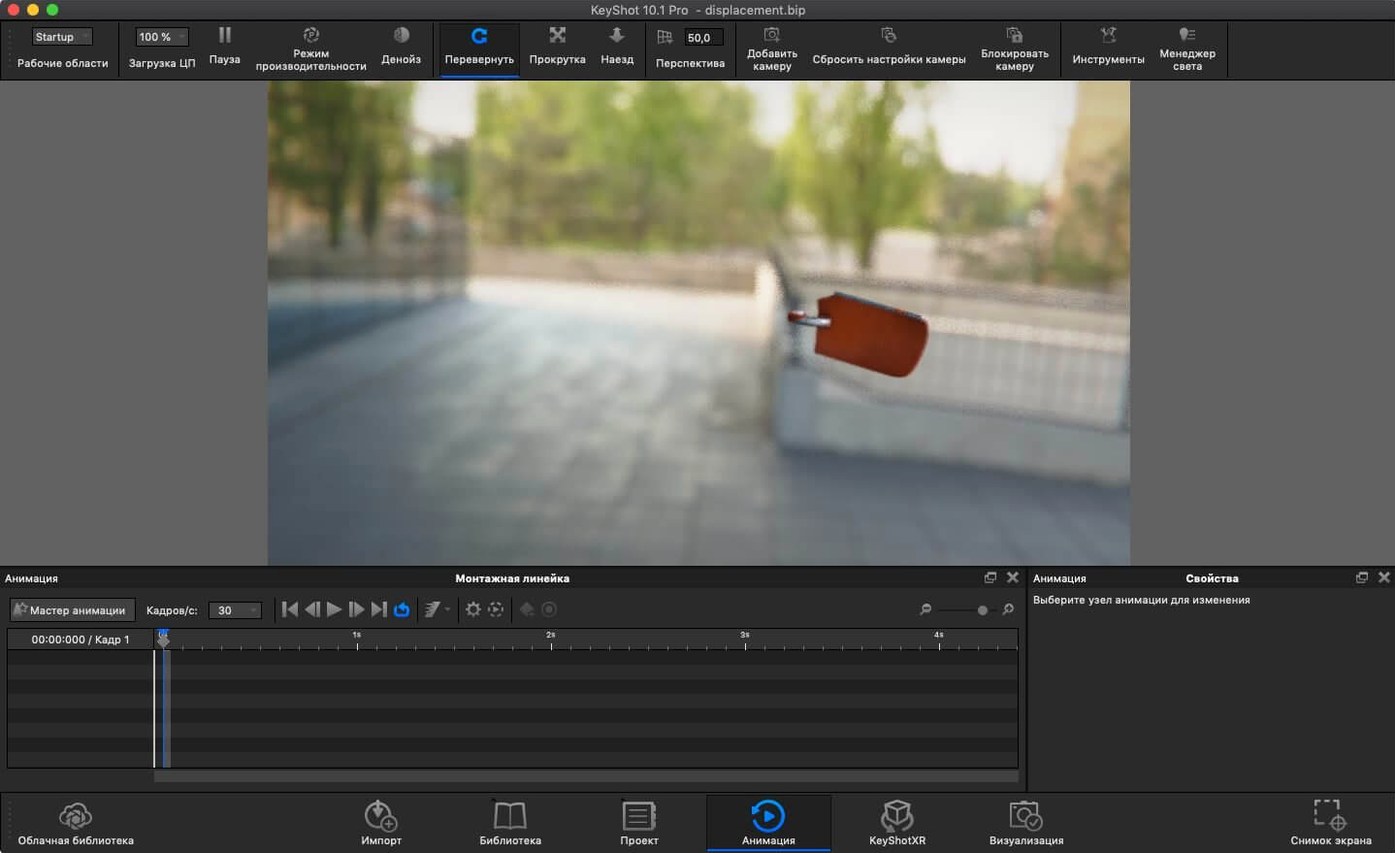
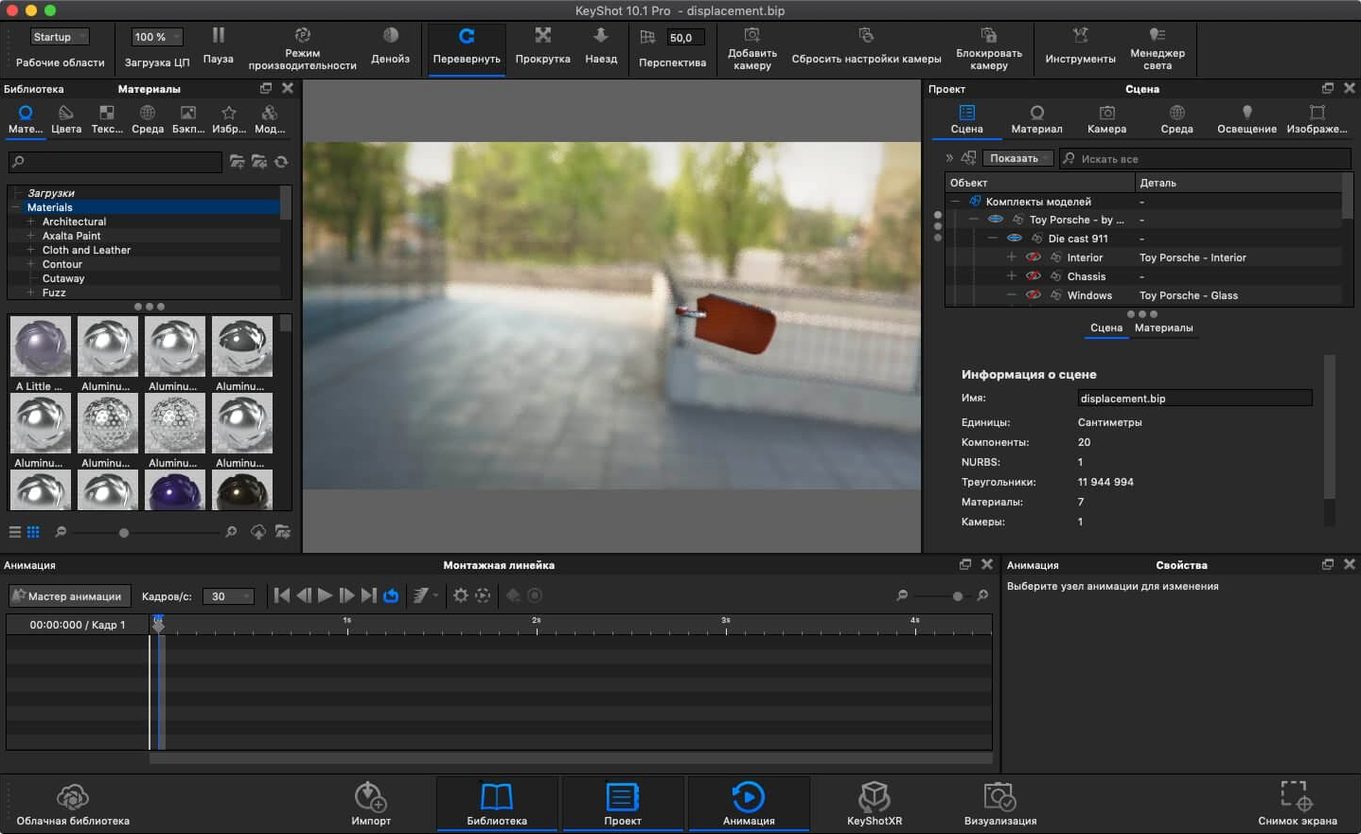
KeyShot is a 3D visualization tool that turns CAD models into photorealistic renders and animations on the Mac.
Delivers quick, believable visuals for product designers and engineers
- Product designers and engineers who need quick, believable visuals without a steep learning curve.
- Anyone who wants to see lighting, materials and shadows update live while they work.
- Teams that swap files between CAD packages – it reads OBJ, FBX, 3DS, IGES, STEP, JT, Collada and Parasolid.
- Mac users on both Apple Silicon and Intel machines – the app covers both architectures.
Renders with photon mapping, HDRI lighting, and live material updates
- It runs as a standalone app or as a plugin inside your usual modelling software.
- Rendering leans on photon mapping, HDRI lighting, caustics and inter-object light bouncing – the heavier the scene, the more work the GPU or CPU does.
- Interface languages cover English, German, Spanish, French, Russian, Japanese and others.
Runs on macOS 12+ with Apple Silicon and Intel support
KeyShot 2025.1 expects macOS 12 or later. That covers Monterey and everything after it, so most recent Macs are fine. The installer works on both Apple Silicon and Intel 64-bit machines – you do not need to hunt for a separate build.
No specific RAM or GPU minimum is published. A machine that runs a modern CAD package will probably manage. The heavier the geometry and the more optical effects you stack, the more you will feel it.
Languages on offer: Russian, English, German, Spanish, Italian, Traditional Chinese, Simplified Chinese, Korean, Polish, French, Czech and Japanese. The interface picks up your system locale if it matches; otherwise you can switch inside the app.
Who reaches for it
An industrial designer at a consultancy receives a STEP file from a client at 4pm. The client wants a glossy product shot for a pitch deck the next morning. The designer opens the file, drags a steel material onto the body, adds a couple of physical lights and lets the real-time preview bake the shadows. Fifteen minutes later they export a 3000 px still. No render farm, no overnight wait. That is the typical user – someone who needs to communicate a form and a finish, not run a simulation.
A session, start to finish
You launch KeyShot. The interface loads with a blank scene and a default library of materials. You import a CAD file – say an IGES or a STEP – directly through the file menu. The model appears in the viewport. The viewport shows it under a basic ambient light and a soft overhead key. That is the starting point.
You click the new Light Tool from the toolbar. It places a Physical Light in the scene. You drag the light around the model and watch the shadows move in real time – no render queue, no progress bar. You add a second light to fill the shadow side. The interactive output updates as you let go of the mouse.
Now materials. You select a face on the model and pick a material from the library – brushed aluminium. The preview updates instantly. You select another face and apply a glass material. The refraction and caustics appear. The global illumination engine handles the rest: environment reflections, inter-object light bouncing, self-shadowing. You can toggle ambient occlusion and final gathering on and off to see what each adds.
You add a Studio scene using the new hotkey for Add Studio – one keystroke and a pre-set studio back-drop appears behind the model. The Planar Light material type lets you create a soft light panel without futzing with geometry.
Final step: export. You choose a still image, or you export to AR format in USDz or GLB. You could also export as glTF or USD if the project needs a web-compatible model. The export dialog lets you set resolution and file type. One click and the file lands on your desktop.
Works standalone or as a plugin for CAD software like SolidWorks and Rhino
Will it work alongside my existing CAD software?
KeyShot can run standalone or as a plugin. If you work in SolidWorks, SketchUp, Rhino, Creo, Inventor, NX, CATIA V5, Alias, Solid Edge, Maya or AutoCAD, you can likely keep it inside your usual workflow. The plugin mode means you do not have to export and re-import every time you change the model.
Is Apple Silicon supported natively?
Yes. The 2025.1 build is compiled for both ARM and x86. It runs without Rosetta on an M-series Mac.
Does it need an internet connection to render?
No. All rendering and ray tracing happens locally. You need a connection only for the initial activation step.
How much space does the installer take?
The download is a few hundred MB. Installed, it uses more – but not so much that you would clear your drive for it. The material libraries and scene presets live on disk, so a typical install stays under two or three GB.
- New hotkey for Add Studio.
- New Light Tool for easier placement of Physical Lights.
- Re-tessellate Tool added to the Scripting API.
- macOS 12 or later
- Apple Silicon or Intel 64-bit
Questions people ask
What file formats can KeyShot import?
KeyShot imports OBJ, FBX, 3DS, IGES, STEP, JT, Collada and Parasolid files.
Does KeyShot work on Apple Silicon Macs?
Yes, KeyShot supports both Apple Silicon and Intel 64-bit Macs running macOS 12 or later.
What is new in KeyShot Studio 2025.1?
The update adds glTF export, a new Light Tool for placing Physical Lights, a hotkey for Add Studio, and Re-tessellate Tool support in the Scripting API.
Staffroom comments 0
Sign in or create an account here to leave a comment.
Nobody has commented on this one yet.