Motionvfx - mTitle Cinematic (macOS)
- Size
- 5 MB
- Updated
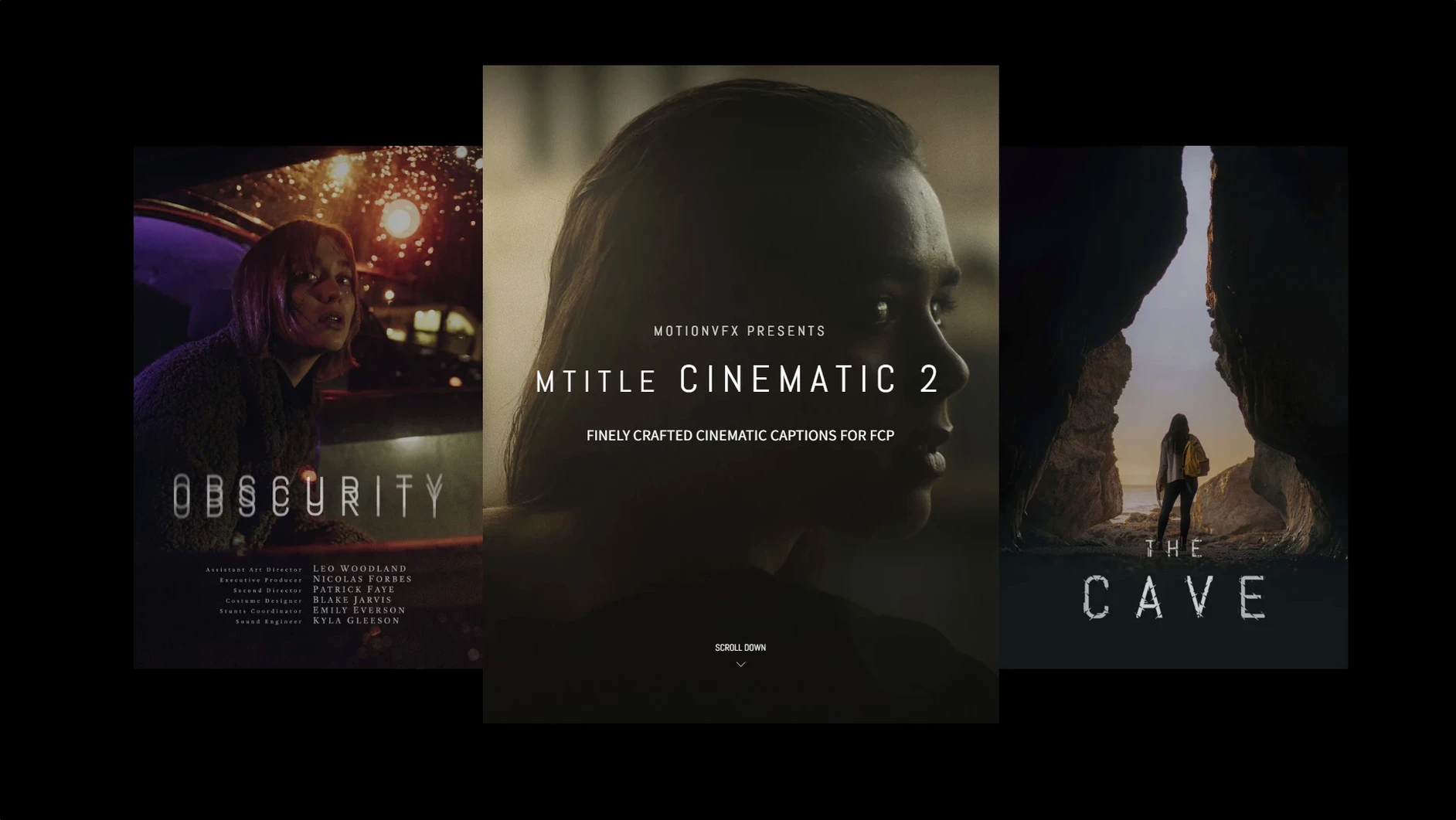
Video editors who need title sequences that match the footage's mood reach for mTitle Cinematic. It is a package of 50 animated titles built for Final Cut Pro by motionVFX. Each title is designed to sit over a clip and add a narrative feel without pulling attention away from the scene.
In a typical session you drop a title from the mTitle Cinematic set onto a connected clip on the primary storyline. The animation runs over a few seconds — enough for a location name, an episode title or a character introduction. Because the titles are animated, they work best on tracks where the video has a slow pan or a static background. If the scene cuts fast, the title may feel rushed.
The package sits in the Titles browser under the motionVFX category. You can adjust timing, font and colour directly in the Final Cut Pro inspector. For editors who need a quicker workflow, the mTitle Cinematic titles can be copied between projects and still hold their settings.
It requires macOS 10.14.4 or later and either Motion 5.4.3 or Final Cut Pro 10.4.6. No extra buses or routing are needed — just drag and place.
Drag a title onto a blank track above the establishing shot
Start a new sequence in Final Cut Pro with your establishing shot on the timeline. Open the Titles browser, find the motionVFX category and pick the first mTitle Cinematic title. Drag it onto a blank track above the clip. In the inspector set the text to your location name and, if you need a different font, change it there. Let the title play for the full length of the establishing shot.
Move the playhead to the next scene. Drag a second mTitle Cinematic title onto the track. This time the text is the date or a subtitle. Keep the same font for consistency. On the third scene place the episode title. Because the set includes 50 caption styles you can mix two or three different animations across the opener and they still feel part of the same pack.
If you need a quick preview before committing, scrub through the titles in the browser. Each mTitle Cinematic entry shows its animation in the preview window so you can decide which one fits the pacing of the clip.
Free built-in presets versus mTitle Cinematic's third-party polish
For Final Cut Pro editors, the nearest alternatives are the built-in title presets and third-party packs like Boris Title Studio or Red Giant's old Title Toolset. The built-in presets are free and work without installation, but they are limited to about a dozen styles and none have the cinematic slow-reveal feel of mTitle Cinematic. Boris Title Studio runs as a separate application with its own timeline, which adds an export step before the title reaches Final Cut Pro. The mTitle Cinematic titles stay inside Final Cut Pro — you never leave the edit window.
Red Giant's tools offer a wider range of motion graphics but require a separate render engine and are no longer updated for newer Macs. The mTitle Cinematic package runs on macOS 10.14.4 or later, Motion 5.4.3 or Final Cut Pro 10.4.6, and activates without a separate account or licence key. For editors who only need animated titles for openers and credits, the 50-title set covers the common scenarios without the extra overhead of a full motion graphics suite.
No “what's new” for this build. The release line gave nothing I could check, and I will not stretch it into a changelog.
- macOS 10.14.4 or later
- Motion 5.4.3 or Final Cut Pro 10.4.6
Questions people ask
What software does mTitle Cinematic work with?
It works with Final Cut Pro 10.4.6 or later, and also requires Motion 5.4.3. macOS 10.14.4 or newer is needed.
Staffroom comments 0
Sign in or create an account here to leave a comment.
Nobody has commented on this one yet.