
Movist Pro 2.21.0 (macOS)
One download for Apple Silicon and Intel. Opens the install steps and mirrors.
- Version
- 2.21.0
- Size
- 60 MB
- Earliest macOS
- 11 or later
- CPU type
- Universal
- Updated
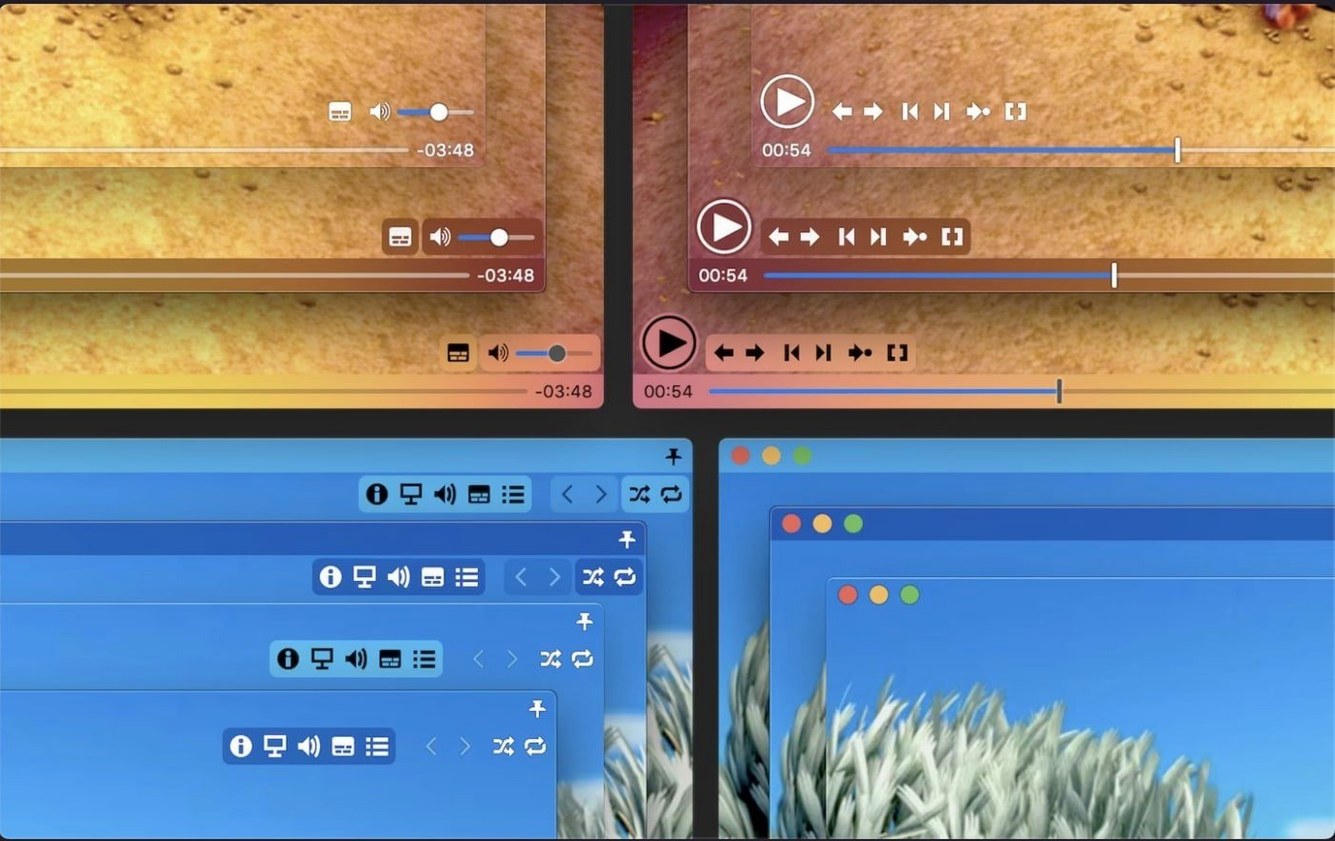
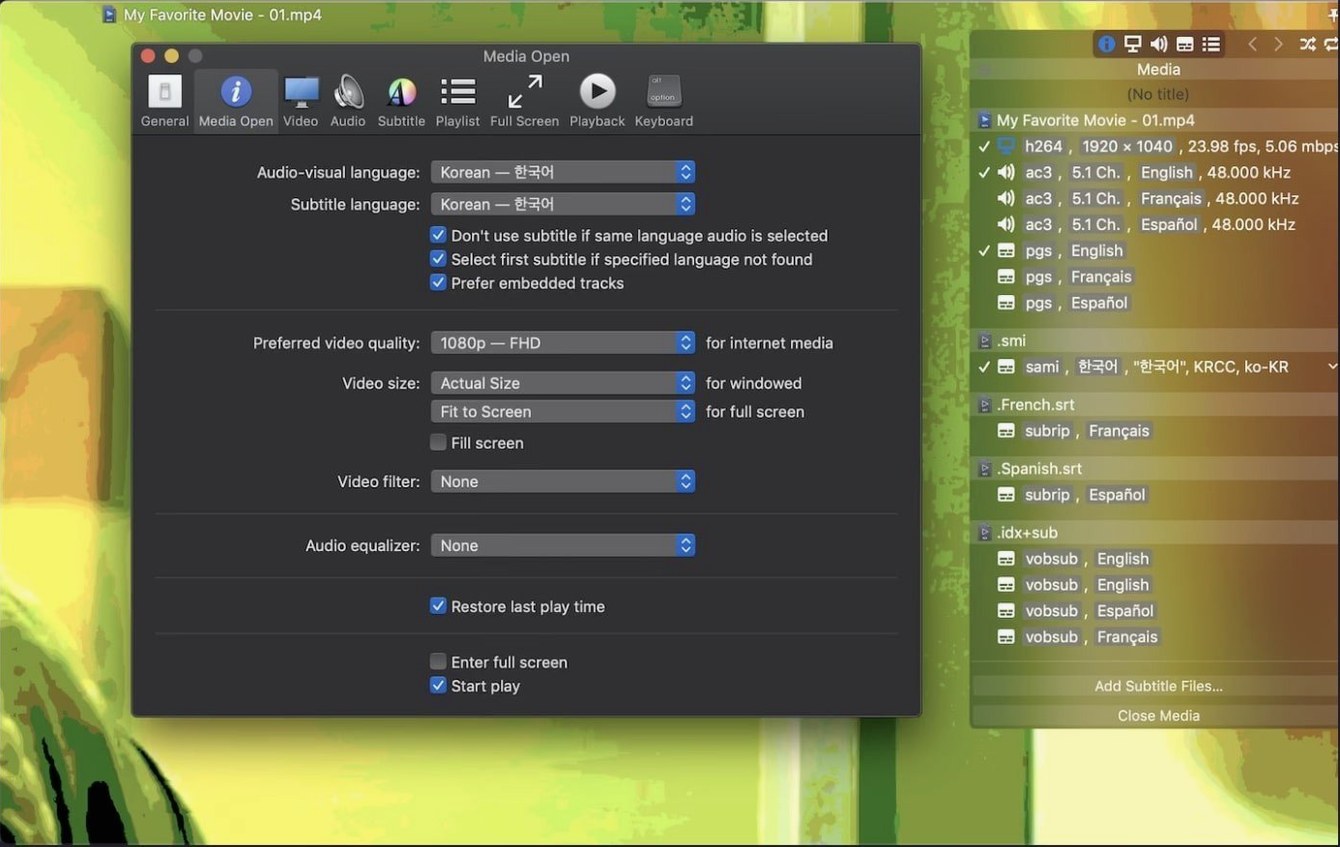
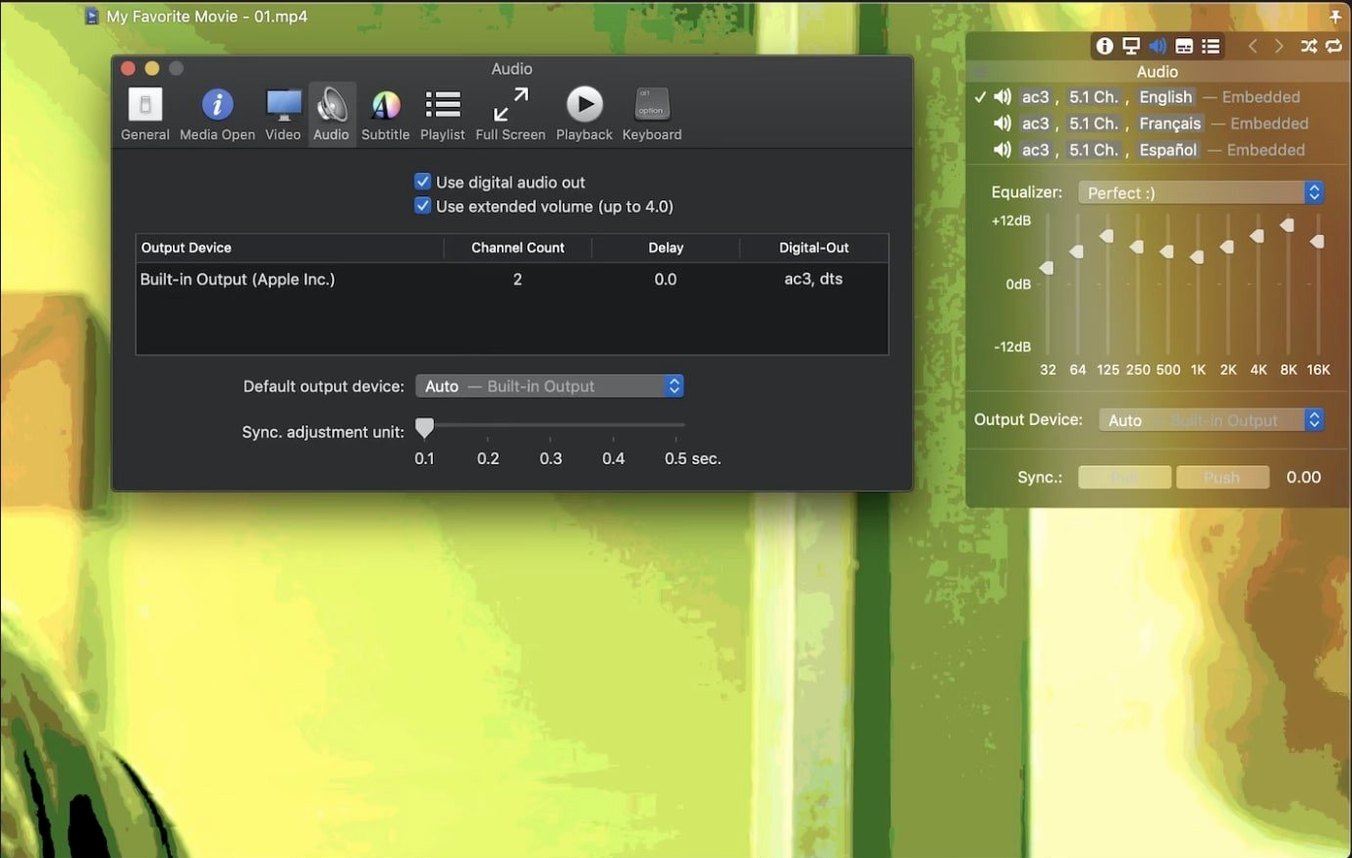
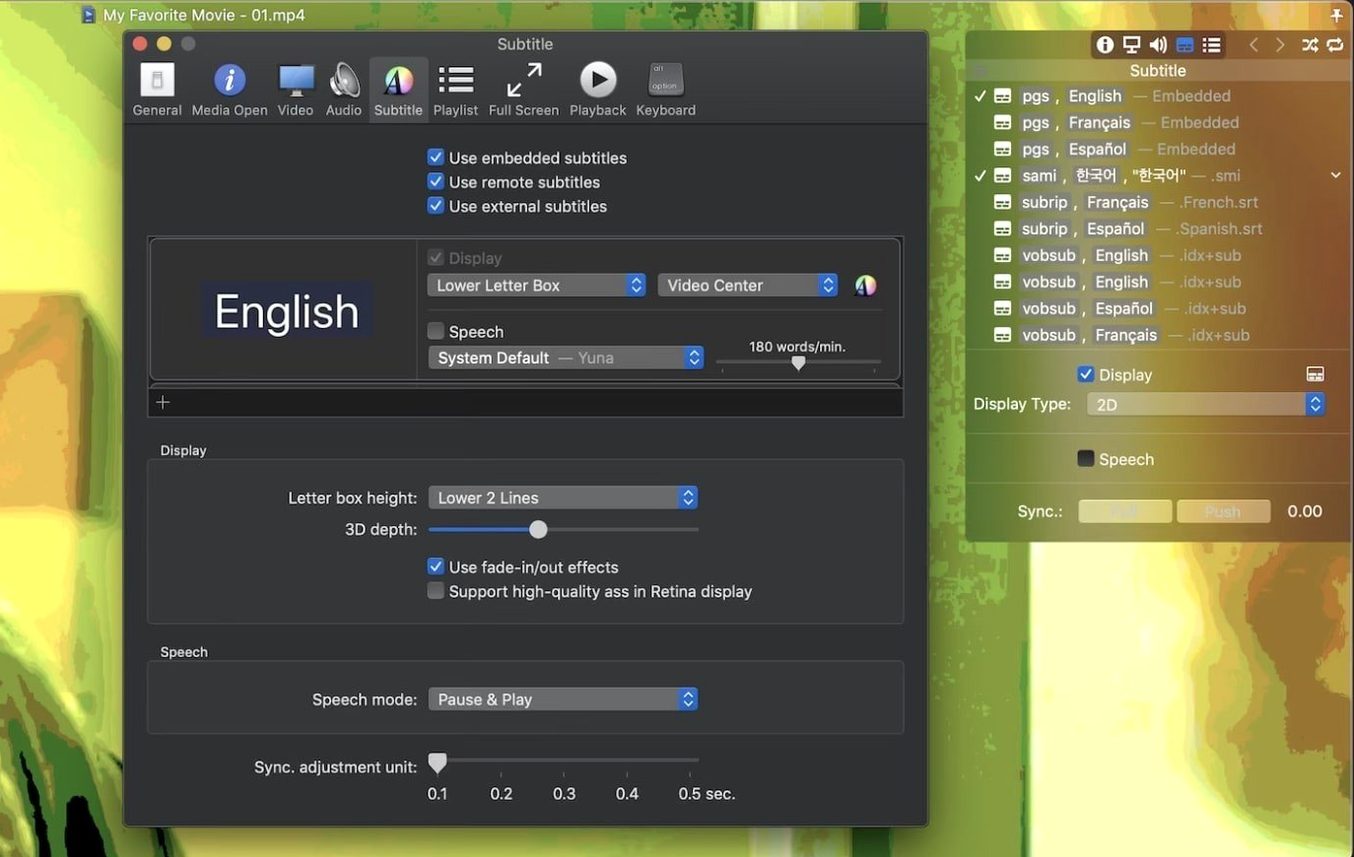
You know the drill: QuickTime plays some files, VLC plays others, and neither handles every subtitle format without a fight. Movist Pro sits in the middle — it uses QuickTime or FFmpeg per codec, so the player picks the engine that suits the file.
Playback, subtitles, and playlist autocompletion
- Playback speed adjustment and Retina display support.
- Subtitles: multiple formats, unlimited simultaneous tracks, Letter Box display, and compressed .zip/.rar subtitle files.
- Playlist autocompletion — it hunts for episode files and subtitle files to keep the list rolling.
- Digital audio output via S/PDIF for those who still run a receiver.
- Single-window mode or multi-document mode, depending on how you like your windows.
For mixed-format libraries with clean subtitle handling
This is a player for someone who watches a mixed library — MKV, TS, MP4 — and wants subtitles handled cleanly without opening three apps. The QuickTime/FFmpeg split means older formats get the decoder they need, and the 2.17.2 update fixes the TS playback issue that slipped into the previous release. If you manage a Mac that plays everything, it earns its place.
Set default engines per file type early
A few things to check early so you do not chase settings later.
- Set your default engine per file type. Movist Pro can prefer QuickTime or FFmpeg for different codecs. If a video stutters or shows no picture, switch the engine in the preferences before reaching for another player.
- Configure subtitle behaviour. Turn on automatic encoding detection if you watch files from mixed sources — saves you the hassle of fixing garbled text every time.
- Enable playlist autocompletion. Point it at a folder of episode files once, and it will find subsequent files and subtitle matches as you watch through the series. Saves manual drag-and-drop.
- Check HDR tone mapping. If your display is standard SDR, enable tone mapping so HDR video does not look washed out or blown.
- Test your S/PDIF output if you use external audio gear. It is not on by default, and the menu is buried in audio settings.
Workflow: batch-checking a folder of mixed video files
When a student or teacher hands you a USB stick of recordings from unknown cameras or codecs, run them through Movist Pro to confirm they play properly without installing extra codecs.
- Open Movist Pro in multi-document mode — each file gets its own window, so you can open several at once.
- Drag the entire folder onto the player. The playlist populates with every recognised video file it finds.
- Click through the playlist using the keyboard. For each file, check the picture, the audio track, and how subtitles render.
- If a file uses TS and shows no picture, note the filename — Movist Pro 2.17.2 fixed that exact bug, but older copies may still struggle.
- For subtitle files stored separately in .zip or .rar archives, drop the archive onto the playlist without extracting. The player reads the subtitle stream inside.
- Adjust playback speed for fast-previewing long classroom recordings. Speed up to 1.5x without pitching the audio up harshly.
- Take a screenshot from a good frame if you need a thumbnail for the school’s video catalogue — the screenshot capture saves directly to a format the school’s asset system accepts.
Gatekeeper block and engine selection
- Leaving Gatekeeper blocked. The installer runs through Terminal to bypass Gatekeeper. Skipping that step leaves the app unable to open. Do the one-line command, move on.
- Ignoring the engine choice. Beginners assume every file plays via the same decoder. When a MOV plays but an MKV shows a black screen, switching the engine for that codec fixes most cases — do not delete and reinstall.
- Not setting subtitle sync. School files from classroom cameras often have audio and subs slightly out. Beginners assume the file is broken rather than adjusting subtitle sync by a half-second offset.
- Opening every file in single-window mode. If you compare two versions of the same video, multi-document mode keeps both windows open. Single-window mode closes the first file when you open the second — switch mode for comparison work.
- Forgetting sandboxed app mode. On managed school Macs, sandboxed mode can conflict with the app’s ability to read files from mounted external drives. If a file from a USB stick refuses to open, disable sandboxed mode temporarily in the preferences.
- Fixed an issue where some TS videos would not play.
- Fixed a crash that could occur when System Integrity Protection was disabled.
- macOS 10.13 or later
- Intel or Apple Silicon
- Interface languages: Russian, English, Simplified Chinese, Korean, Japanese
Questions people ask
Does Movist Pro support compressed subtitle files?
Yes, it reads subtitles packed in .zip and .rar archives directly.
Can I adjust playback speed in Movist Pro?
Yes, playback speed adjustment is built in.
Staffroom comments 0
Sign in or create an account here to leave a comment.
Nobody has commented on this one yet.