iExplorer 4.6.0 (macOS)
Intel build. On Apple Silicon it runs through Rosetta 2. Opens the install steps and mirrors.
- Version
- 4.6.0
- Size
- 30 MB
- Earliest macOS
- OS X 10.10 or later
- CPU type
- Intel
- Updated
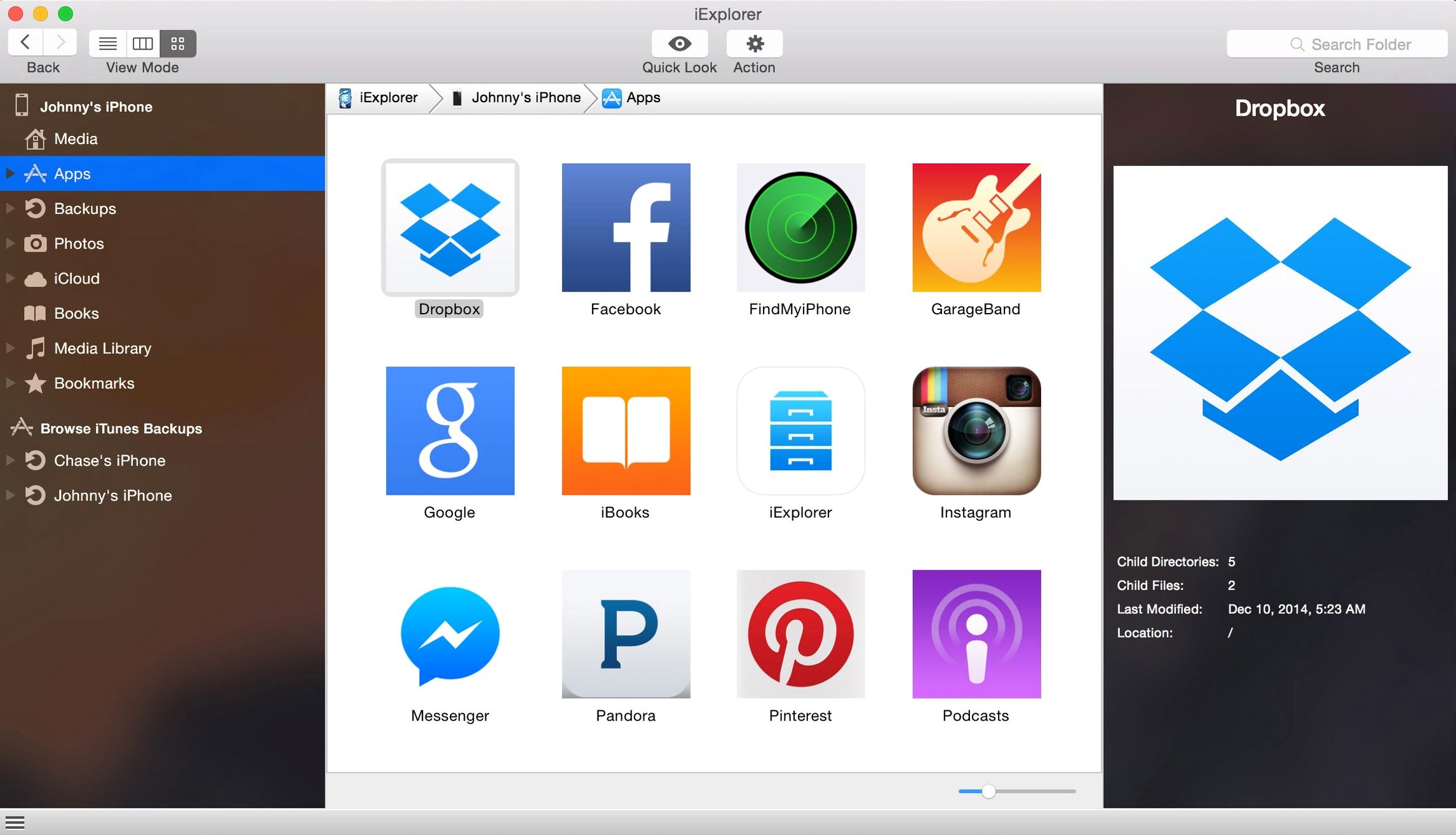
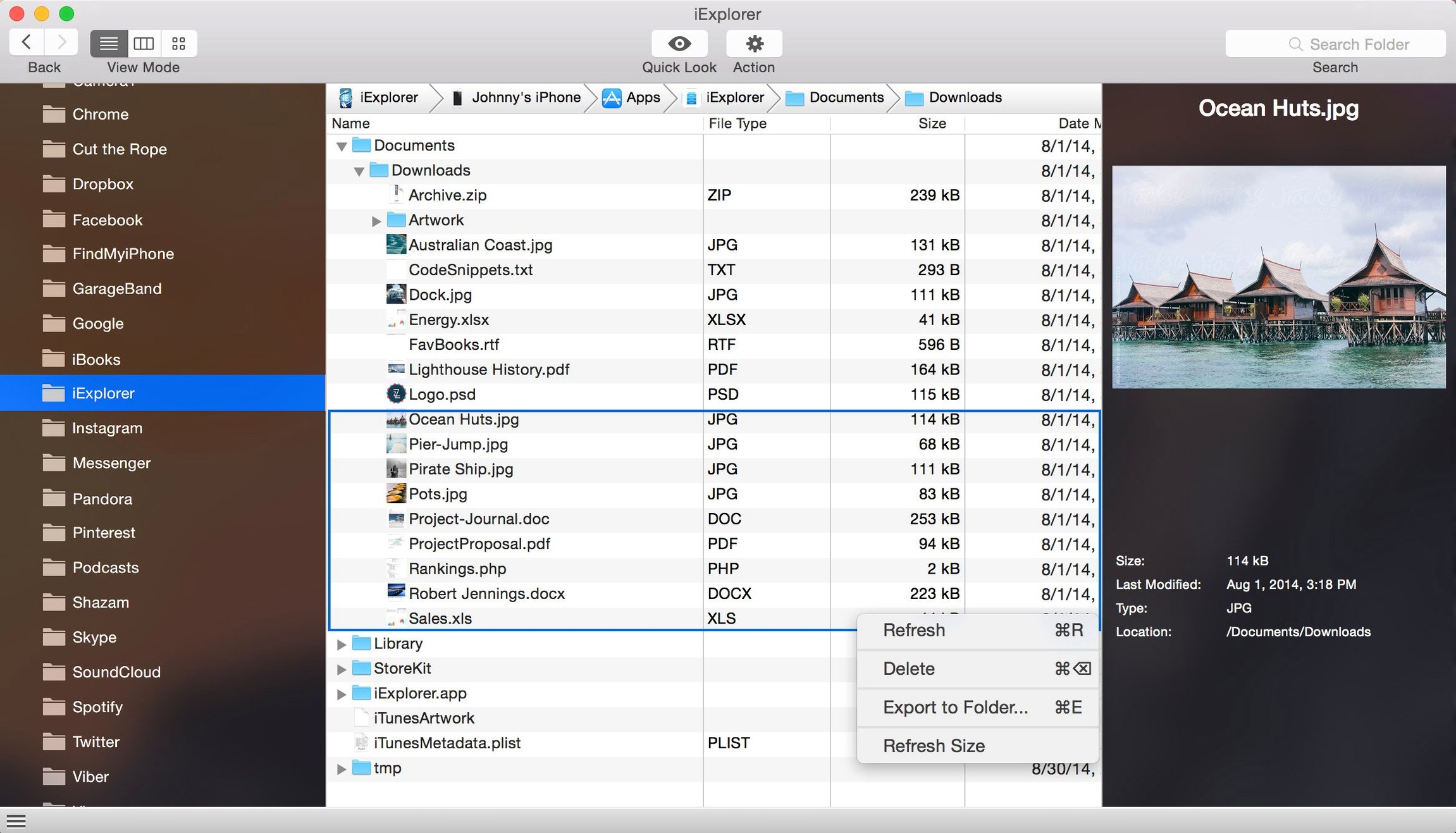
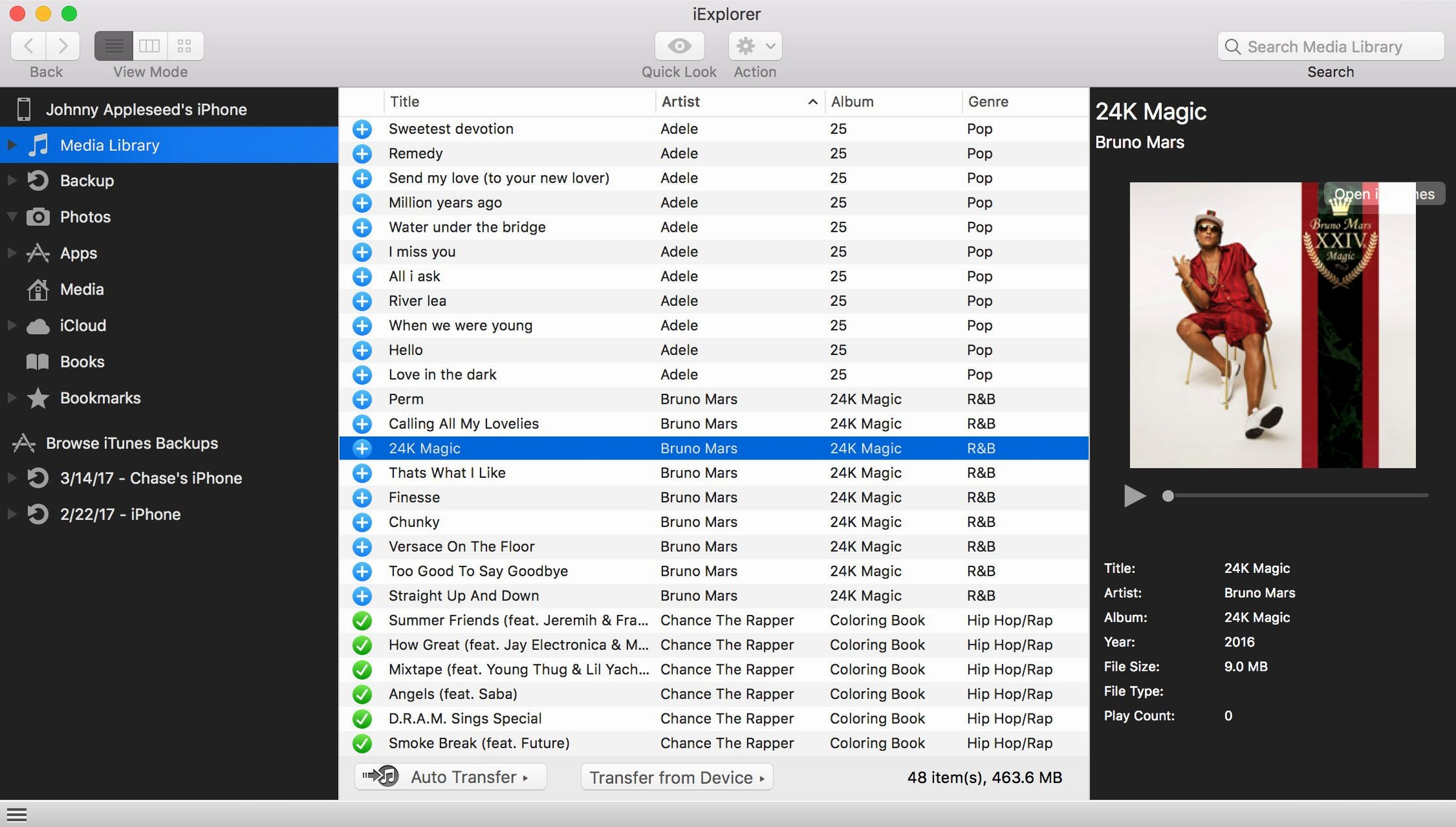
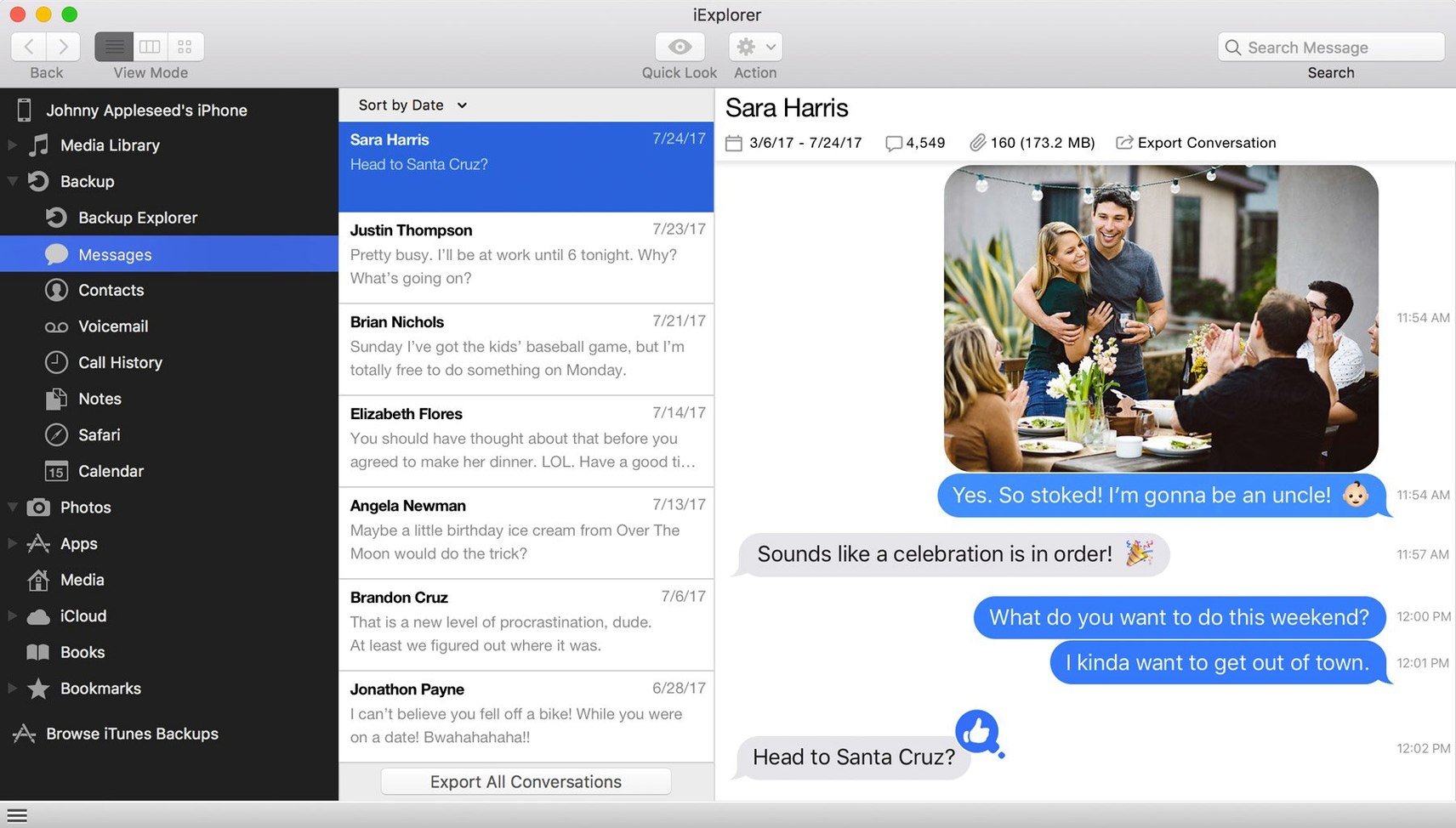
If you already use iExplorer to rescue music from an old iPod, the same tool opens up the rest of the device. Here is one realistic task from start to finish: copying a few voice memos and a playlist from an iPhone to a Mac without iTunes.
Mount the device as a disk — Plug the iPhone in and launch iExplorer. It shows the device as a drive in the sidebar, no iTunes sync required.
Browse app data and media — Click the device name to see music, playlists, photos, and app documents. Voice memos live under Media > Recordings.
Copy to Mac — Drag the voice memo files to a Finder folder. iExplorer transfers them as standard .m4a files.
Export the playlist to iTunes — Right-click a playlist and choose "Export to iTunes." The songs and the playlist appear in iTunes without overwriting anything.
Requires macOS 10.10 or later with iTunes installed
The machine must be on macOS 10.10 or later. That is Yosemite and everything newer. The architecture is Intel 64-bit only — no PowerPC, no 32-bit, no ARM without emulation. iTunes has to be installed; iExplorer uses its drivers to talk to the device.
The installer comes as a disk image. Gatekeeper on recent macOS versions will block it. The workaround is the same as for many unsigned Mac apps: press Enter in Terminal to bypass the block, then drag the app to the Applications folder. After that it launches normally.
The interface is in English only. No localisation in the current build.
Unlock your device and tap trust before connecting
- Forgetting to unlock the device first. iExplorer cannot see an iPhone or iPad that is locked. Unlock the screen before plugging the cable in.
- Choosing "Trust" when the device asks. That is correct — you need to tap Trust on the phone when iExplorer first connects. Beginners sometimes tap "Don't Trust" and then wonder why nothing appears.
- Expecting it to work without iTunes. iExplorer is not a standalone driver. If iTunes is missing, the device will not mount. Install iTunes first, launch it once, then use iExplorer.
- Browsing an unconnected device. People open iExplorer with no phone attached and think it is broken. The sidebar stays empty until a device is plugged in.
- It is not a tool for stripping DRM.
- Editing files inside the app. iExplorer is a browser and transfer tool. Double-clicking a file previews it, but you cannot rename, delete or edit items on the device from inside the program. Drag them to the Mac first.
Make a full backup of a test device first
Plug in a device you are comfortable experimenting with — an old iPod or a spare phone. Make a full device backup before you start browsing. That is one of the functions on the toolbar: it creates a complete copy of the device contents on your Mac, and you can open that backup later if you need to restore something.
Use the first session to learn the layout. The left panel lists the device name, its internal storage, iCloud storage (if you have signed in), and any local backups. The right panel shows folders: Music, Playlists, Photos, App Data, Backups. Spend ten minutes clicking through them so you know where things live before you actually need them.
Test the iCloud browser. If you have iCloud enabled on the phone, iExplorer can show photos, contacts, and app data stored there without downloading everything to your Mac. It is a read-only view, but it saves time when you only need one file from the cloud.
Try the music playlist export with one small playlist first. Right-click the playlist name and choose "Export to iTunes." If the track names come through cleanly, you can trust the workflow for larger playlists later.
Keep a Finder window open next to iExplorer. Dragging files between the two windows is faster than using menu commands, and you can watch the transfer progress in iExplorer's status bar.
That is it. No iTunes import, no reformatting, no extra software.
- iOS 16 compatibility improvement.
- macOS 10.10 or later
- Intel 64-bit processor
- iTunes installed
- Interface language: English
Staffroom comments 0
Sign in or create an account here to leave a comment.
Nobody has commented on this one yet.
Other Utilities tools
All Utilities tools-
 iDownerGo
10.15.0Intel Macs only
76 MB
Utilities
-
 iMazing
3.6.5
242 MB
Utilities
-
 iTubeGo
10.15.0Intel Macs only
115 MB
Utilities
-
 Haptyk
2.0.4
18 MB
Utilities
-
 LanScan
8.2.17
17 MB
Utilities
-
 Gemini
2.10.2Intel Macs only
47 MB
Utilities
-
 Little Snitch
6.5
39 MB
Utilities
-
 Find Any File
2.6.1
14 MB
Utilities