Radio Silence 3.4 (macOS)
- Version
- 3.4
- Earliest macOS
- 10.15 or later
- CPU type
- Universal
- Updated
Version 3.4 of Radio Silence sorts out a few rough edges. It now guides you through installation on macOS Tahoe, handles missing permissions better, and adds a help view with troubleshooting info if the app fails to launch.
Using the deeper tools
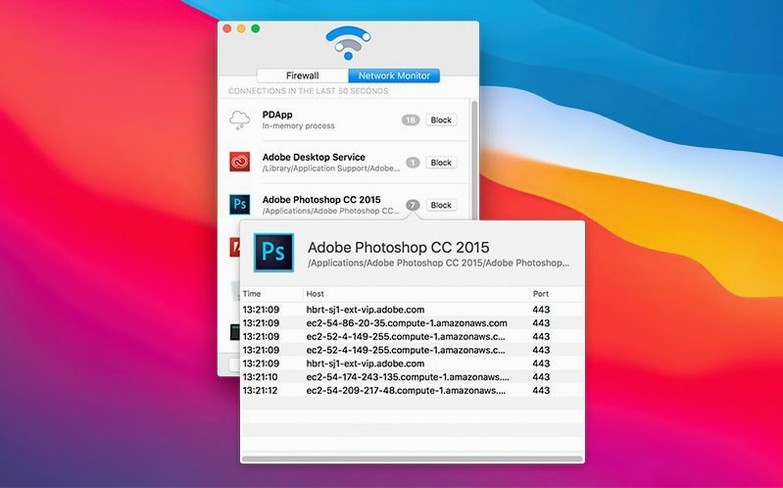
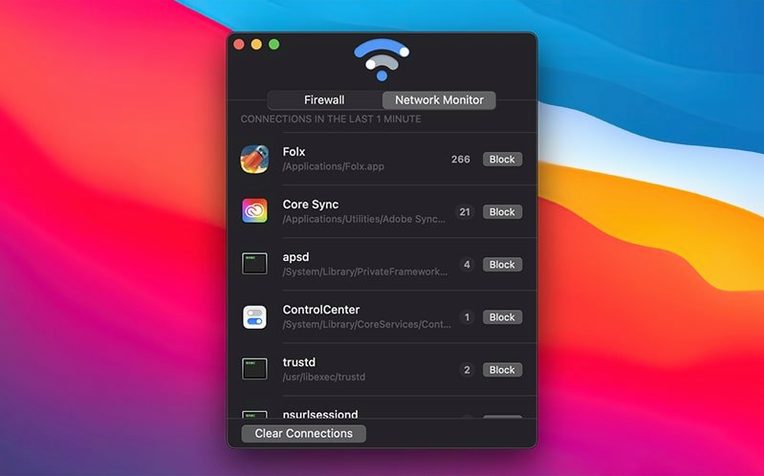
- Open Radio Silence and note the list of connections started by applications. This gives you a live view of what is phoning home.
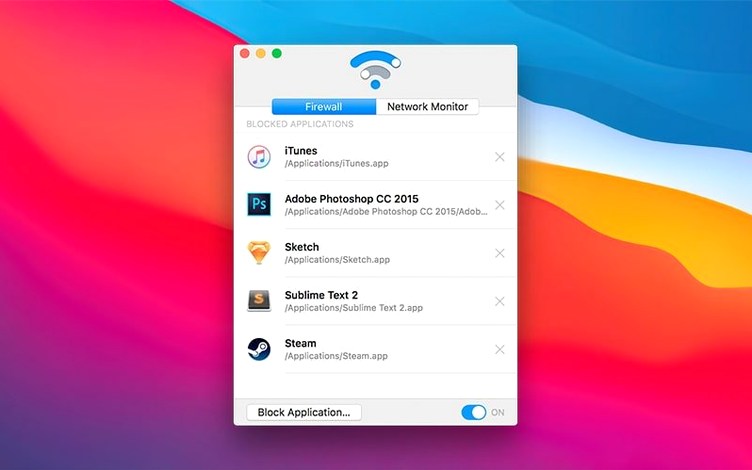
- Click the Block Application button and pick an app from the Finder. The app is blocked immediately.
- If an app tries to connect to its servers, Radio Silence flags it. You can block it from the same window.
- To remove an app from the block list, select it and hit the remove button.
- Need a temporary pass? Pause the firewall, then re-enable it when you are done.
For an experienced user, the value is in the connection monitor. It shows incoming and outgoing connections initiated by each app, so you can decide exactly what stays and what goes. No guessing.
Features you might miss at first
A few small details in Radio Silence are easy to overlook but worth knowing about.
- The app does not show an icon in the menu bar. That keeps the interface clean, but it also means you cannot check status from a glance at the top of the screen. You open the app window when you need it.
- The Firewall tab lists every app you have blocked. That is the obvious bit. Less obvious: you can select a blocked app there and remove it from the list, which is faster than searching for the app again in the Finder.
- Pausing the firewall is a single action. When you re-enable it, the block list is still intact — nothing resets.
Stops apps from phoning home without uninstalling them
Radio Silence suits people who want to control network access at the app level without a system-wide approach. Three groups tend to use it most:
- Privacy-conscious users who want to stop apps from phoning home without uninstalling them. A blocked app still runs locally, it just cannot reach its servers.
- Mac system administrators who need a straightforward way to enforce network policies on specific apps across a handful of machines. No complex rulesets to write.
- Anyone investigating odd network behaviour — the live connection list shows exactly which apps are calling out, making it easy to spot something unexpected.
Grant permissions during first-run setup
After you have run the standard installation procedure from the mounted disk image, a few practical steps help you get started cleanly.
- Give the app the permissions it asks for. Version 3.4 handles missing permissions better than earlier releases, but it still needs macOS access to monitor connections.
- Watch the connection list for a full day before blocking anything. You will see which apps connect regularly and which only phone home occasionally.
- If Radio Silence fails to launch, check the new help view included in version 3.4 — it contains troubleshooting information that covers common installation errors.
- Block one app at a time at first. That way you can see exactly how each block affects that app before changing the list further.
- Installation guidance for macOS Tahoe.
- Better handling for installation errors and missing permissions.
- New help view with troubleshooting info if the app fails to launch.
- macOS 10.15 or later
- Intel or Apple Silicon
Staffroom comments 0
Sign in or create an account here to leave a comment.
Nobody has commented on this one yet.