RAR Extractor 13.9.6 (macOS)
One download for Apple Silicon and Intel. Opens the install steps and mirrors.
- Version
- 13.9.6
- Size
- 14 MB
- Earliest macOS
- 11.5 or later
- CPU type
- Universal
- Updated
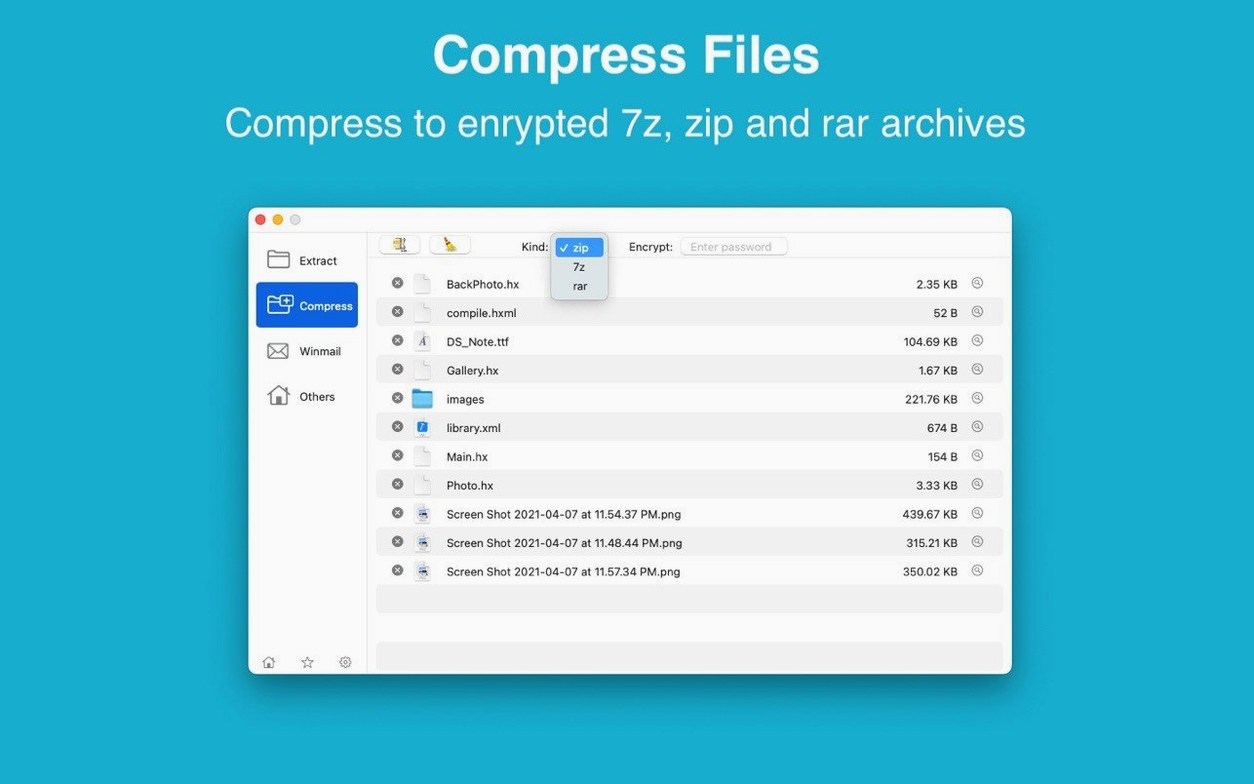
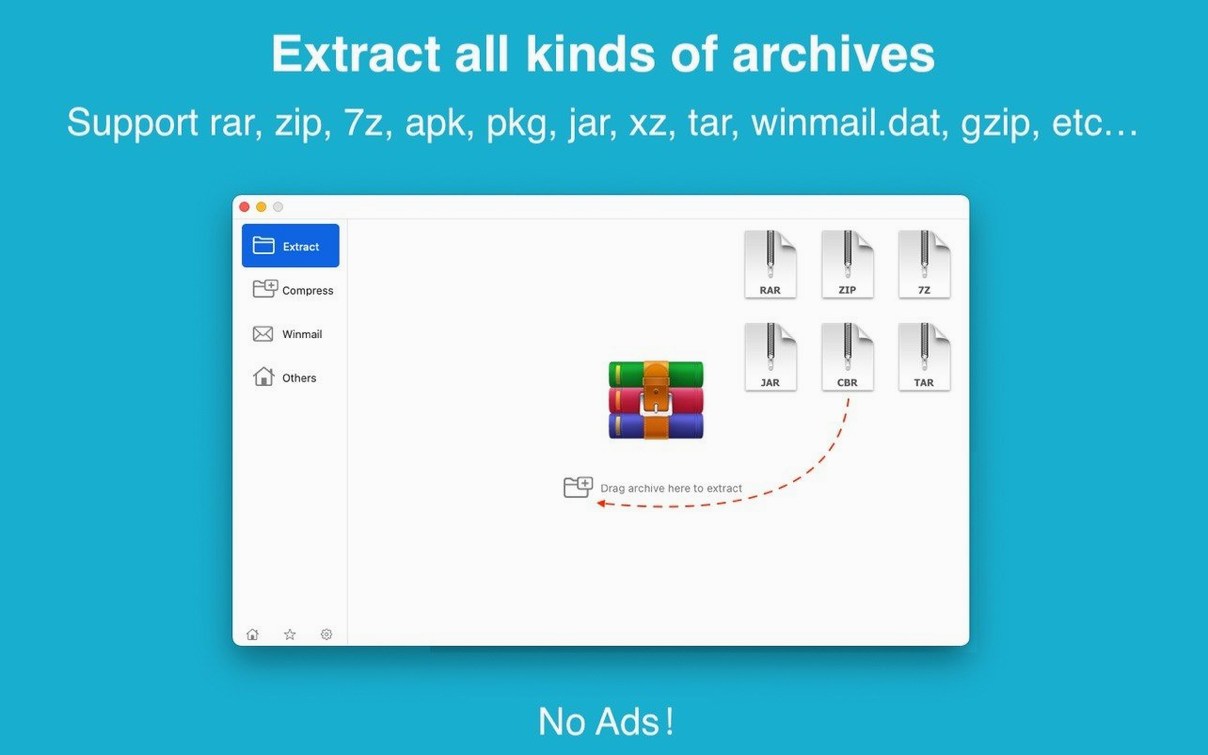
Version 13.9.6 of RAR Extractor is out now. No release notes were provided, so I can't say what changed under the hood, but the app still does what it has always done: open just about any compressed archive you throw at it, and create password-protected ZIP and 7Z files when you need them.
| Detail | Value |
|---|---|
| Latest version | 13.9.6 |
| macOS required | 11.5 or later |
| Architecture | Intel 64-bit & Apple Silicon (ARM) |
| Languages | English, Simplified Chinese |
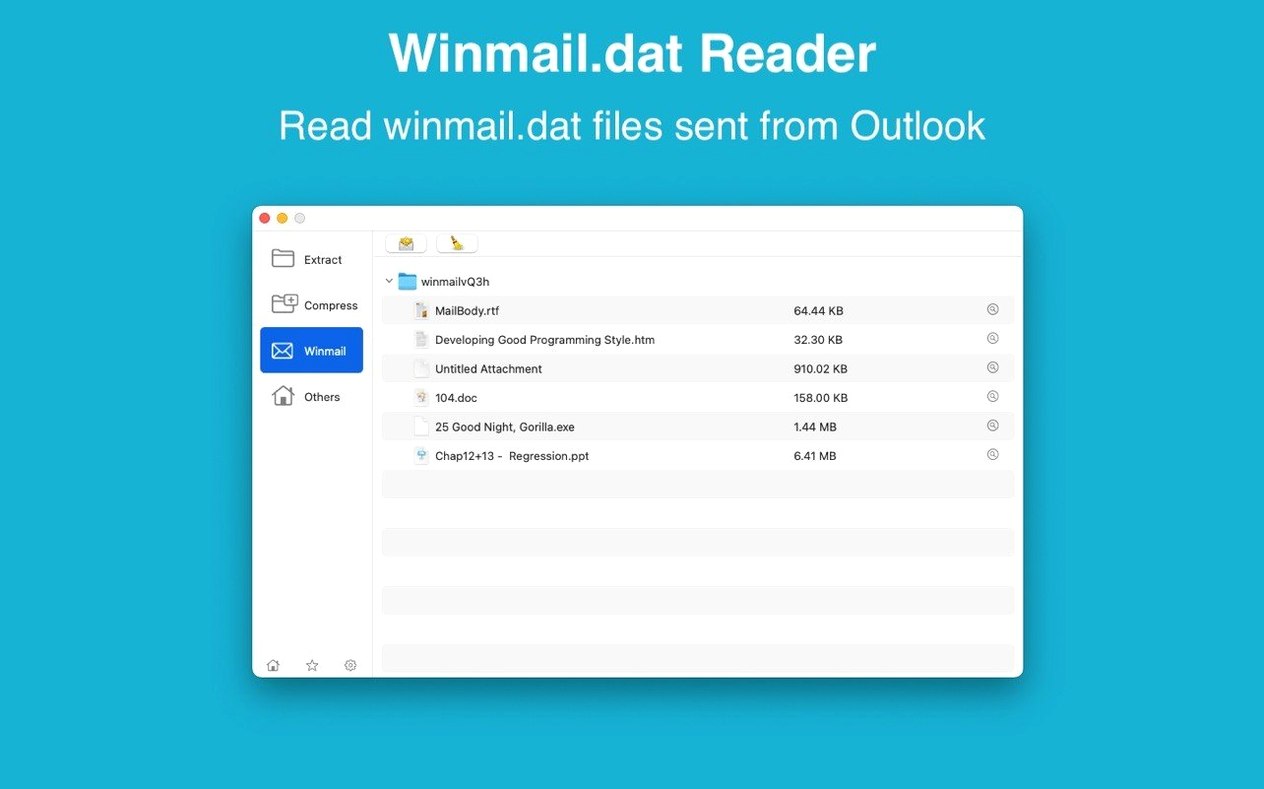
For a school IT setup like mine, a tool that handles RAR, ZIP, 7Z, TAR, GZIP, BZIP2, ISO, CAB, MSI, JAR and a long list of others means one less 'it won't open' ticket. Set it as the default archive app and double-clicking a .rar file just works. The dual-window display is handy when you want to compare the contents of two archives side by side. You can also drag an archive to the Dock icon to extract or view it without opening the app first. That winmail.dat preview is another timesaver — those Outlook attachments used to be a nuisance. It runs fine on the M1 and M2 Macs in our maths department, and on the older Intel iMacs in the library.
Extract single files or folders from an archive
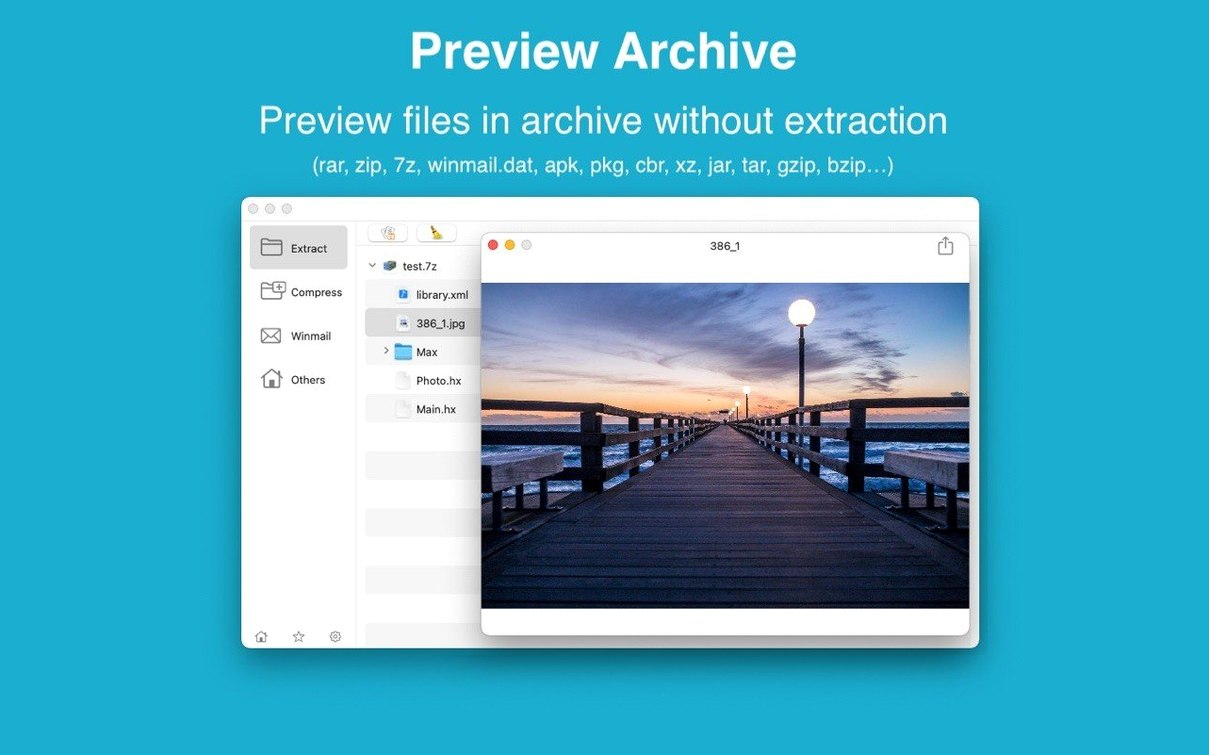
The file list inside RAR Extractor isn't just a static list. You can click a single file or folder inside an archive and extract only that item, leaving the rest of the archive untouched. The same list works for previews: select a text file, an image or a document inside the archive and the app shows its contents without unpacking everything first. Handy when you're hunting for a specific version of a spreadsheet or a photo.
Dragging an archive file directly to the desktop for extraction is another one that people overlook. It works without the main window being open. You grab the .rar or .zip off a USB stick, drop it on the desktop and the extracted folder appears next to it. Batch unpacking works the same way — select several archives and drag them to the Dock icon. The app processes them in sequence. No queue management, no extra clicks.
Creating a password-protected archive: a step-by-step workflow
Let's walk through a common task — packing a folder of student coursework into a password-protected 7Z archive to email to an external examiner.
- Open RAR Extractor and click the Create button or choose New Archive from the File menu. The exact label depends on your interface language setting.
- In the dialogue that appears, select 7Z as the format from the dropdown. AES-256 encryption is used automatically for this format.
- Drag the folder containing the coursework files into the app window, or use the Add button to browse to it.
- Set a password in the encryption field. The same password is needed to decrypt it. No separate confirmation field in this version, so type carefully.
- Choose a destination — the desktop works for a quick hand-off — and click Create or Save.
- The app builds the archive. When it's done, you can test it by double-clicking the new .7z file to verify the password works.
If you prefer ZIP over 7Z, the process is identical. AES-256 encryption is used for both formats. The key difference is that ZIP is more widely supported on Windows without extra software, while 7Z tends to compress a bit tighter for mixed file types.
Check the file extension if an archive won't open
"The app won't open the archive." First check the file extension. Some files labelled .rar are actually renamed .zip files or vice versa. Open RAR Extractor, go to File → Open and select the file — the app will try to identify the real format and extract it if it can. If it still fails, the archive may be corrupted. Try repairing it with the command-line tool for that format (for example, unzip -t in Terminal for ZIP files) to confirm.
"I can't see the password field when creating an archive." Make sure you've selected ZIP or 7Z as the output format. For other formats like TAR or GZIP, RAR Extractor does not offer encryption. Switch to ZIP or 7Z and the encryption options appear.
"I set RAR Extractor as the default app, but archive files still open in something else." This happens if another app has claimed the file association first. Right-click a .rar file, choose Open With → Other, select RAR Extractor from the list and check 'Always open with this application'. Repeat for .zip, .7z and any other formats you use regularly.
"Extraction fails on a multi-volume RAR set (.r00, .r01, etc.)." Make sure all parts are in the same folder and that none have been renamed. Open the first file (usually .rar or .part1.rar) and the app should find the rest automatically. If you downloaded the parts from different sources, the sets may not match.
Right-click any archive in Finder to open with RAR Extractor
Once RAR Extractor is set as the default archive app, it integrates with macOS in a few useful ways. The macOS right-click context menu in Finder gains an 'Open with RAR Extractor' entry for supported archives. You can also use the macOS Share menu (the icon that looks like a box with an arrow coming out of it) if the developer has wired that in — check your version's Share menu options.
It works alongside cloud storage clients like Dropbox, OneDrive and Google Drive. If a colleague shares a .rar file via a shared folder, double-clicking it in Finder opens it in RAR Extractor without a separate download step. The same applies to files stored on a network share in a school environment — no need to copy them locally first.
For users who prefer the command line for scripting, RAR Extractor doesn't have its own CLI, but you can combine it with macOS's built-in unar tool (installable via Homebrew) for headless extraction and then use RAR Extractor's GUI when you need to preview or selectively extract files from a large archive. The two tools don't conflict.
The dual-window display mentioned earlier also works with drag-and-drop between panes: you can drag a file from one archive window to another to copy it into the second archive. That's useful when merging content from two downloaded archives without extracting everything to a temporary folder first.
No “what's new” for 13.9.6. The release line gave nothing I could check, and I will not stretch it into a changelog.
- macOS 11.5 or later
- Intel 64-bit or Apple Silicon (ARM) processor
Questions people ask
Can RAR Extractor create password-protected archives?
Yes, it can create password-protected ZIP and 7Z archives.
Does RAR Extractor support Apple Silicon Macs?
Yes, it supports both ARM and Intel 64-bit Macs running macOS 11.5 or later.
Staffroom comments 0
Sign in or create an account here to leave a comment.
Nobody has commented on this one yet.