
Mountain Duck 5.3.2 (macOS)
One download for Apple Silicon and Intel. Opens the install steps and mirrors.
- Version
- 5.3.2
- Size
- 187 MB
- Earliest macOS
- 13 or later
- CPU type
- Universal
- Updated
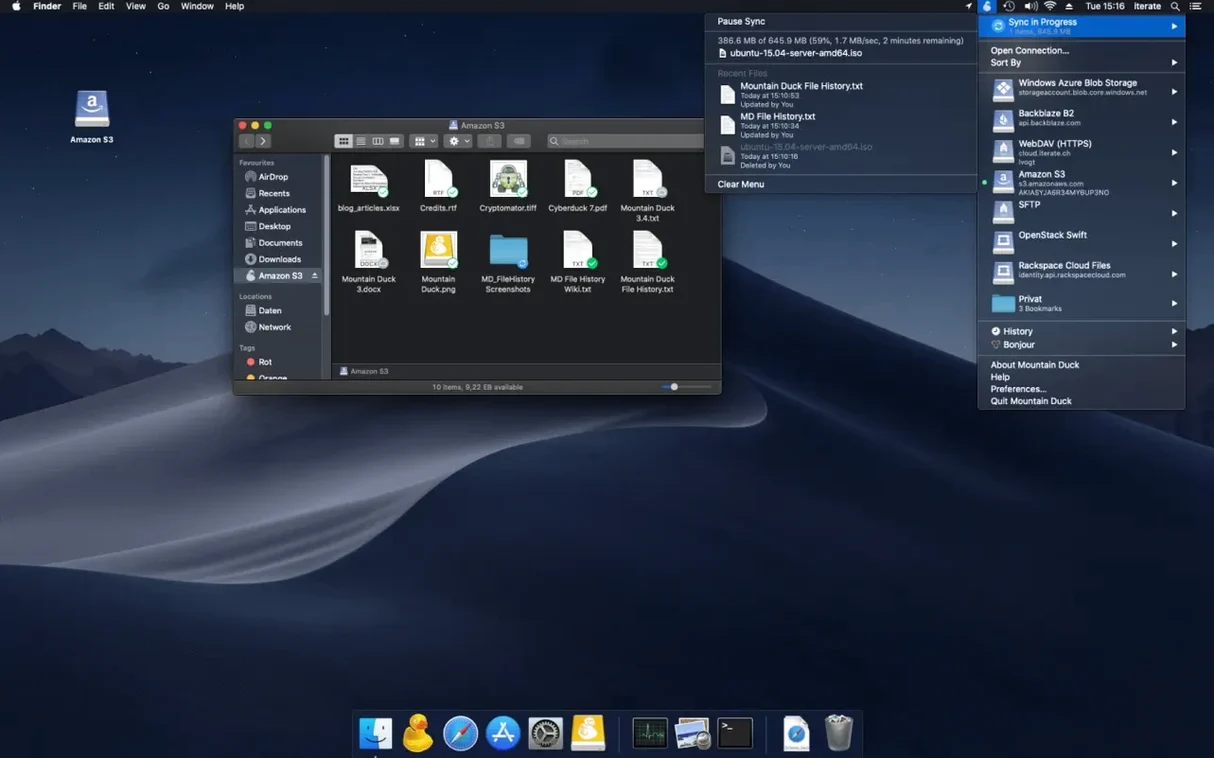
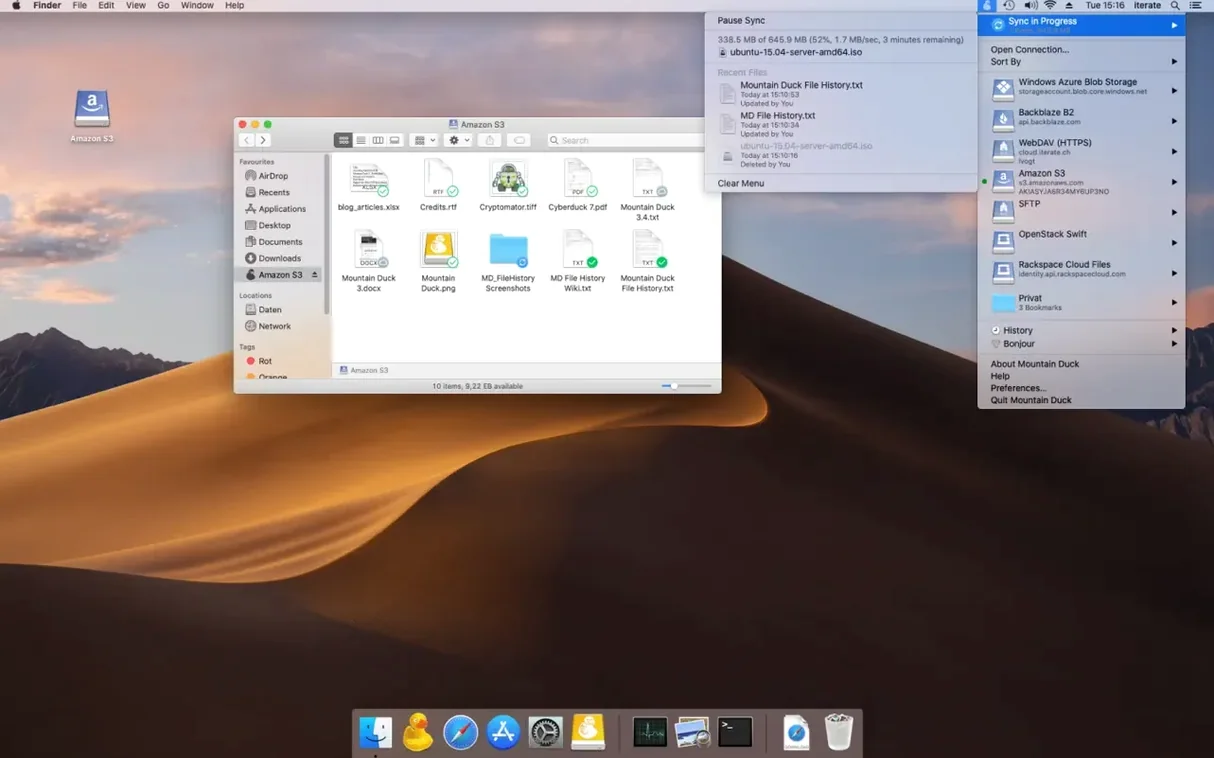
Mountain Duck requires macOS 13 or later and runs on both Intel and Apple Silicon Macs. Think of it as Cyberduck for the file explorer: instead of using a separate client to transfer files, you mount your cloud and remote storage as a regular disk in Finder. Once mounted, any application on your Mac can open those files directly, just like they came from your internal drive. It supports SMB connections, and version 5 introduces Integrated Connect Mode for a simpler setup workflow.
Bookmarks are shared with Cyberduck if you already have that installed, so you don’t need to configure things twice. Mountain Duck caches files only when needed, and you can keep selected files and folders stored offline on your computer for working without a connection. That is handy for a train journey or a spotty school Wi-Fi.
For a first look, mount a cloud service or a network share, then open a file from the mounted volume in your usual editor — no dragging, no copying. The interface supports over thirty languages, so it will work for a multilingual staff room.
What you see after dragging it into applications
The install is straightforward: open the downloaded disk image, drag Mountain Duck into the Applications folder, then launch it from Launchpad. No extra steps, no background services to start manually. The app sits in the menu bar and mounts your chosen storage as a volume in Finder — look for it under Devices in any Finder window.
Mountain Duck uses Smart Synchronisation. When you open a remote file, it downloads a local copy. Any edits you make are uploaded in the background when a connection is available. If you disconnect, the local copy stays accessible for offline work. You can also mark specific files or folders to remain stored offline permanently, which is useful for files you always need at hand.
Encrypt sensitive data with Cryptomator
- Encryption at rest works with compatible Cryptomator storage, so sensitive school data can sit encrypted on the remote server and still mount as a normal drive in Finder.
- Storage-independent file versioning in version 5 means you can revert to an earlier version of a file without depending on the remote provider's own versioning — useful when a pupil overwrites a shared document by mistake.
- If you already use Cyberduck, Mountain Duck shares its bookmarks automatically. Set up a connection once in either app and it appears in both.
- The language list covers around thirty-five languages, including Russian, Arabic, Traditional and Simplified Chinese, Tamil and Thai. Handy for schools with staff or students using a language other than English.
Requires macOS 13 or later to launch
Mountain Duck needs macOS 13 or later. If the app will not launch, check that you are not on an older macOS. The 64-bit Intel build will not run on Apple Silicon unless you use the correct architecture build — the disk image contains builds for both, but you must drag the right one into Applications.
If a remote volume mounts but appears empty, check your connection credentials. Mountain Duck does not always give a clear error if authentication fails. Re-enter the username and password in the bookmark settings. For Azure Cloud Storage and S3-style services, double-check the region or endpoint URL.
Offline files that will not sync back can often be fixed by disconnecting and reconnecting the mounted volume from the menu bar icon. If the background sync seems stuck, quit Mountain Duck completely and relaunch it. Bookmarks are not lost when you restart.
If you use a proxy at school, Mountain Duck inherits the system proxy settings from macOS. If connections time out, check that the proxy does not block SFTP or WebDAV ports. A direct connection test from the same Mac outside the school network can narrow down the cause.
For SMB shares, version 5 added native support. If an SMB mount fails, confirm the share path and that SMB v2 or v3 is enabled on the server — older SMB v1 shares may not work.
No “what's new” for 5.3.2. The release line gave nothing I could check, and I will not stretch it into a changelog.
- macOS 13 or later
- Apple Silicon or Intel processor
Staffroom comments 0
Sign in or create an account here to leave a comment.
Nobody has commented on this one yet.
Other Utilities tools
All Utilities tools-
 MouseBoost Pro
5.3.0
17 MB
Utilities
-
 Movavi Video Converter
22.5.0Intel Macs only
79 MB
Utilities
-
 Musify
5.3.0Intel Macs only
68 MB
Utilities
-
 Nook X
2026.10.24
36 MB
Utilities
-
 MediaMate
3.8.4
7 MB
Utilities
-
 One Switch
1.35.4
7 MB
Utilities
-
 Parallels Desktop
27.0.3
186 MB
Utilities
-
 Little Snitch
6.5
39 MB
Utilities