
MouseBoost Pro 5.3.0 (macOS)
One download for Apple Silicon and Intel. Opens the install steps and mirrors.
- Version
- 5.3.0
- Size
- 17 MB
- Earliest macOS
- OS X 10.11 or later, macOS 12.3 or later
- CPU type
- Universal
- Updated
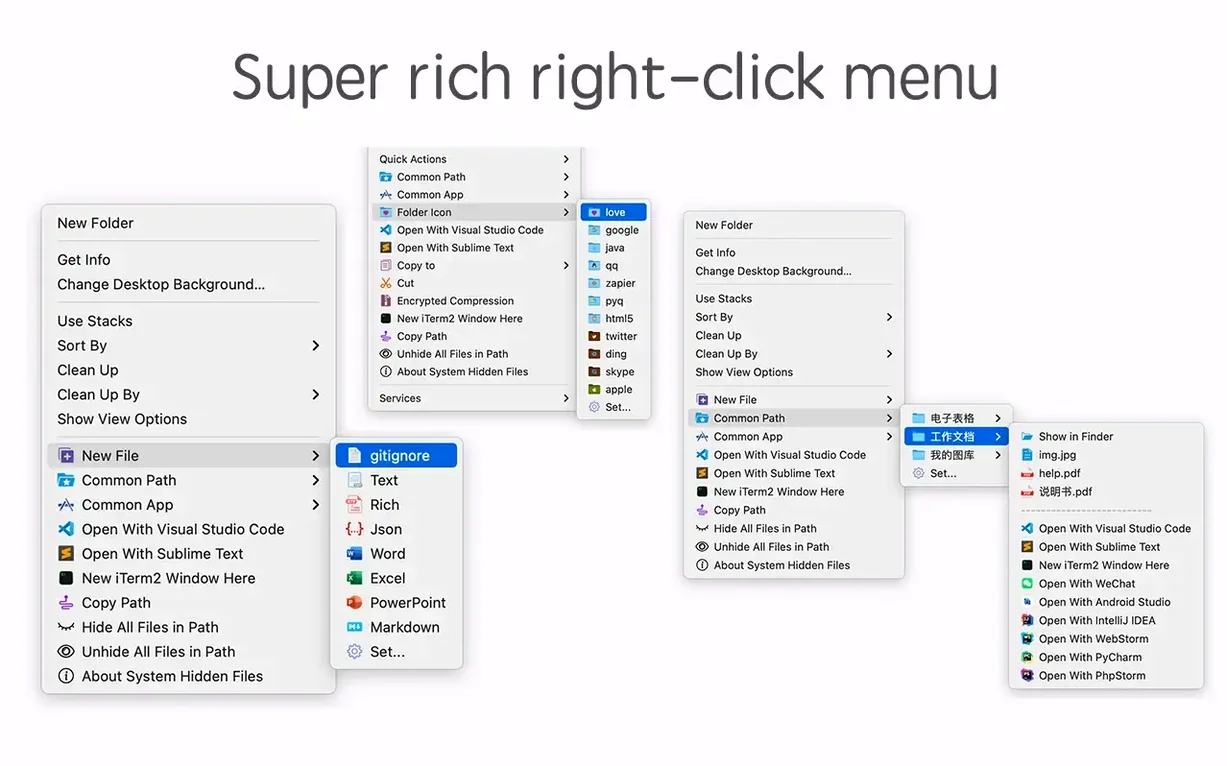
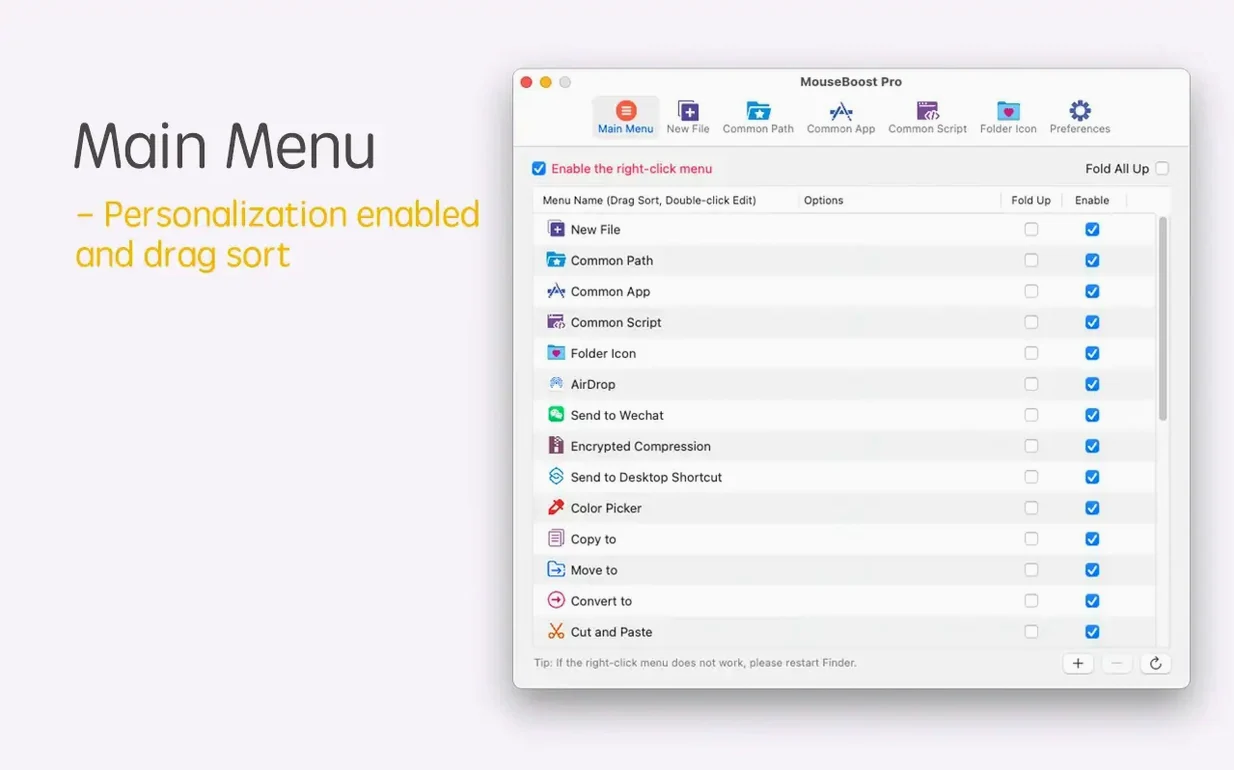
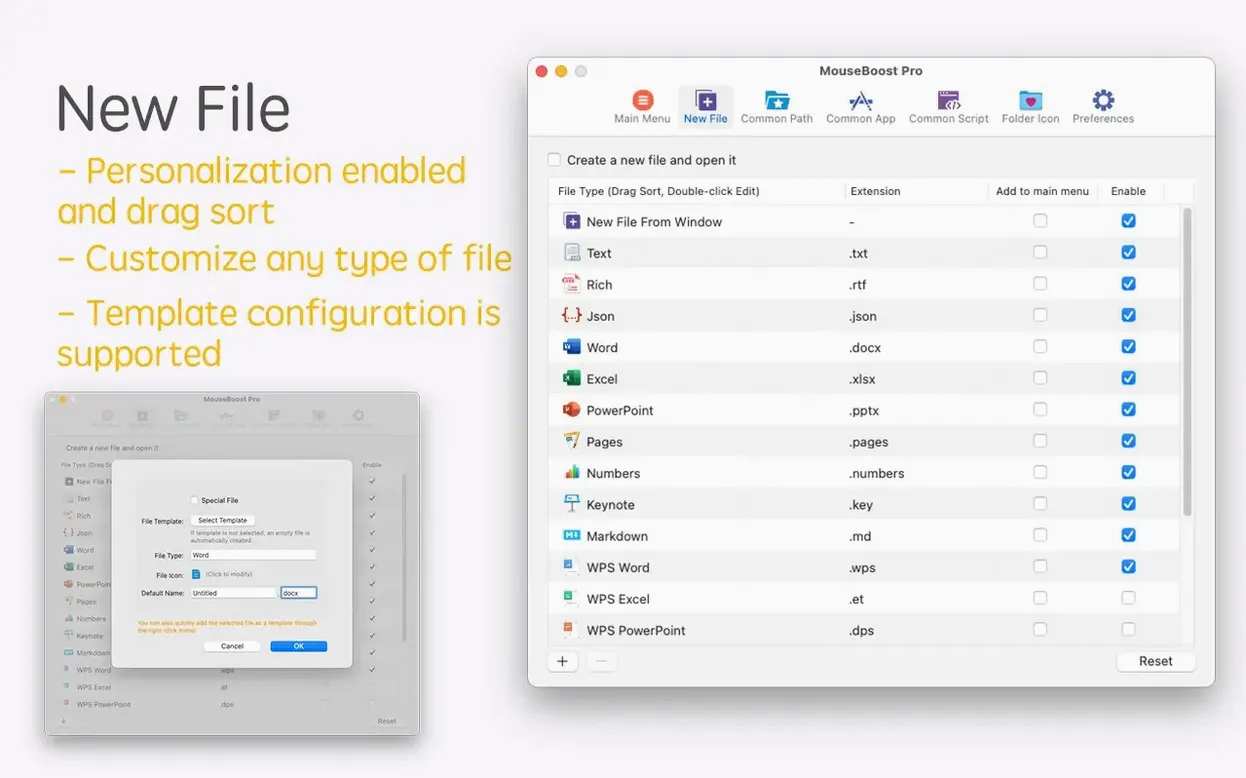
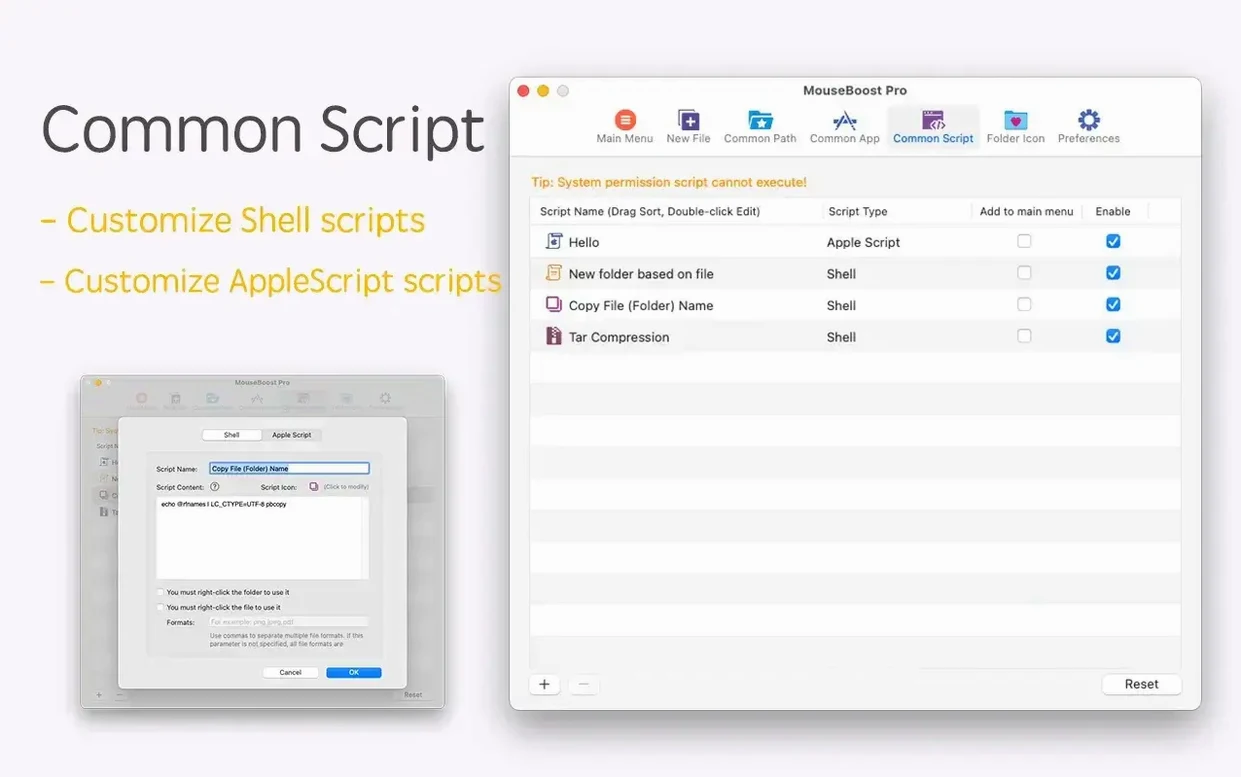
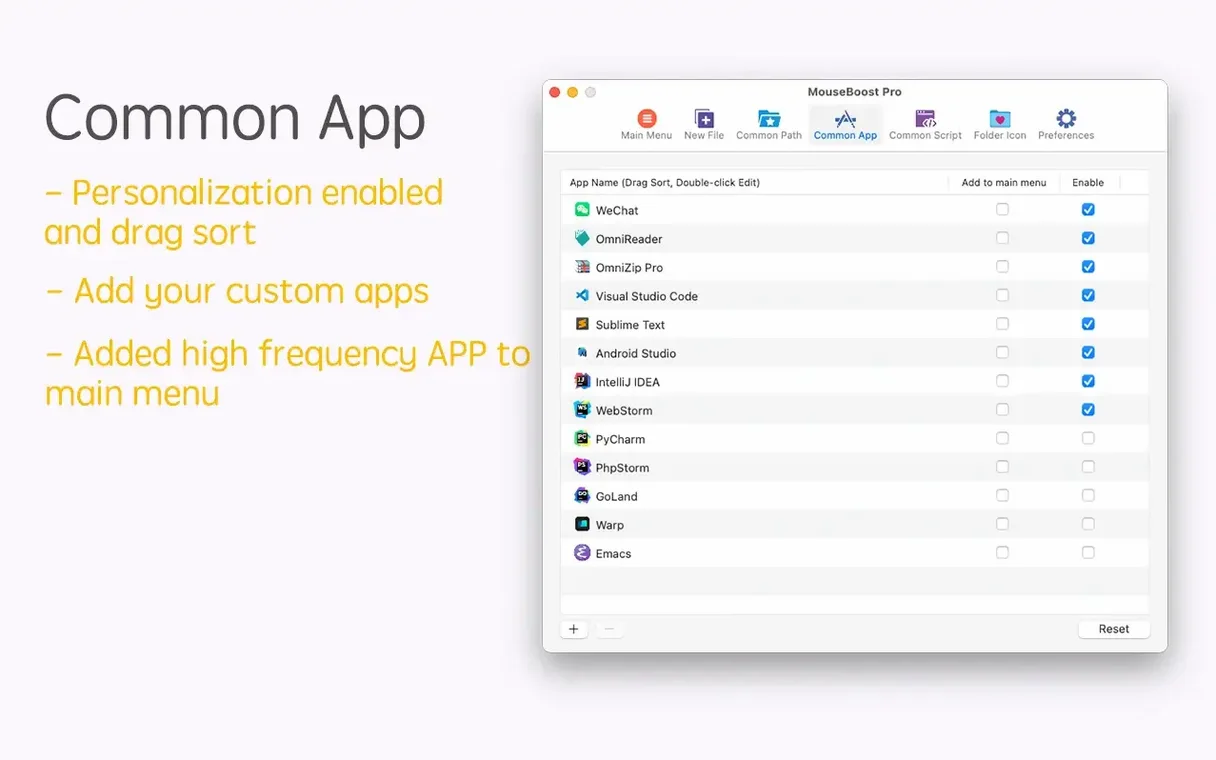
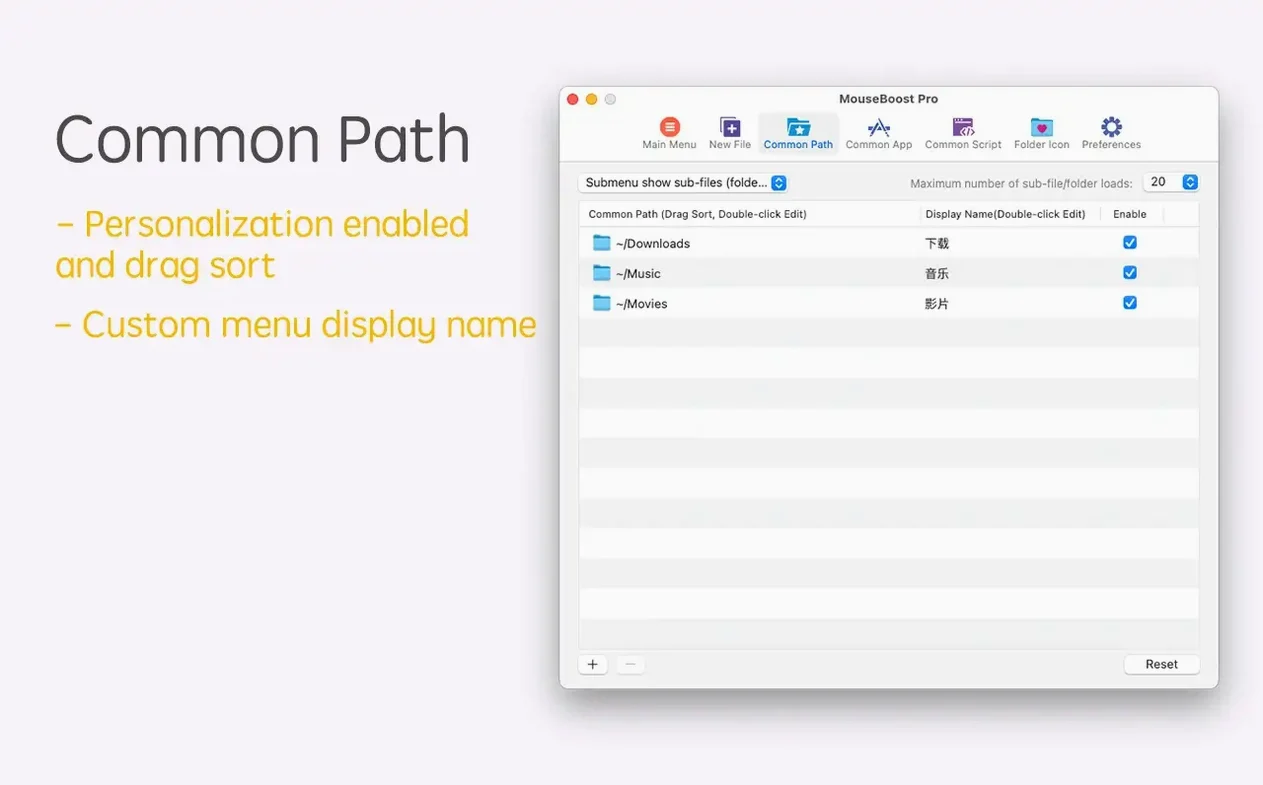
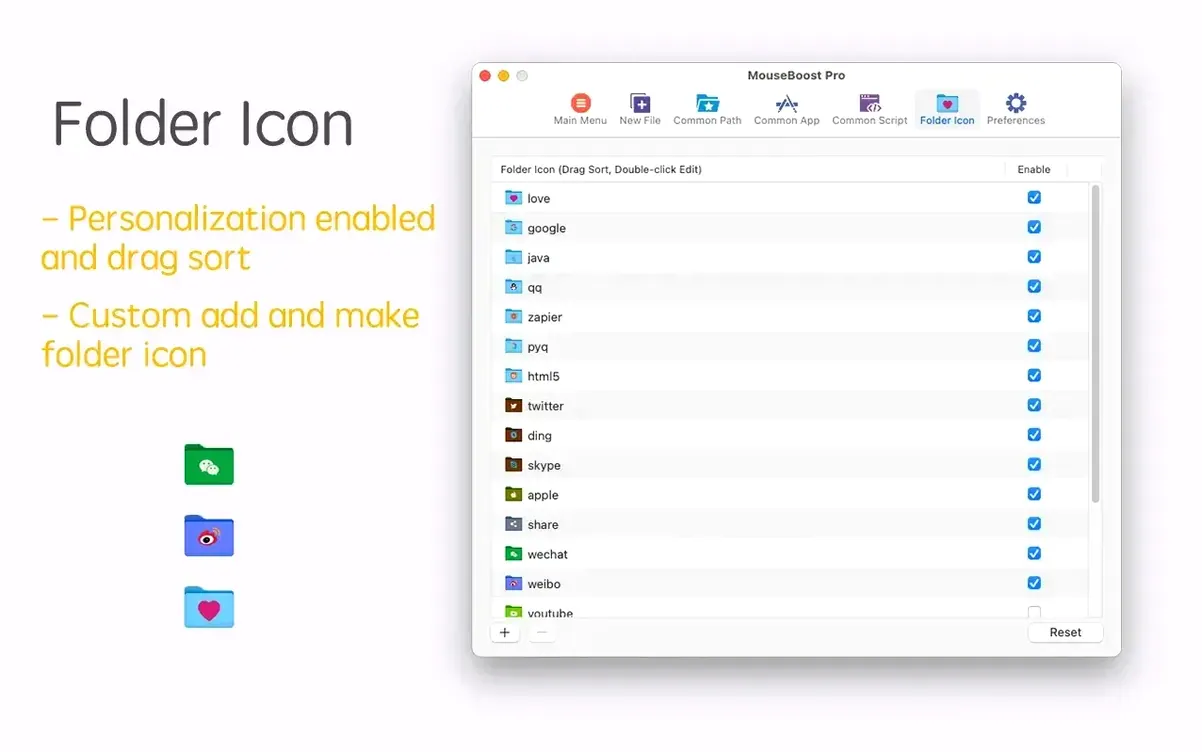
MouseBoost Pro works on any Mac running macOS 10.11 or later, whether it's an Intel or Apple Silicon machine. I've used it on an M2 Mac mini and an older MacBook Pro without issue. It adds a right-click menu with actions for file management, quick file creation, checksum calculation and encrypted compression. You can reorder the menu items to suit your workflow.
Adds a MouseBoost Pro submenu to right-click
The extension puts a 'MouseBoost Pro' submenu into the Finder's right-click context menu. From there you can move, copy or cut files, calculate MD5, SHA1 or SHA256 checksums, compress files with encryption, and create common file types like plain text or rich text documents. It also lets you open folders in VSCode, Sublime Text or Emacs, and copy the current path to the clipboard.
Mount disk image and bypass Gatekeeper
Mount the disk image and run 'Open Gatekeeper friendly' in the installer. Press Enter in Terminal to bypass Gatekeeper, then drag the app into your Applications folder. Launch it once to finish the setup. No system admin rights are needed for a per-user install.
Quick folder tree preview and improved scrolling capture
The latest release added a quick preview for folder trees, so you can see a directory's structure without leaving the Finder. Scrolling capture also got improved for those times you need a full-page screenshot. Batch renaming now supports inserting text at a specific position and renaming from a list. There's also a maximum depth setting for file trees, which stops the tool from crawling too deep into nested folders. Aspect ratio selection and automatic OCR copy are new too.
Browse 30+ actions in the submenu
Take a few minutes to browse through the MouseBoost Pro submenu. There are more than 30 actions, and you will not remember them all without looking. Right-click on a folder, a file, and an empty area to see which actions appear in each context.
Try the encrypted file compression early. It works from the right-click menu and saves you from opening a separate archiver. The same goes for the checksum tools – if you ever verify downloads, they are quicker than firing up a terminal.
Custom file creation is useful if you regularly start new projects. Set up a few templates for the file types you use most. The custom creation option saves you from duplicating an existing file or navigating through an app's new-file dialog.
Turn off unused actions and sort favorites to top
Open the MouseBoost Pro preferences and turn off any actions you never use. A shorter menu is faster to scan. The tool lets you sort all menus, so put your most-used actions at the top of each submenu.
If you work with developers, make sure iTerm2, VSCode, Sublime Text or Emacs are linked to the correct paths. The tool can open any of those editors directly to the folder you right-click on. That alone saves a few steps every day.
Enable the quick preview for folder trees if you navigate deep directory structures. It saves you from opening and closing Finder windows just to check what is inside a folder.
- Quick preview for folder trees
- Aspect ratio selection and automatic OCR copy
- Improved scrolling capture
- Insert text at a specific position in batch renaming
- Rename-from-list support in batch renaming
- Maximum depth setting for file and directory trees
- Fixed known issues
- macOS OS X 10.11 or later
- Intel or Apple Silicon processor
- Interface language: English
Questions people ask
Does MouseBoost Pro work on Apple Silicon Macs?
Yes. It supports both ARM and 64-bit Intel architectures, and macOS 10.11 and later.
Can I reorder the right-click menu items?
Yes. All menus support user sorting so you can arrange them how you like.
Staffroom comments 0
Sign in or create an account here to leave a comment.
Nobody has commented on this one yet.
Other Utilities tools
All Utilities tools-
 Mountain Duck
5.3.2
187 MB
Utilities
-
 Movavi Video Converter
22.5.0Intel Macs only
79 MB
Utilities
-
 Musify
5.3.0Intel Macs only
68 MB
Utilities
-
 Nook X
2026.10.24
36 MB
Utilities
-
 MediaMate
3.8.4
7 MB
Utilities
-
 One Switch
1.35.4
7 MB
Utilities
-
 Parallels Desktop
27.0.3
186 MB
Utilities
-
 Little Snitch
6.5
39 MB
Utilities