One Switch 1.35.4 (macOS)
One download for Apple Silicon and Intel. Opens the install steps and mirrors.
- Version
- 1.35.4
- Size
- 7 MB
- Earliest macOS
- 10.15 or later
- CPU type
- Universal
- Updated
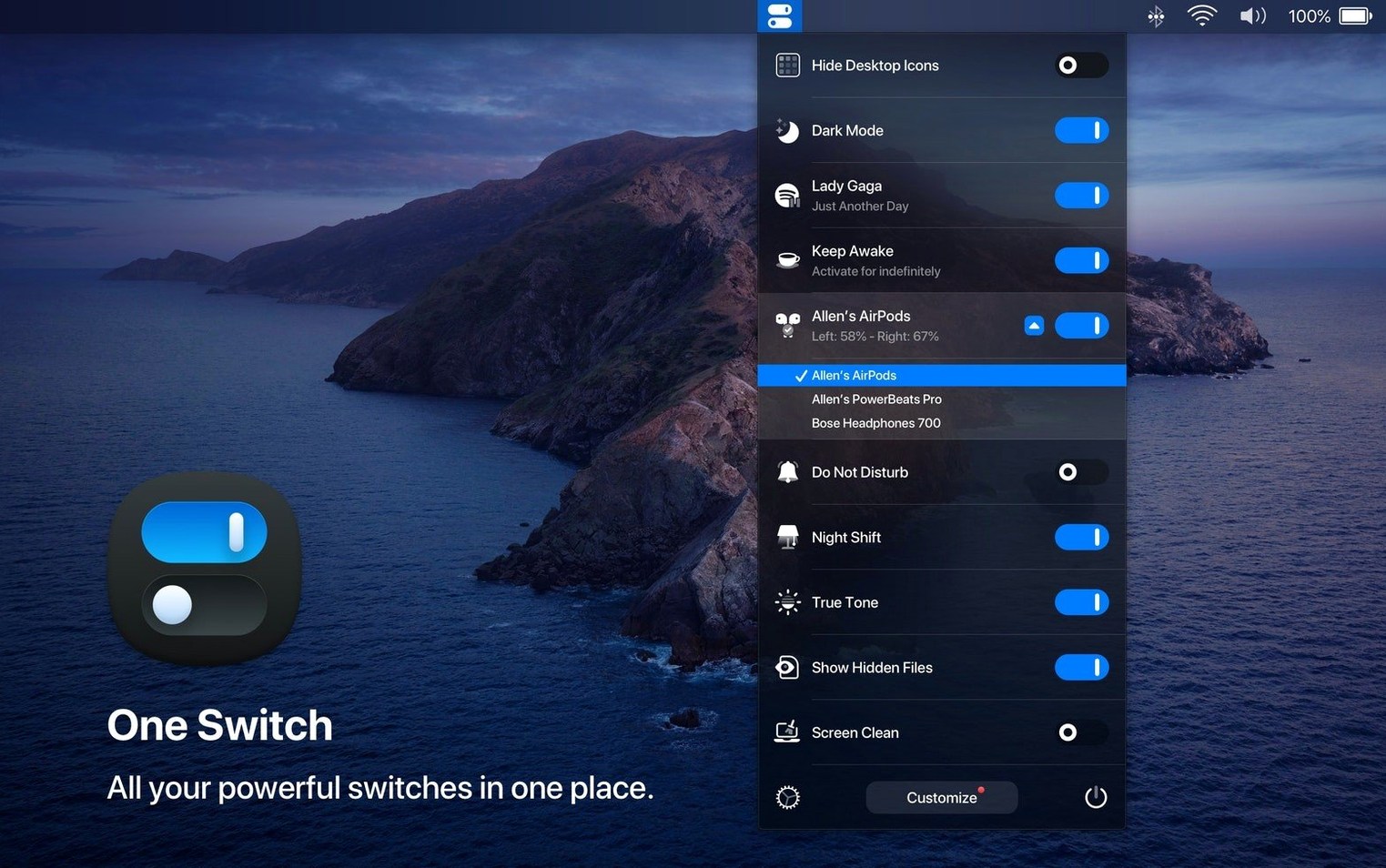
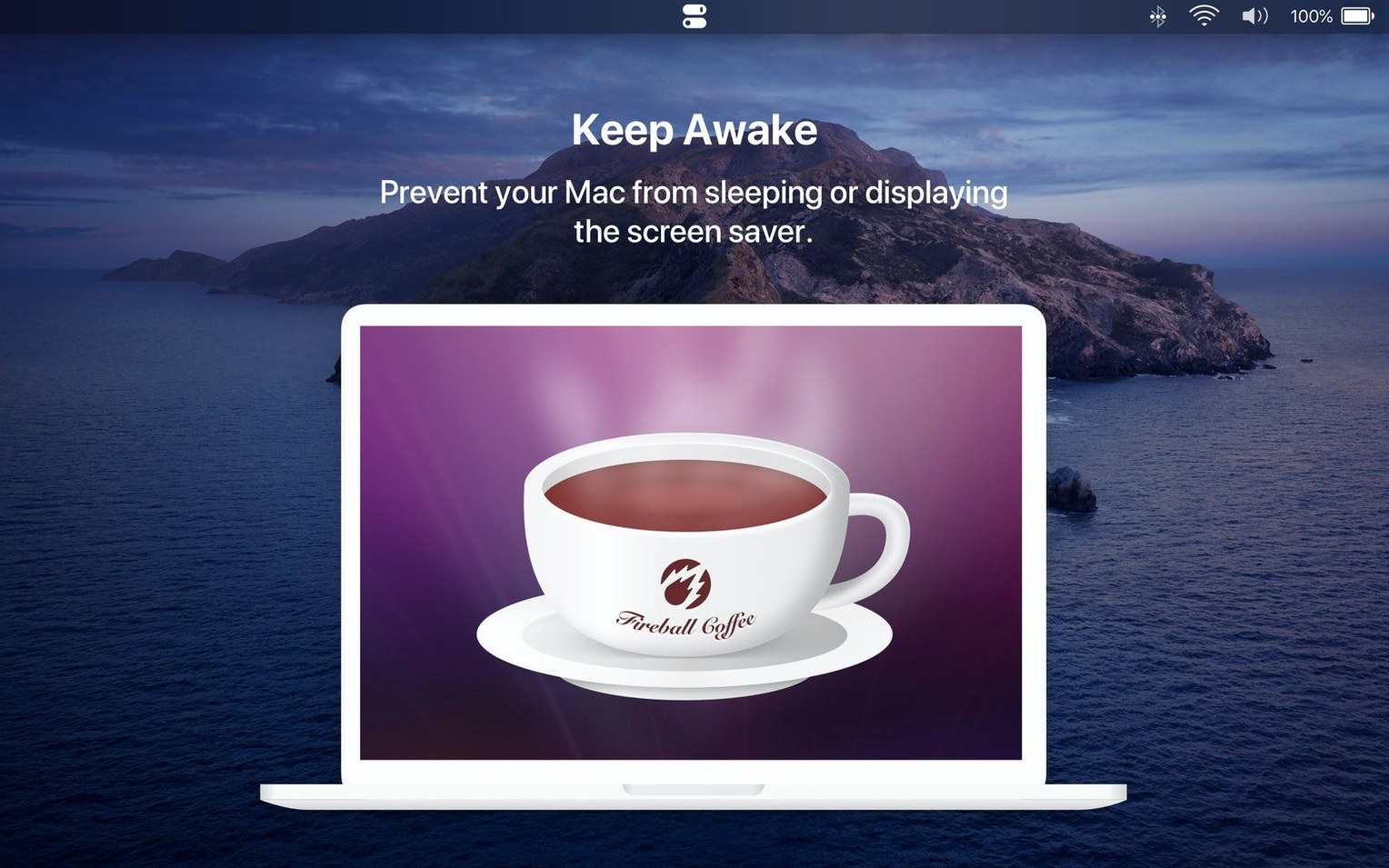
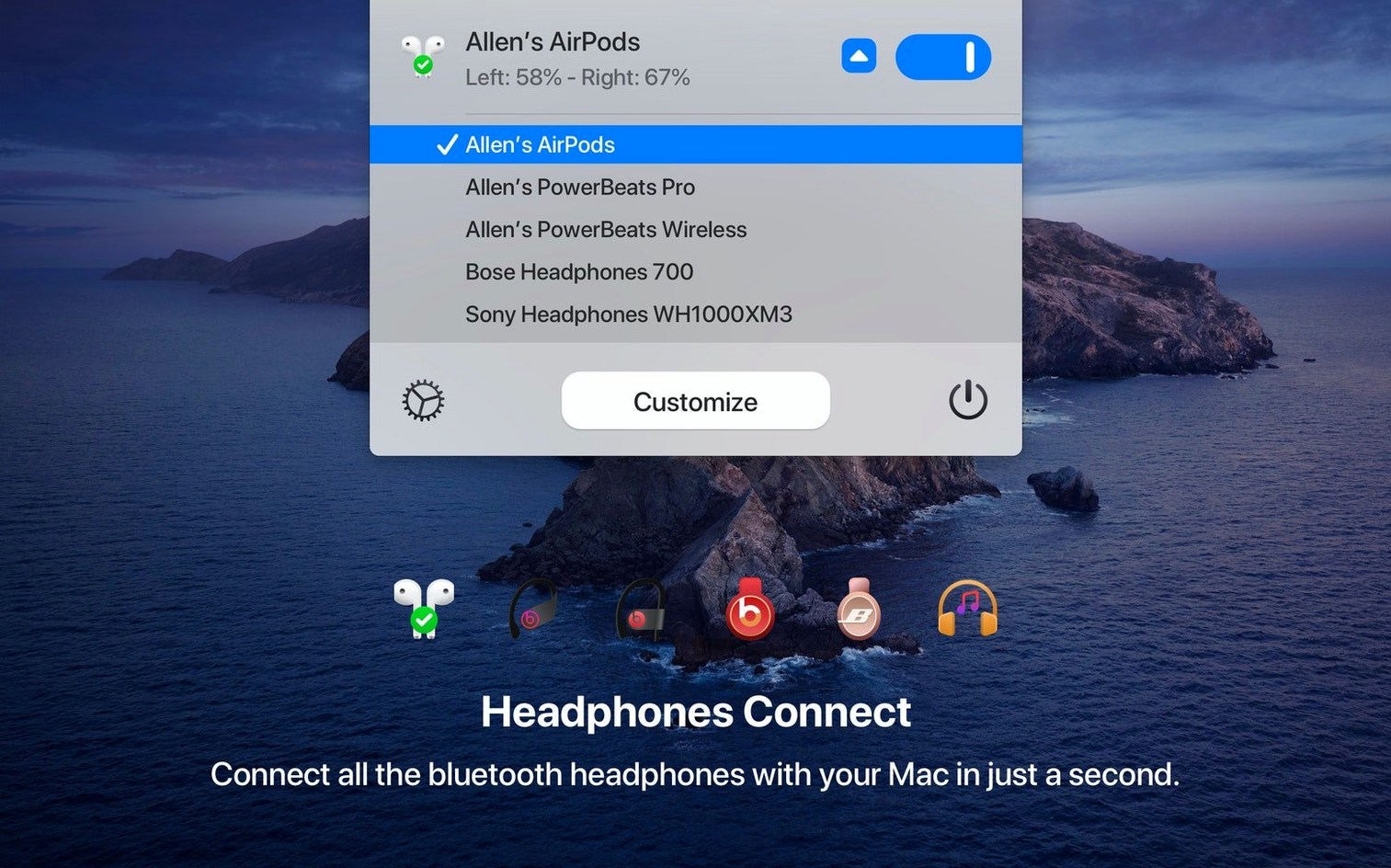
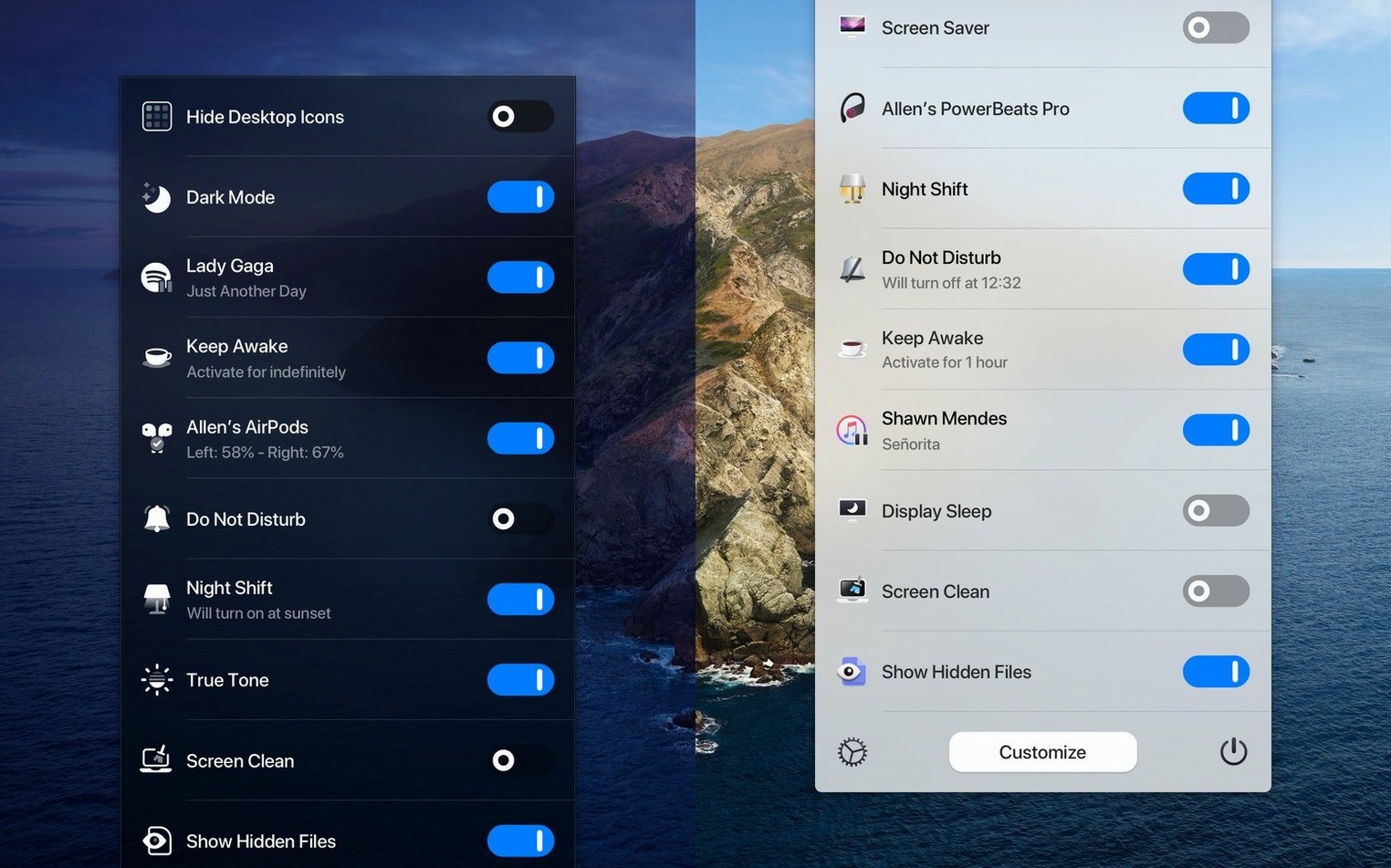
One Switch runs on macOS 10.15 and later, on both Intel and Apple Silicon Macs. It lives in the menu bar and gives you quick access to seven common toggles.
The workflow goes like this: you open the menu bar icon, choose a switch, and it flips straight away. Hide desktop icons, lock the screen, switch between Light and Dark appearance — all from the same menu. You can configure which switches appear in the menu bar and disable the ones you rarely use. The Light/Dark switch can automate based on time of day.
For someone who already keeps a handful of smaller utilities around, One Switch replaces several separate apps with a single menu bar app. It saves clicks and keeps the Dock clear.
Setting up an automatic dark mode
A common scenario: you want the Mac to switch to Dark appearance after sunset and back to Light in the morning, without remembering to open System Preferences each time. One Switch handles this through its menu bar panel.
Open the menu bar icon and look for the appearance switch. You can toggle between Light and Dark manually from there. The more useful option is to turn on the automatic schedule. One Switch then watches the clock and flips appearance at the times you set. You do not need a third-party tool or a script for this anymore.
While you are in the panel, you can also set automatic sleep and wake times from the same interface. That means a morning routine could be: the Mac wakes itself, switches to Light appearance, and you walk in to a ready machine. One Switch replaces the separate scheduling controls you might have used before.
Requests admin rights for system changes
Does it need admin rights to change system settings?
Switches like Dark Mode, desktop icons, sleep and Do Not Disturb all touch system-level preferences. On a standard macOS setup the app requests permission when you first launch it. After that, toggling individual switches does not ask again.
Can I have only the switches I use in the menu bar?
Yes. The app supports seven switches at the same time, but you choose which ones are visible. Disable the toggles you never use and keep the menu bar short. The configuration panel shows every available switch; you check the ones you want.
Does it work alongside other menu bar apps?
One Switch sits in the menu bar like any other utility. It does not interfere with existing apps or modify their behaviour. If you already run something for clipboard history, window management or CPU monitoring, One Switch adds its icon next to them.
It does not run background processes or poll the system constantly. On both Intel and Apple Silicon Macs the impact is negligible — the app is not doing anything until you ask it to.
Installs from a simple disk image
The app downloads as a disk image. Mount it, drag the app into Applications, then launch from Launchpad. That is the entire install process — no installer wizard, no extra services.
One Switch runs on any Mac with macOS 10.15 or later. That covers macOS 10.15 Catalina through to the current version, on both Intel 64-bit and Apple Silicon machines. The interface is in English only.
The app occupies a small footprint on disk and one menu bar icon. It does not add a Dock icon unless you choose to keep it there. The switches it manages — Dark Mode, desktop icons, sleep, screen saver, AirPods connection, Do Not Disturb — all live behind that single icon. You do not end up with seven separate menu bar entries.
Version 1.35.4 adds multilingual support for German, Italian, Japanese, Korean, Portuguese, Russian and Spanish. English remains the default language. The update is a free patch for existing users.
- macOS 10.15 or later
- Intel or Apple Silicon
Questions people ask
Can I control which switches appear in the menu bar?
Yes. You can configure One Switch to show selected switches in the menu bar and disable the ones you rarely use.
Does it support automatic switching between Light and Dark appearance?
Yes, One Switch can automate switching between Light and Dark appearance during the day.
Staffroom comments 0
Sign in or create an account here to leave a comment.
Nobody has commented on this one yet.
Other Utilities tools
All Utilities tools-
 Parallels Desktop
27.0.3
186 MB
Utilities
-
 Nook X
2026.10.24
36 MB
Utilities
-
 Musify
5.3.0Intel Macs only
68 MB
Utilities
-
 PopClip
2026.8.1
7 MB
Utilities
-
 Movavi Video Converter
22.5.0Intel Macs only
79 MB
Utilities
-
 MouseBoost Pro
5.3.0
17 MB
Utilities
-
 Presentify
8.2.1
6 MB
Utilities
-
 Mountain Duck
5.3.2
187 MB
Utilities